Why a 2 MB Upload Limit Rejects a File That Looks Smaller
By the UtilityNest team · · 7 min read
A form says "maximum 2 MB". Your file manager says the photo is 1.94 MB. You upload it and get "File too large". Nothing is broken. The site and your computer are counting megabytes in different ways, and sometimes the site is also counting more than just your file.
Two definitions of a megabyte
There are two common meanings of "MB":
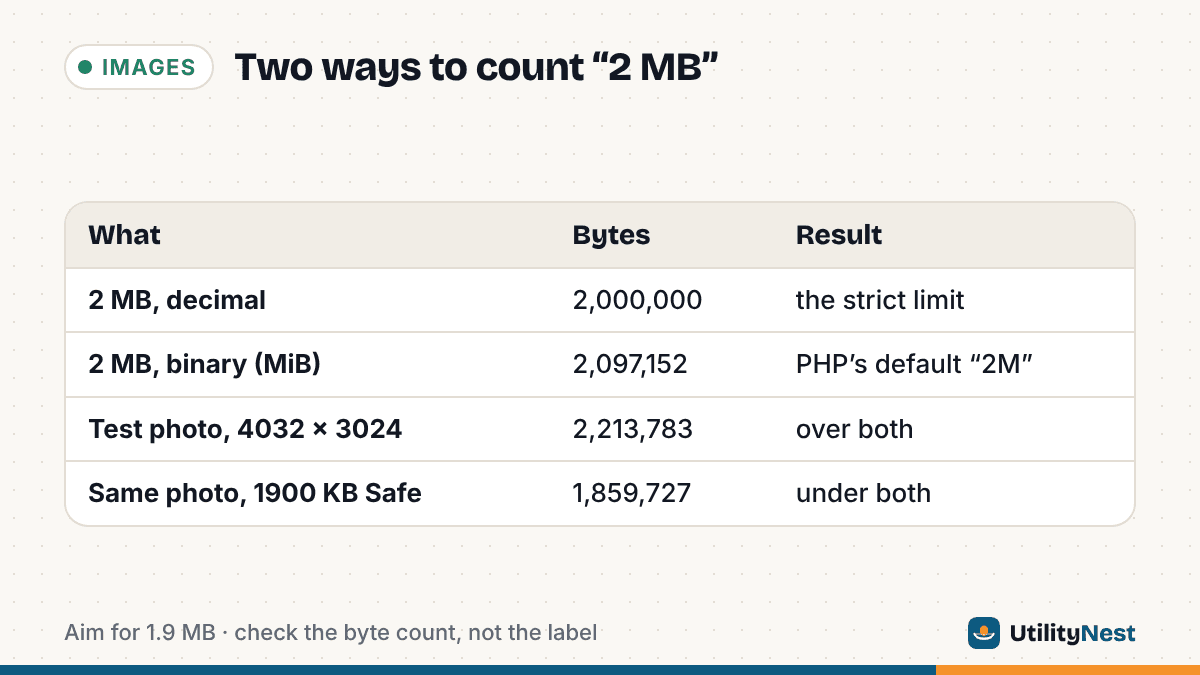
- Decimal: 1 MB = 1,000,000 bytes, so 2 MB = 2,000,000 bytes. This is the SI meaning, and it is what storage makers use.
- Binary: 1 MB = 1,048,576 bytes (1,024 x 1,024), so 2 MB = 2,097,152 bytes. The standard name for this unit is the mebibyte (MiB). The IEC adopted the kibi and mebi prefixes in 1998, but most software still labels the binary unit "MB".
The gap between the two definitions of 2 MB is 97,152 bytes, close to 5%. A file between those two numbers passes one definition and fails the other.
Where each count shows up
| Where you see the number | How it counts | A 2,040,000-byte file shows as |
|---|---|---|
| Windows File Explorer | Binary, labeled KB and MB | about 1.94 MB |
| Finder on current macOS | Decimal | about 2 MB |
| A site's JavaScript size check | Exact bytes, then whatever the developer divides by | 2,040,000, compared with 2,000,000 or 2,097,152 |
PHP's upload_max_filesize = 2M | Binary (2M = 2,097,152) | under the limit |
| A web server's request-size limit | The whole request body, not just the file | depends on the extra form data |
Explorer uses binary units with decimal-style labels on purpose. Microsoft's Raymond Chen has explained that Explorer writes "KB" for 1,024 bytes because that is the term people know. Apple's support page on storage says the binary system was used in OS X Leopard and earlier and in iOS 10 and earlier. Newer Finder versions count in thousands, so the same file can look bigger on a Mac than on a PC.
The row that causes most rejections is the third one. A browser hands the page the file's exact size in bytes (the File.size value). The developer then compares it with a limit they typed in by hand, either 2 * 1000 * 1000 or 2 * 1024 * 1024. The label "2 MB" on the form doesn't tell you which.
The cases that catch people
Windows says 1.94 MB, the site says too large
This is the opening example. The file is 2,040,000 bytes. Explorer divides by 1,048,576 and shows about 1.94 MB, which looks safely under 2. If the site counts 2 MB as 2,000,000 bytes, the file is 40,000 bytes over. Anything Windows shows between about 1.91 MB and 2.00 MB is in this danger zone.
The file is under 2,097,152 bytes, and the upload still fails
Many PHP sites never set an upload limit themselves. PHP's documented default for upload_max_filesize is "2M", and PHP's shorthand counts M as 1,048,576 bytes. That works out to 2,097,152 bytes, the generous reading. But the file isn't the only thing in the upload request.
A form upload is sent as one request body. That body holds your file, a few lines of headers for each part, separator lines, and any other form fields such as your name or a hidden security token. The nginx web server, for example, limits the size of the whole request body with client_max_body_size. When the body is too big, nginx answers with error 413. nginx's own documentation notes that browsers can't display this error correctly. So a server set to exactly 2m can reject a file a few hundred bytes under 2,097,152. What you see might be a blank page, a generic "upload failed", or a spinner that never stops, rather than a clear size message.
The site converts the file before sending it
Some web apps read the file in the browser and send it as base64 text inside a JSON request. Base64 turns every 3 bytes into 4 characters, so the data grows by about a third. If the limit applies to that request, a 2 MB cap can reject files from about 1.5 MB. You can't see this from outside, but it explains rejections that look impossible.
"2 MB total", not per file
Some forms cap the whole submission. Three 900 KB scans pass one at a time and fail together. Read the wording near the upload button. If it says "total" or "combined", add up the sizes.
How to see the exact size in bytes
- Windows: right-click the file, choose Properties, and read the Size line. It shows both forms, for example "2.11 MB (2,213,783 bytes)".
- Mac: select the file and press Command+I. The Get Info window lists the size in bytes next to the rounded figure.
Compare the byte count with 2,000,000. If you're under that, you're under every reading of "2 MB" except the request-overhead case. That case needs some extra margin, which the next section covers.
Getting a file safely under 2 MB
Our advice is to aim for 1,900,000 bytes or less. That clears the decimal limit with about 100 KB to spare, enough for form fields and multipart headers on any reasonable server. If an upload at that size still fails, the problem is probably not the size.
Photos (JPG, PNG, HEIC)
A phone photo usually doesn't need its full pixel size for a form, but you can often keep it. To test, we made a 4032 x 3024 JPEG (the pixel size of a 12-megapixel phone photo) of 2,213,783 bytes. That's 2.11 MB in Windows and over both definitions of 2 MB. We ran it through our Resize Image to KB tool in its default Safe mode, where 1 KB counts as 1,000 bytes:
- Target 2000 KB: 1,965,909 bytes. The full 4032 x 3024 size was kept at 91% JPEG quality.
- Target 1900 KB: 1,859,727 bytes. The full size was kept at 89% quality, so it now fits under 2 MB with room left for request overhead.
In both runs the tool lowered quality a little and left the pixel dimensions alone. Its own note says it only reduces pixel size when an image would otherwise need heavy compression. The result panel prints the exact byte count, so you can check it against the form. The tool saves JPG or WebP. Most upload forms want JPG, and the tool itself warns that WebP isn't accepted by most forms. It also takes iPhone HEIC photos, which many forms reject anyway, and saves them as JPG.
Other routes work too. On a Mac, Preview's File > Export lets you pick JPEG with a Quality slider. Lowering the slider is usually enough for a single photo. If a photo is far over the limit, for example a 6 MB original, reducing the pixel size to around 2000 px on the long side usually gets it under 2 MB with little visible change.
PDFs
Our Compress PDF target tool lets you type 2 MB, or 1.9 MB for a margin. Its Safe setting counts 1 MB as 1,000,000 bytes. It first cleans up the file's structure without loss, then re-compresses images inside the PDF, and leaves real text as text. Turning whole pages into images is a last resort you can switch off. With that switched on, scanned pages stay readable, but text in converted pages can no longer be selected or searched. If a form says "PDF, max 2 MB" and you're only slightly over, the lossless and image steps are usually enough.
When the site lets you choose a format
If the form accepts PNG and JPG, a photo saved as PNG is almost always far bigger than the same photo as JPG. Converting a photo from PNG to JPG often fixes a size error without any visible change. Screenshots of text are the exception, because JPG can blur sharp text edges.
If it still fails under 1.9 MB
The size isn't the problem anymore. Check the allowed formats, since some forms check the file extension and reject .jpeg while accepting .jpg. Check for a minimum pixel size, the limit on the number of files, and whether your session timed out while the form was open. A filename with unusual characters can also trip older upload scripts. Renaming the file to something plain like passport-photo.jpg is a cheap test.
Sources
- NIST: Prefixes for binary multiples
- The Old New Thing (Microsoft): Why does Explorer use the term KB instead of KiB?
- Apple Support: How storage capacity is measured on Apple devices
- MDN: Blob.size
- PHP Manual: upload_max_filesize and post_max_size
- PHP Manual: shorthand byte values (1M = 1,048,576 bytes)
- nginx: client_max_body_size
Checked on October 23, 2026.