Why Does a Transparent PNG Turn Black When Saved as JPG?
By the UtilityNest team · · 6 min read
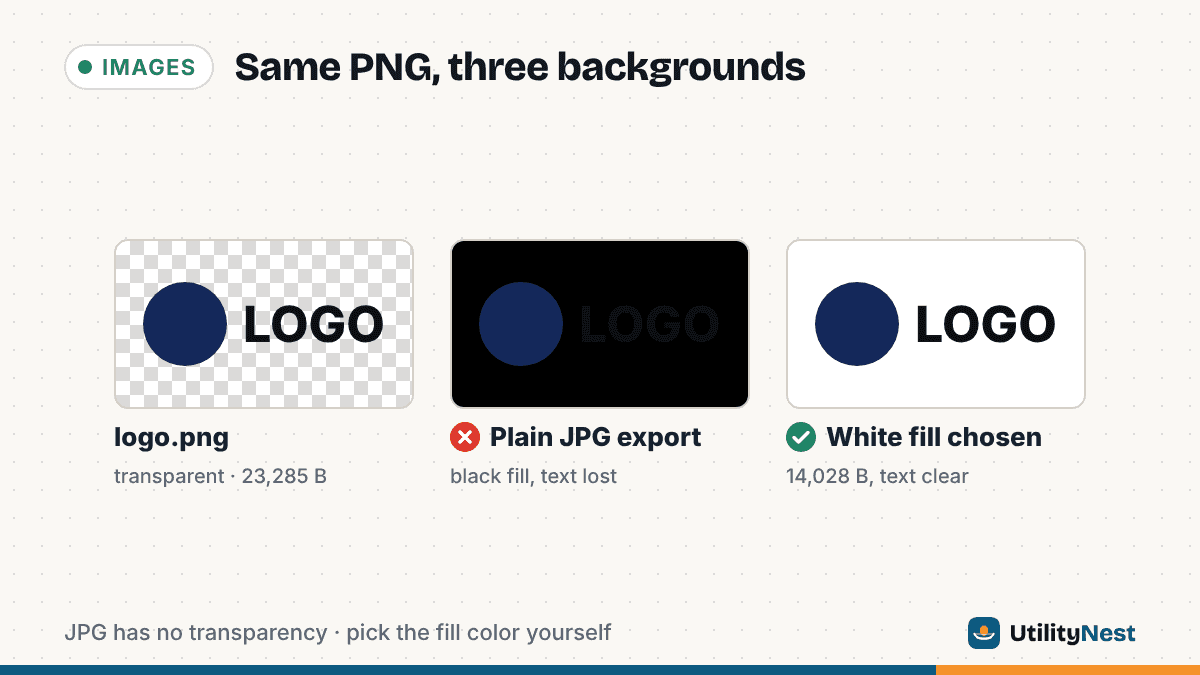
JPG has no transparency. Every pixel in a JPG must have a solid color, so a converter has to decide what goes where the transparent areas were. When it doesn't decide on purpose, the answer is often black. Some converters drop the transparency and show colors that were hidden underneath, and those are usually black. Browser-based converters that don't pick a color get black by rule. The fix is to choose the fill color yourself, or to keep a format that supports transparency.
To see exactly what happens, we made two test files. Both are an 800 x 400 PNG logo: a navy circle and the word "LOGO" in near-black, on a fully transparent background, with soft edges (7,214 partly transparent edge pixels). The second copy is identical when you look at it, but its transparent pixels hide a green color underneath, the way a file can after part of an image is erased in an editor. We then converted both files six ways.
| Converter | Background in the JPG | Dark "LOGO" text |
|---|---|---|
Pillow 12.3 convert("RGB") | Black. The second file turned green. | Nearly invisible on black |
ImageMagick 6.9.12, plain convert logo.png logo.jpg | Black. The second file turned green. | Nearly invisible on black |
| Browser canvas export to JPEG, no fill (Chromium) | Black for both files | Nearly invisible |
ImageMagick with -background white -alpha remove | White | Clear |
| UtilityNest PNG to JPG, default | White for both files | Clear |
| UtilityNest PNG to JPG, Black chosen | Black | Nearly invisible, as asked |
"Nearly invisible" is measured, not a guess. In the black versions, the brightest pixel in the text area was between 19 and 37 on a 0 to 255 scale, against a background of 0. The navy circle stayed visible. The near-black text did not.
Below are the problems people run into, what causes each one, and how to fix it.
The whole background turned black
Cause: a PNG stores four values for each pixel: red, green, blue and alpha (how see-through the pixel is). A fully transparent pixel still has red, green and blue values, and most programs store them as 0, 0, 0, which is black. A converter that simply throws away the alpha value shows those stored colors. Pillow's convert("RGB") and a plain ImageMagick 6 convert both did this in our test.
Browser tools get black differently. The HTML standard says that when a canvas is saved in a format without an alpha channel, such as JPEG, the image is composited onto an opaque black background. A web converter that draws your PNG on a canvas and exports a JPEG without painting a background first gets black every time. In our test it got black even for the file with green hidden underneath.
Fix: tell the converter which color to use for the transparent areas. In ImageMagick that is convert logo.png -background white -alpha remove -alpha off logo.jpg. The ImageMagick documentation says the remove option composites the image over the background color. In Python, paste the image onto a white canvas using its alpha as a mask:
bg = Image.new("RGB", im.size, (255, 255, 255)); bg.paste(im, mask=im.getchannel("A")); bg.save("out.jpg", quality=90)
In a browser, our PNG to JPG converter has a "Fill transparent areas with" setting: White (the default), Black, or Custom, which opens a color picker. When it fills anything, the result shows a note such as "Transparent areas filled with white", so you know it happened.
A dark logo or text disappeared
Cause: this is the same black background, with a dark design on top. Logos, signatures and icons are often black or dark gray on a transparent background, so they vanish when the background turns black.
Fix: convert again with a white or light fill. If you only have the black JPG, it can't be repaired, because the shape of the transparent area is gone. Go back to the PNG.
Strange colors or streaks appeared around the image
Cause: the hidden colors weren't black. Our second test file had green under its transparent pixels. Pillow and plain ImageMagick both revealed it as a green background with a gradient. A real file can hide leftovers of an erased background, a solid color the designer used, or noise from whatever made the PNG. You never see these colors in the PNG, because they're fully transparent.
Fix: the same as above. Compositing onto a chosen color replaces the hidden values completely. Our fix with a white fill turned every background pixel of the green file pure white.
A white edge shows when the JPG sits on a dark page
Cause: good PNG logos have soft, partly transparent edges. Our test logo has more than 7,000 of these pixels. A converter set to white blends those edge pixels with white. On a white page that looks perfect. On a dark navy header, a thin light outline appears around the logo.
The math shows why. A fill blends each edge pixel with the background color in proportion to its transparency. A black edge pixel that is 50% transparent becomes mid gray (about 128, 128, 128) on a white fill. On a dark navy fill such as 11, 31, 58, it becomes a dark blue-black (about 6, 16, 29) that blends into the header. The same pixel, two very different results, and the JPG keeps whichever one you chose forever.
Fix: fill with the color of the place the image will appear, not just white. Use the Custom color in our converter, or -background "#0b1f3a" in ImageMagick, with the hex code of your page or slide background. If the image must work on several backgrounds, keep it as a PNG.
You need the transparency kept
Cause: nothing is broken. JPG simply can't keep it. MDN's guide to image formats says plainly that JPEG has no alpha channel.
Fix: don't convert to JPG. Keep the PNG, or use WebP, which supports transparency and is accepted by current browsers. For a logo, the PNG is often not much bigger anyway. Our 800 x 400 test logo was 23,285 bytes as a PNG and 14,028 bytes as a 90%-quality JPG. Converting to JPG makes more sense for photos than for flat graphics. If a form or a print service insists on JPG, use a fill color that matches the paper or the page.
You have a folder of PNGs, not one
Cause: converting files one at a time is where mistakes creep in. One file gets white and the next gets black because a setting was left on from the last job.
Fix: convert them in one batch with one fill setting. Our PNG to JPG converter takes several files at once, applies the same quality and fill color to all of them, and offers a single ZIP download. On the command line, ImageMagick's mogrify -format jpg -background white -alpha remove -alpha off *.png writes a JPG next to each PNG. Try it on copies first, and check one result before you delete any originals.
It looks transparent in the preview but black after upload
Cause: the conversion happened on the website, not on your computer. Some sites convert every upload to JPG on their server to save space. If the site doesn't fill transparent areas with a color, you get black, the same as in the table.
Fix: convert the file yourself before you upload it, with the fill color you want, and upload the JPG. The site then has nothing to flatten.
A quick way to check before you send it
Open the converted JPG in an image viewer and look at it against both a light and a dark background (most viewers have a dark mode). Zoom in on the edges of any logo or text. If the background is the color you chose and the edges look clean on the background you'll actually use, the conversion is done. If you see black, green, or a light outline, go back to the PNG and convert again with the right fill color.
Sources
- HTML Standard: a serialization of the bitmap as a file (opaque black for formats without alpha)
- MDN: Image file type and format guide (JPEG has no alpha channel; PNG and WebP support transparency)
- ImageMagick: -alpha options ("remove" composites over the background color)
Checked on October 24, 2026. Tested with Pillow 12.3.0, ImageMagick 6.9.12-98 and Chromium.