Does PDF Compression Make Text Blurry?
By the UtilityNest team · · 7 min read
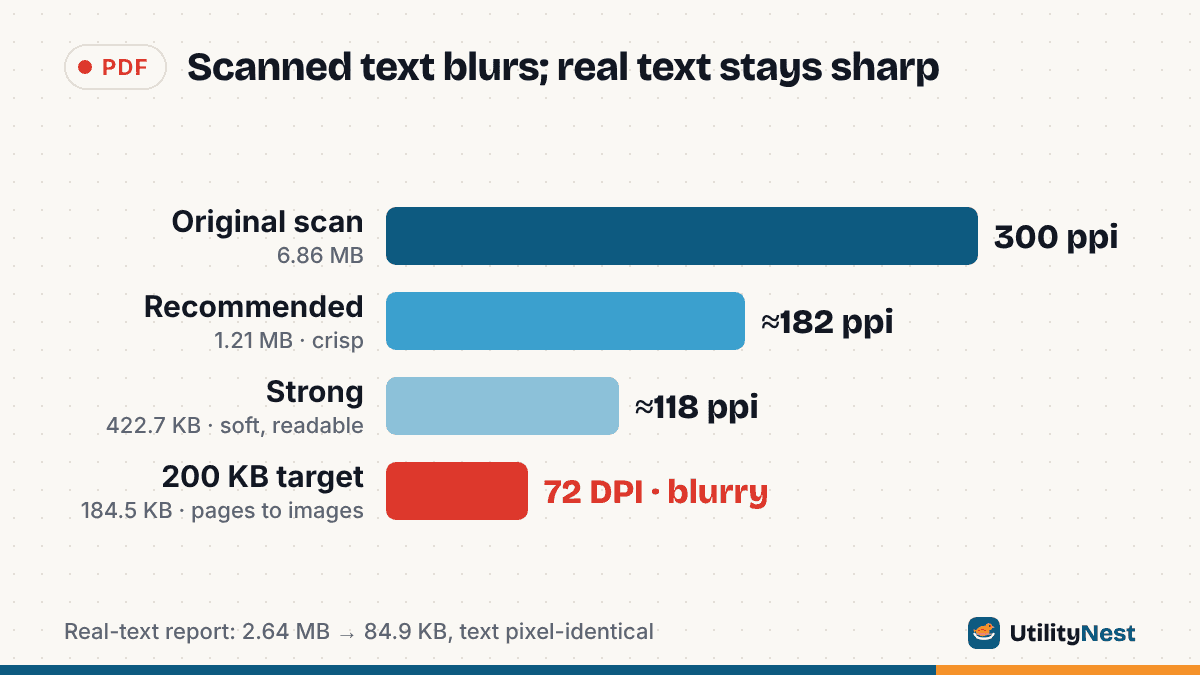
Usually not. Typical PDF compression shrinks the photos inside a file and tidies its internal structure, and neither of those touches real text. Text gets blurry in two situations: when the page was a picture of text to begin with (a scan or a phone photo), or when the compressor turns whole pages into images at a low resolution. Knowing which kind of PDF you have tells you whether to worry.
We made three test files and ran them through our own compressors in Chromium:
- report.pdf: three pages of real text (with a 7 pt footnote) plus one 3000 x 2000 px photo. 2.64 MB.
- scan.pdf: the same pages as 300 dpi grayscale images with a slight tilt and paper grain, like a scanner makes. No text layer. 6.86 MB.
- drawing.pdf: one page with 40,000 vector circles (like a survey plot) plus real text. 3.35 MB.
For every output we extracted the text with pdftotext and rendered the same footnote at 200 dpi next to the original.
| File and setting | Size | What the tool did | Small print |
|---|---|---|---|
| report.pdf, Compress PDF, Recommended | 2.64 MB to 323.8 KB | Photo re-compressed (now 2000 px wide) | Identical, still searchable |
| report.pdf, target 100 KB | 2.64 MB to 84.9 KB | Photo at 50% quality, 850 px | Identical, still searchable |
| scan.pdf, Compress PDF, Recommended | 6.86 MB to 1.21 MB | Page images cut to about 182 pixels per inch | Slightly softer, easy to read |
| scan.pdf, Compress PDF, Strong | 6.86 MB to 422.7 KB | Page images at about 118 ppi | Visibly soft, readable |
| scan.pdf, target 200 KB | 6.86 MB to 184.5 KB | Pages turned into images at 72 DPI | Blurry, footnote hard to read |
| drawing.pdf, target 1 MB | 3.35 MB to 947.5 KB | Pages turned into images at 200 DPI | Sharp at normal zoom, no longer searchable |
| drawing.pdf, target 200 KB | 3.35 MB to 166.4 KB | Pages turned into images at 72 DPI | Blurry, no longer searchable |
A much smaller file can have identical text
The biggest drop in the whole test, 2.64 MB down to 84.9 KB (97% smaller), left the text of report.pdf exactly as it was. Rendered at 200 dpi, the 7 pt footnote in the output matched the original pixel for pixel (an ImageMagick compare found 0 differing pixels), and pdftotext pulled out the same 5,433 characters from both files.
Real text in a PDF is not stored as pixels. The page holds character codes, a font and positions, and your viewer draws the letters fresh at any zoom, so there is nothing to blur. Almost all of the file size was the photo, and that is what shrank: from 3000 px wide to 850 px at 50% JPEG quality. The photo got softer. The text did not.
Text-only PDFs barely compress, and that is normal
A copy of the report with no photo was 44.7 KB, and Compress PDF only took it to 41.5 KB (7.1% smaller). That is not a failure: fonts and text are already compact. Our Compress PDF tool re-encodes large photos, deflates streams that were stored uncompressed, merges duplicate fonts or images, and drops unused objects. It never turns text or drawings into images, so on a file with nothing but text you get a small structural saving and no visual change at all.
Scanned text can blur, because it was always a photo
A scan looks like a document, but each page is one big image. Adobe's own help page puts it plainly: a scanned PDF "contains only image data, not searchable text." Shrinking that image is exactly the same operation as shrinking a photo, so the letters lose detail as pixels are removed.
How much depends on the resolution left over. In our test the original scan was 300 pixels per inch. Recommended brought it to about 182 ppi and the footnote stayed crisp at normal zoom. Strong went to about 118 ppi, still readable but noticeably fuzzy once you zoom in. At 72 ppi the 7 pt footnote turned into gray smudges where "0", "8" and "3" were hard to tell apart. The 10.5 pt body text held up much better, so check the smallest print.
Our size-target tools treat scans with care for this reason: when a PDF has almost no real text, the image step will not shrink page images below roughly 72 pixels per inch of page size. If that still is not small enough, the file has to be rasterized, which leads to the next point.
The blur comes from one method: turning pages into images
Some compressors, especially ones that promise a fixed size, render every page to a JPEG and build a new PDF from those pictures. This is rasterizing. It works on any file, but it turns sharp text into pixels at whatever resolution the compressor picks.
drawing.pdf shows when this is the only option. Its 40,000 shapes are drawing instructions, not images, so Compress PDF saved only 0.1%. To reach 1 MB, our Compress PDF to 1MB tool rendered the page at 200 DPI. The text looked fine at normal zoom and only softened when we zoomed in hard, but pdftotext went from 174 characters to zero: the words were no longer text. At a 200 KB target it dropped to 72 DPI and the footnote blurred badly.
Our target tools try rasterizing last, after the lossless cleanup and the photo re-compression have failed, and they say so in the result ("Pages turned into images at 200 DPI ... Text can't be selected or searched any more"). If you need searchable text, switch off "Allow turning pages into images if needed". The tool then keeps the text real, and if the target cannot be reached that way, it says so and offers the smallest version it could make.
"Screen" or "72 dpi" presets often mean images, not text
Low-quality presets often apply only to embedded pictures. Ghostscript's documentation says the /screen preset sets color and grayscale images to 72 dpi and /ebook to 150 dpi, while its PDF writer "goes to considerable lengths to preserve fonts from the input as fonts in the output." So a real-text PDF run through /screen keeps sharp text with blurrier photos. A scanned PDF run through it gets blurrier text, because the text is a picture.
Font subsetting does not lower quality
Subsetting keeps only the characters a document uses from each font, so the font shrinks without changing how any letter looks. A subset font carries a prefix such as "ABCDE+" before its name (Ghostscript's documentation shows this form, and subsets fonts by default); our report's font showed up as "AAAAAA+DejaVuSans". Unembedding a font is different: the viewer substitutes its own font, which can change spacing, but the letters are still drawn sharp.
How to tell whether your PDF's text is real
- Try to select a word with your cursor. If a highlight snaps to individual words, the text is real. If you drag a box or nothing selects, the page is an image.
- Press Ctrl+F (Command+F on a Mac) and search for a word you can see on the page. No match on a visible word means there is no text layer.
- Zoom to 400%. Real text stays smooth at any zoom; image text turns soft or blocky.
If the text is not real and you need it to be, run OCR before you compress. In Acrobat that is All tools > Scan & OCR, which Adobe says creates "a searchable text layer." OCR adds searchable text but does not sharpen the image underneath, so compress gently afterward.
Before sending a compressed PDF, check three things: search for a number from the document, zoom the smallest print to 300% or more, and compare the same spot in the original. Pay attention to look-alike characters such as 0 and O, 1, l and I, and 8 and 3. Our size-target tools have a Compressed / Original preview switch for exactly this check.
Which compression keeps text sharp
Structure cleanup, photo re-compression and font subsetting leave real text exactly as it was, at any setting. Rasterizing pages ends searchable text and blurs it at low DPI. For scans, every lossy level costs some sharpness; we suggest keeping pages with small print at 150 ppi or more, and splitting the file or removing pages rather than going lower.
Sources
- Ghostscript documentation: High Level Output Devices (PDFSETTINGS presets, SubsetFonts)
- Adobe Acrobat Help: Recognize text in scanned documents
Checked on October 24, 2026. Tested with UtilityNest's Compress PDF and Compress PDF to 1MB/200KB/100KB tools in Chromium, pdftotext (Poppler 24.02) for text extraction and pdftoppm at 200 dpi for the side-by-side renders.