How to Shrink an Image to 20 KB and Keep the Text Readable
By the UtilityNest team · · 7 min read
Exam and job portals often ask for a signature "between 10 KB and 20 KB" or a document scan in a similarly tight range, and some warn that an unclear or smudged upload can get the application rejected. Hitting the byte count is easy. Keeping a registration number readable is the hard part, because many target-size tools (ours included, in its automatic mode) protect picture quality by shrinking the pixel size, and small text is the first thing to disappear when pixels go.
The numbers below come from three test files made for this guide: a 4032 x 3024 phone photo of a printed certificate (2.1 MB), a 1920 x 1080 screenshot of a payment receipt with 13 to 15 pixel text (49 KB PNG), and a signature photographed on off-white paper (1600 x 700, 164 KB). The steps below are the order that kept the text legible at 20 KB.
What different choices gave at 20 KB
| File and method | Result | Text at actual size |
|---|---|---|
| Certificate photo, whole frame, quality only (full 4032 x 3024) | 211,489 bytes even at JPG quality 1 | Cannot reach 20 KB |
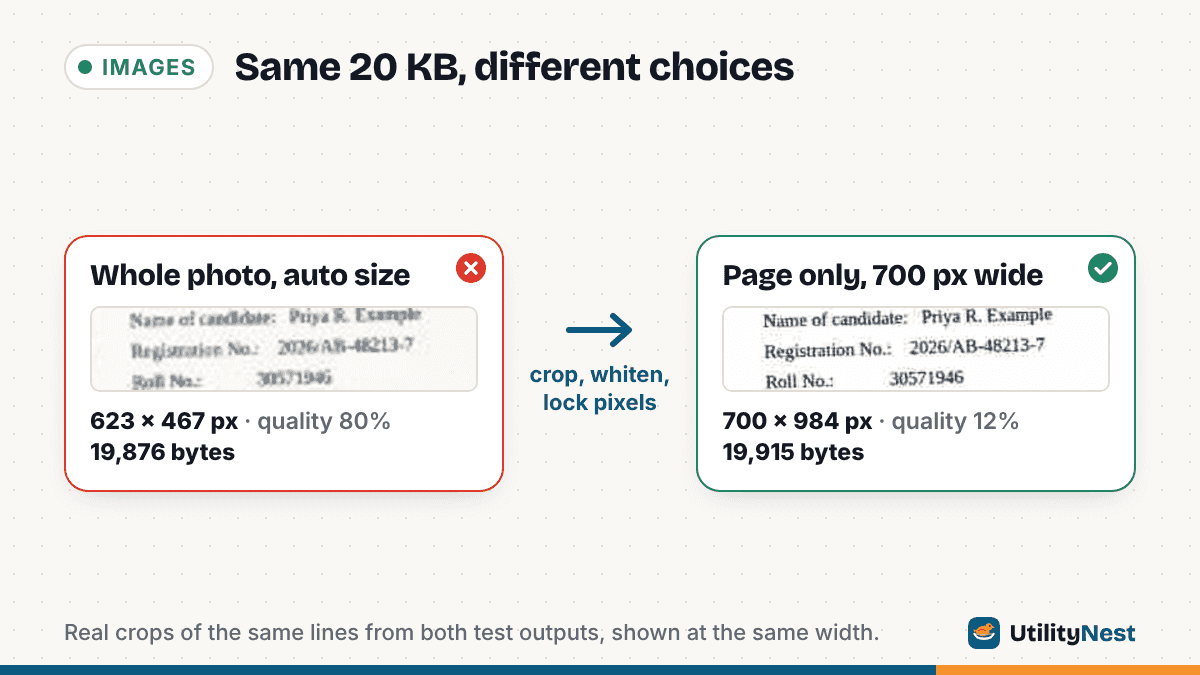
| Certificate photo, whole frame, our tool's automatic mode | 623 x 467 px, quality 80%, 19,876 bytes | Body text about 7 px high: unreadable |
| Certificate cropped to the page, paper whitened, fixed at 700 x 984 px | Quality 12%, 19,915 bytes | 12 pt lines readable; 8 pt footer marginal |
| Same page as a 2-color PNG, 1400 x 1967 px | 18,612 bytes | Everything sharp, including the footer |
| Receipt screenshot, whole, automatic mode | 1009 x 567 px, quality 63%, 19,892 bytes | Small print about half size: hard to read |
| Receipt panel cropped, kept at full 1200 x 880 px | JPG quality 16%, 19,652 bytes | Sharp, faint halos |
| Same panel as a 128-color PNG | 16,769 bytes | Pixel-perfect |
JPG rows except the first, and the 128-color PNG, came from our tools in Chromium. Cropping, whitening, the quality-1 test and the 2-color PNG were done with the Pillow imaging library, because our tools do not offer those settings.
Step 1: Read what the form accepts
Before touching the image, note three things: the file type, the size range, and any pixel dimensions. As one example, a Reserve Bank of India recruitment notice (its PY 2024 exam appendix) asks for a signature of 140 x 60 pixels (preferred), 10 KB to 20 KB, in JPG or JPEG, signed in black ink on white paper, and says an unclear or smudged signature may lead to rejection. So PNG is out, a minimum exists, and someone will look closely. If a form does accept PNG, keep step 6 in mind.
Step 2: Crop to what must be read
Every pixel of desk, shadow and margin costs bytes. Cropping our certificate photo to the page edges removed about half the frame. For a receipt screenshot, crop to the panel with the reference numbers, not the whole browser window.
Step 3: Make the paper white
A phone photo of white paper is really a field of beige and gray with sensor noise in it. Raise brightness and contrast until the paper is plain white and the ink is close to black. This is about legibility, not size: in our test the whitened page was about the same size as the original crop at a given JPG quality, but the text held up far better at low quality, and it is what makes the 2-color PNG in step 6 possible.
Converting to black and white is not a size trick in the browser. In Chromium, the receipt panel saved at quality 50% was 14,446 bytes in color and 14,261 bytes in grayscale, about 1% apart. The JPGs Chromium wrote were color files either way, so convert for contrast, not for kilobytes.
Step 4: Choose the pixel size from the text, not from the KB
This is the step the generic advice skips. Decide how many pixels the smallest important text needs, then let the quality fall to whatever fits.
- Printed page: at 700 pixels across an A4 page, our 12-point lines were readable and the 8-point footer was borderline ("2M9" started to look like "2MS"). At 377 pixels across, the size our tool picked on its own, the body text was a gray smear.
- Screenshot: keep it at 100%. Screen text is drawn for exactly one pixel size, and scaling a 13 px line down to 7 px makes it unreadable at actual size.
- Signature: use the dimensions the form names. If it names none, a tight crop around 600 to 800 pixels wide is plenty.
Step 5: Compress to the limit with the size locked
In our Compress Image to 20KB tool, the default "Safe" setting keeps the file at or under 20,000 bytes, so it passes whether the site counts 1 KB as 1,000 or 1,024 bytes. Two modes behave very differently with text:
- Automatic (no dimensions set): the tool keeps the quality at 50% or higher and shrinks the pixel size until the file fits. That suits portraits, and it is why our certificate came out at 623 x 467 pixels at quality 80%.
- Set exact pixel dimensions: turn this on, enter the width and height from step 4, and the tool keeps those pixels and lowers the quality as far as needed (down to 2%). Our cleaned page at 700 x 984 landed at quality 12% and 19,915 bytes; the receipt panel at its full 1200 x 880 landed at quality 16% and 19,652 bytes, still sharp at actual size.
Low quality numbers look alarming, but on a white page they mostly cost faint ringing around letters. Pushing further is not free: at 900 x 1264 the same page needed quality 5% and came out blockier without being easier to read. If the quality drops into single digits, go back to step 2 and crop tighter instead.
The JPGs Chromium produced store color at half resolution (2x2 chroma sampling), so blue links or red stamps blur sooner than black text.
Step 6: Use a few-color PNG if the form allows it
Text on a plain background has very few real colors, which suits PNG with a reduced palette. Our Compress Image tool on Smallest file keeps PNGs at up to 128 colors and does not change the pixel size: the cropped receipt panel went from 40.5 KB to 16,769 bytes at full resolution, with no visible change. The whole uncropped screenshot came out at 24,820 bytes, which shows why the crop comes first.
For a scanned page, two colors (pure black and white) go further. Our cleaned certificate as a 2-color PNG was 18,612 bytes at 1400 pixels wide, twice the width of the best JPG, and the 8-point footer was crisp. Our tools do not make 2-color PNGs, so this needs an image editor that can save PNG with a black-and-white palette.
Step 7: Signatures that are too small for the minimum
Signatures have the opposite problem. Our cleaned signature at 140 x 60 pixels was only 3,794 bytes at quality 95%, well under a 10 KB minimum, and raising the quality cannot add enough. In the tool, enter 10 in Minimum size (optional) and leave Pad small files up to the minimum on. In our test the output became 10,496 bytes at quality 100%, and the tool showed a note that empty space was added to the file's comment field with the image itself unchanged. If you would rather not rely on padding, set larger pixel dimensions instead, if the form allows them.
Without cropping, the same signature photo still did not fit in 20 KB at full size even at JPG quality 1 in Pillow (20,305 bytes, with smeared strokes on gray paper). Cropped and whitened, the same signature fit in automatic mode at 969 x 272 pixels and quality 71%, with clean stroke edges.
Step 8: Check it at 100% zoom
Open the final file at actual size, not zoomed to fit, and read every number on it: registration number, date, reference code. Characters such as 9 and S, or 0 and O, are the first to merge. If you have to guess even one character, a reviewer will too.
Then confirm the byte count in your file manager's Size field (not Size on disk) and upload.
Sources
Checked on October 24, 2026. Tool tests run in Chromium 141; comparison files made with Pillow 12.3.