How to Sign a PDF Without Printing and Scanning It
By the UtilityNest team · · 7 min read
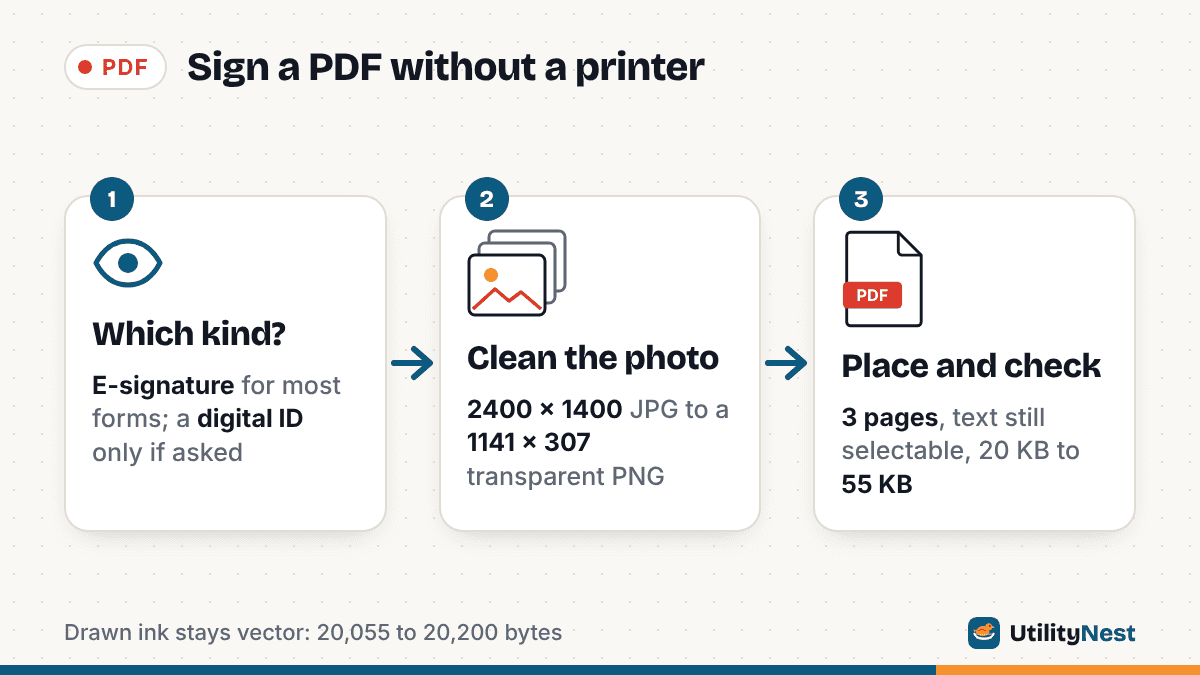
You do not need a printer to sign a PDF. You need to know which of two very different things the sender wants. Most forms (a lease, a school permission slip, a freelance contract) want an electronic signature: a drawn, typed or photographed signature placed on the page. A few want a certificate-based digital signature, which is cryptography attached to the file, not a picture. Get that right first.
We tested the steps on a 3-page sample lease made in Chromium (20,055 bytes, 696 words of selectable text), signature line on page 3.
Step 1: Check which kind of signature the form needs
A plain line or a box that says "Sign here" takes an electronic signature. Wording like "digitally sign," "digital ID," "certificate," or a signature field that opens a certificate prompt in Acrobat means the sender wants a certificate-based signature.
| Electronic signature (draw, type, image) | Certificate-based digital signature | |
|---|---|---|
| What it is | A mark on the page that shows you intended to sign | An encrypted signature made with a digital ID (a private key plus a certificate) |
| What it proves | Intent, plus whatever the email trail or platform records | Who signed, and whether the file changed after signing |
| What you need | Any PDF app or browser tool | A digital ID: self-created, or issued by a trusted provider or employer |
| Typical use | Leases, HR forms, permission slips, most contracts | Government, legal and regulated workflows that ask for it by name |
Adobe's help describes a digital signature as one that "uniquely identifies the signer and uses encryption to safeguard the document," and says it requires a digital ID containing "a private key for signing and a certificate for verifying the signature." Its e-signature help, by contrast, describes the familiar options: type, draw, or insert an image of your handwritten signature.
In the US, the federal ESIGN Act says a signature or contract may not be denied legal effect solely because it is in electronic form. It defines an electronic signature broadly, as a sound, symbol or process attached to a record and adopted with the intent to sign it. That covers a drawn or pasted signature. It does not override a recipient who asks for a wet signature or a digital ID. If you are unsure, ask the sender.
Step 2: Pick draw, type or photo
Drawing with a mouse is quick but often looks shaky; a finger or stylus does better. Typing your name in a handwriting font is clean but looks less like your hand. A photo of your signature on paper looks most natural, if it is cleaned up properly.
Step 3: Turn a photo of your paper signature into a clean image
For your real ink, sign a sheet of blank white paper with a dark pen, a little larger than usual. Photograph it straight on in even light, with no shadow from your phone across the ink. Lined paper and colored paper make cleanup harder, because the lines are dark enough to survive as part of the "ink."
You want a transparent image: only the ink, with no gray paper rectangle that sits on the form like a sticker.
Our Sign PDF tool does this in its Upload tab. It estimates the paper tone from the brightest part of the photo, makes that tone transparent, and trims the image to the ink. You can turn Remove background off, adjust Cleanup strength (0 to 60, default 18), and recolor the ink to Black or Blue or keep the Original color. Photos larger than 1,600 pixels on the long side are scaled down first.
In our test: a 2400 x 1400 JPG (247,892 bytes) of dark ink on unevenly lit, grayish paper, with a faint printed line under the signature. At the default strength, the tool produced a 1141 x 307 transparent PNG of 60,808 bytes. About 95% of its pixels were fully transparent, and the faint printed line was gone. A darker ruled line may need a higher strength, which also thins light strokes.
Step 4: Place the signature on the right page
- Open Sign PDF and drop in your file. The file is opened in your browser tab; it is not uploaded.
- Go to the page with the signature line using the page thumbnails or the arrows.
- Click Signature, choose Draw, Type or Upload, then click Use this signature. It appears in the middle of the page you are viewing, sized to fit a box about 160 x 56 points.
- Drag it so it sits on the line, and use the corner handles to resize it. Use Initials and Date for the other boxes; the date menu offers today's date in several formats. For initials on every page, select them and use Copy to pages.
- Click Finish and download, then Download signed PDF. The file is named after the original with
-signedadded, for examplelease-sample-signed.pdf.
There is a Remember on this device checkbox. It keeps your signature in that browser's local storage so you can reuse it. Leave it unchecked on a shared or work computer.
Step 5: Check the signed file before you send it
Open the downloaded PDF in a different app from the one you signed in, and check three things: the page count, that the signature sits on the right line, and that you can still select and search the text. Some apps save every page as a picture, which bloats the file and kills search.
Our tool keeps the original pages as they are and draws the signature on top. In our test, all three signed copies kept 3 pages, and pdftotext output was identical to the original's, word for word. The signature landed at the spot we dragged it to, on the tenant line of page 3.
File sizes depended on the signature type. The drawn signature is stored as vector ink, so the file grew from 20,055 to 20,200 bytes and contains no images. The typed signature is saved as a transparent image (756 x 142 pixels), which brought the file to 42,148 bytes. The uploaded photo signature added a 1141 x 307 image, for 55,433 bytes.
Step 6: Know what a pasted signature does not protect
An electronic signature on the page is easy to copy. Anyone who receives the file can lift it out. When we ran pdfimages on our photo-signed copy, one command pulled the signature out as two PNG files: the 1141 x 307 ink image and its transparency mask. A drawn vector signature is not extracted that way, but it can still be copied with a PDF editor. A scanned paper signature has the same problem, so send signed files only to the people who need them.
Flattening is a related word you will see. Some apps add a signature as an annotation, a layer on top of the page that the next person's PDF editor can select, move or delete. Flattening merges it into the page itself. Our tool already writes the signature into the page content: our signed files had no annotations at all. Flattening makes a signature harder to move by accident. It does not stop anyone from copying it or from editing the page afterward.
If you need proof that nobody changed the document after you signed, that is the job of a certificate-based digital signature from Step 1, not of an image. One more catch runs the other way: if the PDF you received already carries a digital signature, adding anything to it, including your electronic signature, makes that existing signature show as invalid or modified in PDF readers. Our tool shows a warning when it detects one. In that case, ask the sender for an unsigned copy or how they want you to sign.
Other ways to sign without printing
- Preview on a Mac: show the Markup toolbar, click Sign, and create a signature with the Trackpad, the Camera (hold your signature on white paper up to the camera), or a nearby iPhone or iPad. Click the signature to add it, then drag and resize it.
- Adobe Acrobat: its e-signature tools let you type, draw or insert an image of your signature and add your name or date. For a certificate-based signature, Acrobat uses a digital ID stored in a file, on a smart card or token, or in the Windows certificate store.
Sources
- Adobe Acrobat Help: Digital signatures overview
- Adobe Acrobat Help: E-signatures overview
- Apple Preview User Guide: Fill out and sign PDF forms in Preview on Mac
- 15 U.S.C. § 7001, General rule of validity (ESIGN Act), via Cornell LII
- 15 U.S.C. § 7006, Definitions, via Cornell LII
Checked on October 24, 2026. Tested with UtilityNest Sign PDF in Chromium 141, with pdftotext and pdfimages (Poppler) for the checks.