iPhone MOV Won't Play or Upload? When MP4 Alone Fixes It
By the UtilityNest team · · 7 min read
A .MOV file from an iPhone is two things at once: a QuickTime container (the wrapper with the .mov name) and, inside it, video compressed with a codec. On iPhones set to High Efficiency, that codec is HEVC, also called H.265. When a .MOV won't play or won't upload, one of those layers is being rejected. Changing only the container (a remux) takes seconds and keeps every frame. Changing the codec (a re-encode) takes minutes and builds a new, usually larger file.
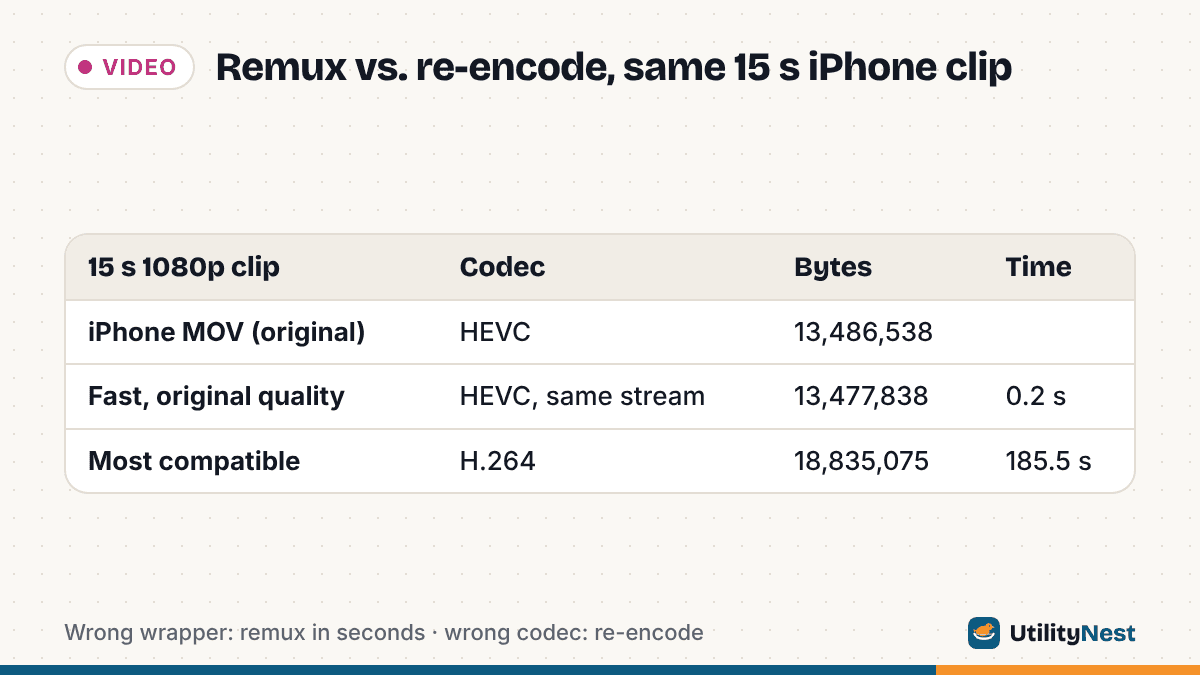
In our test, a 15-second 1080p HEVC clip saved as .MOV was 13,486,538 bytes. Remuxed to MP4 it was 13,477,838 bytes, done in 0.2 seconds, and the video stream inside was byte-for-byte identical (same MD5 checksum before and after). Re-encoded to H.264 it grew to 18,835,075 bytes and took 185.5 seconds in the browser. So it pays to know which fix your destination needs.
Container or codec: which one is failing
A container problem means the software or website looks at the file type and says no. The file picker greys it out, the site says .mov is not supported, or a TV doesn't list the file. A remux to MP4 fixes this: same video, new wrapper.
A codec problem means the file is accepted but the picture fails: black video with sound, a missing-codec error, or a site that says processing failed. An MP4 wrapper changes nothing here, because the player still has to decode HEVC. Only a re-encode to H.264, or installing HEVC support, solves it.
To see the codec, drop the file into our MOV to MP4 tool. Before converting anything, it shows "This video uses HEVC (H.265), the iPhone default" or, for an H.264 file, "The video is H.264". If you have FFmpeg installed, ffprobe -v error -show_entries stream=codec_name video.mov prints hevc or h264.
| Where it fails | Usual cause | Remux to MP4 enough? | What works |
|---|---|---|---|
| Windows PC | No HEVC decoder | No | HEVC Video Extensions, or re-encode to H.264 |
| Android phone | HEVC at a resolution, frame rate or HDR format the phone can't decode | Rarely | Re-encode to H.264 |
| Web upload form, file refused | Form only lists .mp4 | Yes | Remux |
| Web upload, accepted but black or "processing failed" | Site or browser can't decode HEVC | No | Re-encode to H.264 |
| TV or USB media player | MOV not accepted for HEVC, or no HEVC at all | Sometimes | Try remux first, then H.264 |
Windows: the codec, not the .mov
On Windows the common failure is HEVC. Microsoft's own help page for the Photos app error "Can't view this file type" says to install the HEVC Video Extensions ($0.99) and the free HEIF Image Extensions from the Microsoft Store, then restart Photos. The Store listing says the extension uses hardware decoding on newer PCs and falls back to software decoding on others, where playback "might vary" with resolution and PC performance.
Without the extension, re-encode to H.264. A remux will not help, since an HEVC MP4 needs the same decoder as an HEVC MOV.
There is also a route that avoids conversion on the PC side. Apple's support page on HEIF and HEVC says that when you import from an iPhone to a PC, the media "might be converted to JPEG or H.264", and that the Keep Originals setting under Settings, Apps, Photos is what prevents it. So if you want H.264 copies on Windows, import over USB with Keep Originals turned off.
Android: support exists, but not at every size
Android's developer documentation lists an HEVC decoder from Android 5.0, in MP4 and Matroska files. The level it requires for phones is Main Profile Level 3, well below what 4K video needs; anything above that depends on the phone's own hardware. 10-bit HDR formats such as HLG and Dolby Vision are only required on devices that support HDR. That is why one iPhone clip can play on one Android phone and fail on an older one.
A remux rarely fixes this, because what fails is the decode, not the wrapper. An H.264 MP4 is the safe choice to send to Android users when you don't know their phone.
Web upload forms: two different rejections
Some upload forms only list MP4. The HTML accept attribute lets a site limit the file picker to certain types. MDN notes that it is only a hint and that sites should check the type on the server, so a form may also reject a .mov after you pick it. Either way, a remux to MP4 gets the file through without touching quality.
The second kind of failure comes after the upload. If the site shows a preview in your browser, the browser has to decode HEVC. MDN's video codec guide says Chrome supports HEVC only on devices with hardware support on Windows and Linux, Edge on Windows also needs the HEVC Video Extensions, and Firefox on Windows needs either hardware support or the paid extension. H.264 plays in all major browsers. If a site accepts your remuxed MP4 but the preview stays black, re-encode.
Some platforms take the original: YouTube's supported formats include both .MOV and HEVC (H.265).
Older TVs and USB players: try the remux first
TVs are the one place where the container alone can be the problem. Samsung's published video specifications for its 2016 TVs list HEVC playback but add "HEVC: Supported only for MKV/MP4/TS containers." On a TV like that, an HEVC .MOV on a USB stick can be refused while the same video, remuxed to MP4, plays. A general note in the same spec caps most decoders at 30 fps above 1280×720, although its own table lists 60 fps for H.264, so test a 1080p 60 fps clip before relying on it.
Older sets may have no HEVC decoder at all. Check the manual's codec list; if HEVC is missing, re-encode to H.264.
What our MOV to MP4 tool does with each choice
The tool runs in your browser and has two options under Conversion.
- Fast, original quality copies the video and audio into an MP4 without re-encoding. Our 13,486,538-byte HEVC MOV came out as a 13,477,838-byte MP4 in 0.2 seconds, still HEVC, same 1920×1080 at 30 fps. A 31,992,544-byte H.264 MOV became a 31,984,464-byte MP4 in 0.4 seconds.
- Most compatible (H.264) re-encodes to H.264 video with AAC audio at the original resolution. The page estimated about 17.8 MB for our HEVC clip, and the result was 18,835,075 bytes: about 40% larger than the HEVC original, because H.264 needs more data for similar quality.
Speed depends on your browser. The tool first tries the browser's built-in video engine. Our headless test browser could not decode HEVC or encode H.264 itself, so the tool used its FFmpeg fallback, a roughly 10 MB download the first time: 185.5 seconds for the 15-second clip, and 31.8 seconds for a simpler 5-second clip. Browsers with hardware video support are likely faster; we did not time that case. On the fallback, that works out to roughly 6 to 12 seconds of waiting per second of video.
One limit to know: we also ran a 5-second 10-bit HLG (HDR) HEVC clip through Most compatible. The output was 8-bit H.264 that still carried the HLG color tags, and the tool does not convert HDR to standard range. We did not check how players display that file, so for HDR clips, recording or exporting in standard range is the safer route.
If the file is also too large for where it's going, re-encoding is already happening, so the size step can be the same step. Our Compress Video tool outputs H.264 MP4 too, at a smaller size.
Fixing it on the iPhone before you record
Apple's support page describes the switch: Settings, Camera, Formats, then Most Compatible. After that, "All new photos and videos will now use JPEG or H.264 format." It only affects new recordings, and Apple notes that HEVC offers better compression, so the same clip takes more storage in H.264. High Efficiency switches it back.
Apple also says that when you share by AirDrop, Messages or email and the receiving device doesn't support the newer formats, the media "might automatically be shared in a more compatible format, such as JPEG or H.264." iCloud Photos keeps the original format. For HDR, Apple's page on editing HDR video names the setting as HDR Video under Settings, Camera, Record Video, which is the switch to check if HDR clips look wrong elsewhere.
Sources
- Apple Support: Using HEIF or HEVC media on Apple devices
- Apple Support: Edit HDR video recorded on an iPhone or iPad
- Microsoft Support: Photos app Video Editor error: Can't view this file type
- Microsoft Store: HEVC Video Extensions
- Android Developers: Supported media formats
- MDN: Web video codec guide
- MDN: HTML attribute accept
- YouTube Help: Supported YouTube file formats
- Samsung Developers: 2016 TV Video Specifications
Checked on October 24, 2026. Tested with the UtilityNest build of October 24, 2026 in headless Chromium 141; test files made with FFmpeg 6.1.1.