Why does my PDF look messy when converted to Word?
By the UtilityNest team · · 6 min read
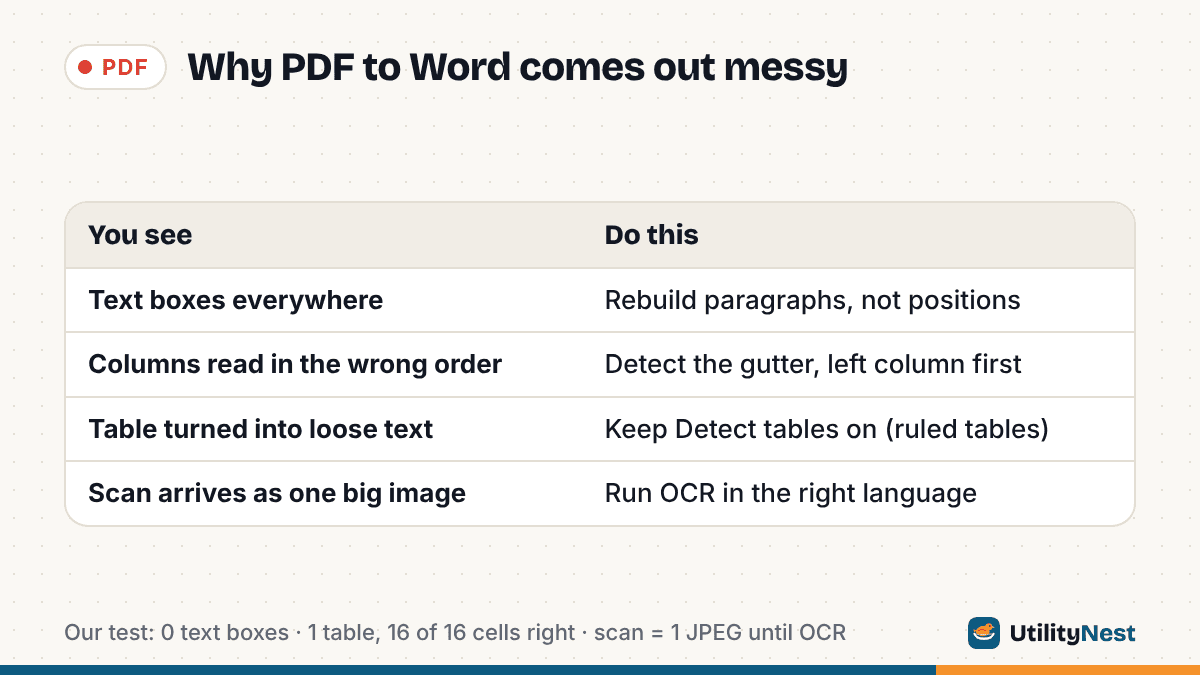
A PDF does not contain paragraphs. It contains instructions like "draw these characters, in this font, at this exact spot on the page." Word works the other way around: it stores paragraphs, tables and styles, and decides where the lines fall each time you type. Every PDF to Word converter has to guess the paragraphs, columns and tables back from positions on a page. When the guess is poor, you get the familiar mess.
Microsoft says this plainly in its help page on opening PDFs in Word: a PDF stores the location of text, pictures and graphics, most PDFs do not record paragraphs, tables or columns, and Word uses "a system of complex rules" to pick the closest Word objects. It adds that conversion works best with files that are mostly text.
What a converter actually produced in our test
To see the guessing at work, we made two test files and ran them through our PDF to Word tool, then unzipped each .docx (a .docx is a ZIP of XML files) and counted what was inside word/document.xml.
- report-2col.pdf (3,137 bytes, 1 page, US Letter): a title, a 4 x 4 table with ruled borders across the full width, then six short sections in two columns. Fonts are Helvetica and Times-Roman, not embedded.
- scanned-page.pdf (233,465 bytes, 1 page): the same report rendered to a grayscale image at 150 DPI, tilted 0.7 degrees, blurred slightly and speckled, then saved as an image-only PDF. It contains no text at all.
| What we checked | Two-column report | Scanned page (no OCR) |
|---|---|---|
| File size, PDF to DOCX | 3,137 to 5,117 bytes | 233,465 to 286,855 bytes |
| Text boxes or floating frames | 0 | 0 |
| Body paragraphs | 1 Heading 1, 6 Heading 2, 7 normal paragraphs | 0 |
| Word tables | 1 (4 rows, 16 cells, all 16 values correct) | 0 |
| Images | 0 | 1 JPEG, 1275 x 1650 px, 286,820 bytes |
| Fonts in the DOCX | Arial (from Helvetica), Times New Roman (from Times-Roman) | None (no text) |
The text PDF came back as flowing Word content; the scan came back as a picture of a page, which is what it is. Here is each kind of mess, its cause and its fix.
Problem: text boxes everywhere
Cause. A converter can aim for an exact visual copy or for an editable document, and those goals pull in opposite directions. Putting each block of text in its own positioned box keeps the look, but the boxes are fixed in place: add a line and the box overflows or overlaps its neighbor.
Fix. If you want to edit, pick a route that rebuilds paragraphs instead of positions. Our tool does not create text boxes: in the test above, document.xml had zero text boxes, frames or anchored drawings, only paragraphs, one table and inline images. The trade-off: spacing is approximated and decorative lines are dropped. If you already have a file full of boxes, copying the text into a new document as plain text and restyling it is often the quickest repair.
Problem: two columns come out in the wrong order, or as one long column
Cause. In the PDF, the left and right columns are just text at different x positions. A converter that reads strictly top to bottom interleaves them line by line.
Fix. Use a converter that detects the gap between columns. Ours looks for a vertical gutter that most lines do not cross (it needs at least 10 lines on the page) and reads the left column before the right. In our test the six sections came out in order, 1 through 6. Two things to expect:
- The Word file is single-column: the columns become page-width paragraphs, not Word columns. Set up columns in Word again if you need them.
- A paragraph that continues from the bottom of the left column to the top of the right one is split in two. In our file, Section 4 became a 270-character paragraph plus a 99-character paragraph. Delete the extra break by hand.
Problem: a table turns into loose text or tabs
Cause. A PDF table is usually text plus a set of thin lines drawn on top. Nothing says "this is a table, this is row 2." Miss the match and the cells become loose lines. Microsoft's list of elements that may not convert well includes tables with cell spacing.
Fix. Tables drawn with ruling lines convert most reliably. Our tool turns ruled tables into Word tables with borders (including merged cells) and turns neatly aligned columns without lines into borderless tables, as long as Detect tables is on. In our test the 4 x 4 table became one Word table with 4 rows and 16 cells, and every value landed in the right cell. If a table comes out wrong, turning Detect tables off and rebuilding it from the plain text is often faster than fixing a mangled grid.
Problem: the wrong fonts, or text turns into symbols
Cause. Many PDFs embed only a subset of a font, or use fonts you do not have installed. A converter substitutes a font Word can find. Worse, some PDFs store letter shapes without a map back to real characters, so the page looks fine but extracted text is symbols.
Fix. For substitution, expect a close match rather than the original. Our tool maps known names to common Word fonts (Helvetica becomes Arial, Times-Roman becomes Times New Roman, and so on) and falls back to Arial, Times New Roman or Courier New based on the font's family when the name is unknown. For garbled text, the fix is OCR: our tool has an OCR every page switch under "Text comes out garbled?". You lose bold, italic and colors on those pages.
Problem: a scanned PDF comes out as an image, or as gibberish
Cause. A scan is a photo of paper. There are no characters in it to convert, so a converter without OCR can only place the picture in Word. Microsoft's page notes that when a PDF is mostly graphics, "the whole page might show up as an image." Gibberish usually means OCR ran on a page that was too small, blurry or tilted.
Fix. Run OCR (optical character recognition) and give it a clean page. In our test, the scanned PDF produced a DOCX holding one 1275 x 1650 pixel JPEG and no text, and the tool showed "This looks like a scanned PDF" with a Run OCR on 1 page button. When you run OCR, our tool uses the Tesseract engine in your browser, downloads the engine and language data the first time, and lets you pick the document language (English, Korean + English, Japanese + English, Simplified Chinese + English, Spanish, French, German, Portuguese or Italian). We did not measure OCR accuracy for this article, so check the preview: OCR text comes out in Arial with sizes estimated from the scan, and small or blurry text can be misread.
Google Docs is the other common free OCR route: in Google Drive, right-click the PDF, choose Open with, then Google Docs. Google's help page lists its conditions: the file should be 2 MB or smaller, text should be at least 10 pixels high, pages must be right-side up, and common fonts such as Arial or Times New Roman work best. It also says lists, tables, columns, footnotes and endnotes are not likely to be detected, so expect plain text for a scanned report like ours.
With any OCR, the input matters most: scan so body text is clearly readable, and straighten crooked pages.
Which route to try first
- Text-based PDF, mostly prose: Word's own PDF opening, our tool or any converter that rebuilds paragraphs will usually give you an editable file.
- Two columns or ruled tables: use a converter that detects them, then fix the split at each column break.
- Scanned pages: OCR is required. Our tool runs it in the browser, so nothing is uploaded; Google Docs works for files up to 2 MB.
- You only need the words: skip Word entirely and use PDF to Text, which keeps every line as is.
Sources
- Microsoft Support: Opening PDFs in Word (how Word converts PDFs, elements that may not convert well)
- Google Drive Help: Convert PDF and photo files to text (2 MB limit, 10-pixel text, what formatting is kept)
Checked on October 24, 2026. Tested with the UtilityNest PDF to Word tool in Chromium; test PDFs made with ReportLab 5.0.1 and Pillow 12.3.