
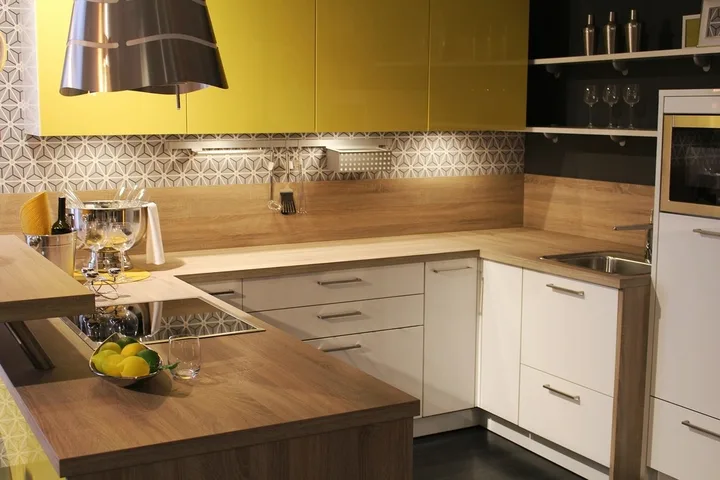
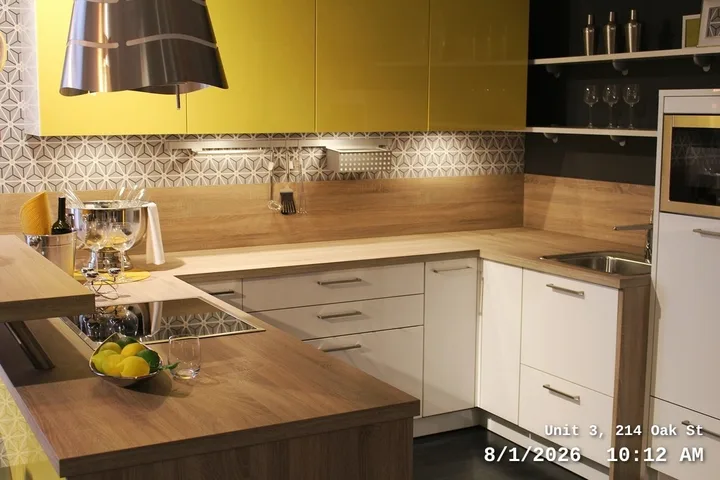
How to use Add Date Stamp to Photo
- 1Drop up to 50 photos into the box. JPG, PNG and WebP all work.
- 2Check the list. Each photo shows where its date came from: Date taken (read from the photo), File date (no date in photo) or Set by you. Change any date with the date box next to it.
- 3Pick the date format, whether to add the time, the corner, the size, the colour and the background. The preview updates straight away.
- 4Type an extra line if you need one, then press Download. One photo downloads as an image, several download together as a ZIP.
Where the date comes from
When a phone or camera takes a picture it writes a small block of details into the file, called EXIF. One of those details is DateTimeOriginal, the moment the shutter was pressed. The tool reads that first. If it is missing it tries the digitised date and then the general date in the same block.
Some photos have no date inside at all. Screenshots, pictures saved from social apps and photos sent through many chat apps lose it on the way. For those the tool uses the date the file was last changed and labels it File date (no date in photo) so you know to check it. In our test of three photos, two phone photos showed their real dates (October 28 at 9:14 AM and November 2 at 4:40 PM) and a PNG screenshot fell back to its file date, exactly as labelled.
Why people stamp dates on photos
- Moving in and out of a rental. Photos of walls, floors and appliances with the date on them are easy to show a landlord when a deposit is discussed.
- Work and site reports. Contractors, cleaners, inspectors and property managers attach before and after photos to invoices. The extra line can hold the address or job number.
- Insurance and damage claims. A dated photo of a dent, a leak or a broken item helps you remember exactly when it happened.
- School and hobby logs. Plant growth, science projects, baking, fitness progress and building projects read better when every picture shows its day.
- The film camera look. A yellow or white date in the corner, in the short '26 11 13 style, gives phone photos the feel of a disposable camera print.
Date formats
Pick the format your readers expect:
- 11/13/2026: the usual US style.
- Nov 13, 2026: written month, impossible to misread in any country.
- 2026-11-13: the international standard, sorts correctly and is common in reports.
- 13/11/2026: day first, used in the UK, Europe, Australia and most of the world.
- 2026.11.13: dotted style common in East Asia.
- '26 11 13: the short style printed by film cameras.
Turn on Add the time to print the hour and minute as well. US styles use 12-hour time with AM and PM, the others use 24-hour time.
Making the stamp easy to read
A date that disappears into a white wall or a busy background is no use. The size is set as a share of the photo, so the stamp looks the same on a 12 megapixel photo and a small one. Medium suits most prints and reports, Large is better for photos that will be shown small, such as in a document or on a phone.
For colour, white with a Shadow reads well on most photos. Yellow gives the classic camera look. On bright photos of snow, paper or white walls, pick Box, which puts the date on a dark rounded panel that is readable on anything. Black with no background works for light, plain backgrounds.
Put the stamp in a corner where nothing important sits. The bottom right is the usual choice, but in a photo of a damaged floor corner, the top left keeps the damage clear.
Changing dates and using one date for all
Every photo in the list has its own date and time box. Change it and the label switches to Set by you. This is useful when a camera clock was never set and shows a date years ago, or when photos were copied and lost their date.
When you add more than one photo, Use one date for all photos appears. Set it and every photo gets that date. You can still change single photos afterwards. This is handy for a set of photos taken during one visit.
The date you print is up to you, so the stamp shows when a photo was taken only if the date is right. If a photo needs to prove something, keep the original file as well, because its hidden date is the record a landlord, insurer or court may ask for.
Quality, size and privacy
Photos are stamped at their full original size, not shrunk. JPG photos are saved as high quality JPG and PNG files stay PNG, with the word dated added to the file name so you never confuse them with the originals. Several photos download as one ZIP called dated-photos.zip.
Everything happens inside your browser. The photos are never uploaded, which matters when they show the inside of a home, a document or a child. The new files do not carry the hidden details of the originals, so the GPS location some phones save is not in the stamped copy. That makes the stamped copy safer to send to people you do not know.
If your photos are large and you need to email them, run them through Compress Image afterwards.
Tips for prints and reports
- Stamp a test photo first and look at it at the size it will be used. A date that looks big on screen can be tiny on a 4x6 print.
- For reports, use the extra line for the address or unit so every picture is self-explaining when it is printed or forwarded.
- If you will make a PDF of the photos, stamp them first, then use JPG to PDF so every page carries its date.
- Keep the same corner, colour and size for a whole set so the photos look consistent side by side.
If something goes wrong
- The date is wrong by hours. The time inside a photo is the camera's local time. If you travelled across time zones and the phone did not update, change the time in the list.
- Every photo says File date. The photos were probably sent through a chat app or downloaded from social media, which removes the date. Ask for the original files, or set the dates yourself.
- The camera shows 2015 or another old year. The camera's clock was never set. Use one date for all photos, or fix each one.
- An iPhone HEIC photo will not open. Convert it with HEIC to JPG first, or set the iPhone camera to Most Compatible in Settings, Camera, Formats.
- The stamp is hard to see. Switch the background to Box or pick Large.
- The photo appears sideways. Rotate it with Rotate & Flip Image first, then add the date.
Frequently asked questions
Does this use the date the photo was actually taken?
Yes. It reads the date the camera saved inside the photo. Only when that is missing does it use the file date, and it labels those photos so you can check them.
Can I add a date to many photos at once?
Yes, up to 50 at a time. Each gets its own date, and they download together as a ZIP file.
Can I choose my own date?
Yes. Change the date and time next to any photo, or use one date for all photos.
Are my photos uploaded?
No. The stamping happens in your browser, and the photos never leave your device.
Will the stamped photo be lower quality?
No. It keeps the original size, and JPG photos are saved at high quality.
Can I add an address or job number too?
Yes. Type it in Extra line and it is printed above the date on every photo.