How to use Wi-Fi QR Code Generator
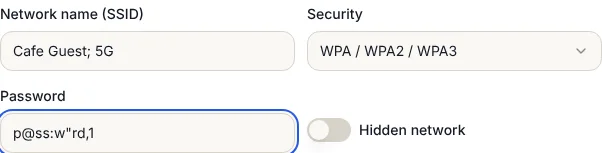
- 1Type the network name (SSID) exactly as it appears in your phone's Wi-Fi list, including capitals and spaces.
- 2Pick the security type. Almost every home and business router uses WPA, WPA2 or WPA3; pick No password for an open network.
- 3Type the password, and switch on Hidden network only if your network does not show up in the list.
- 4Wait for Scan test passed under the code, then download PNG or SVG, or open the print layouts.
- 5Test it once with your own phone after you forget the network, before you put the sign up.
How guests join
On an iPhone (iOS 11 or newer) the normal Camera app reads the code and shows a "Join network" button. On Android phones from Android 10 onward the camera or Google Lens does the same; on some phones you open the Wi-Fi settings and tap the small QR icon next to Add network. No app is needed on either.
The code holds a short line of text in the standard Wi-Fi format, for example WIFI:T:WPA;S:Cafe Guest;P:password;;. Phones read the name, password and security type from it and connect directly. Nothing goes through a website, so it keeps working even if this site is gone.
Signs, table tents and stickers
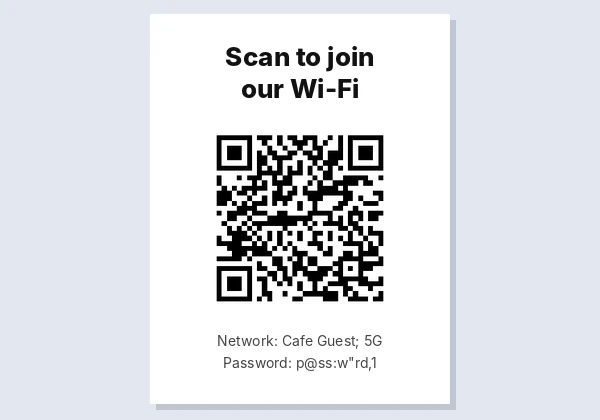
Open Print under the code for three layouts: a full-page sign for a wall or door, a folding table tent that stands on a counter, and a sheet of stickers in three sizes. The sign text starts as "Scan to join our Wi-Fi" with the network name and password underneath, so guests whose phones cannot scan can still type it. Delete the password line if you would rather not print it.
For a sign on a wall, print the code at least 10 cm (4 in) wide; a common rule is one tenth of the distance people scan from. Stickers at 4 cm work on tables and reception desks.
Special characters are handled
The Wi-Fi format uses semicolons, commas, colons, quotes and backslashes as separators, so a password like p@ss:w"rd,1 breaks codes from many simple generators. This tool escapes those characters the way phones expect. We checked two hard cases with a standard barcode reader: the network Cafe Guest; 5G with that password, and a Korean network name 카페 손님용. Both read back exactly as typed, and both passed the scan test on the page.
Is it safe to share Wi-Fi this way?
- The code contains your password in plain text. Anyone who scans it, or photographs the sign, can read it. That is the same as writing the password on the sign, so use it for guest networks, not your main business network.
- Use a guest network if your router has one. It keeps visitors away from your computers, printers and cameras.
- Change the password now and then and print a new sign; old codes stop working the moment you do.
- Your password never leaves this page. The code is drawn in your browser and nothing is sent to us.
If the code does not connect
- The network name must match exactly. "Home WiFi" and "Home Wifi" are different networks.
- A router set to WPA3 only can refuse older phones. Setting it to WPA2/WPA3 mixed mode fixes that.
- If the phone already knows the network with an old password, forget the network first, then scan again.
- Some 5 GHz-only networks are not visible to older devices. A dual-band guest network is the safest choice for a public sign.
Frequently asked questions
Is this Wi-Fi QR code generator free?
Yes. No sign-up, no trial and no watermark, and the code never expires because the network details are stored in the code itself.
How do I scan a Wi-Fi QR code on iPhone?
Open the Camera app and point it at the code. Tap the Join network banner that appears. iOS 11 and newer support it.
How do I scan a Wi-Fi QR code on Android?
Point the camera or Google Lens at the code, or open Wi-Fi settings and tap the QR icon next to Add network. Android 10 and newer support it.
Does the QR code still work if I change my Wi-Fi password?
No. The password is inside the code, so make a new code and print a new sign after changing it.
Can I make a QR code for a hidden network?
Yes. Switch on Hidden network. The phone then connects even though the network does not appear in its list.