How to use Speech to Text
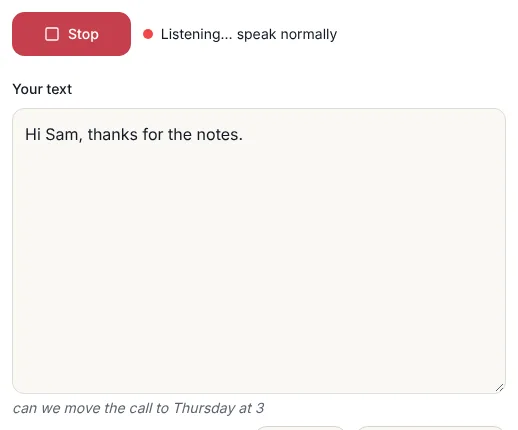
- 1Pick Live typing for instant text with no length limit, or Private mode if your voice must not leave your computer.
- 2Choose the language you will speak. Live typing has 12 languages; Private mode has English and Korean.
- 3Press Start talking (or Start recording) and allow the microphone when the browser asks. Speak at a normal pace.
- 4Say punctuation out loud if you want it: comma, period, question mark, new line, new paragraph.
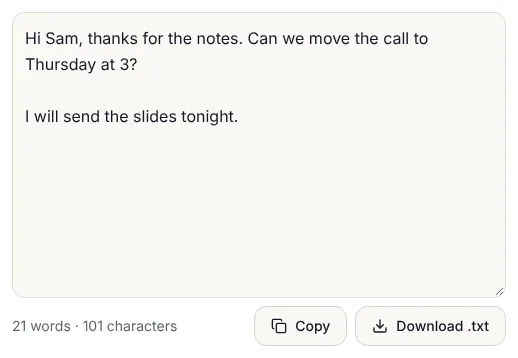
- 5Press Stop. Fix any word straight in the box, then press Copy or Download .txt.
Two ways to turn speech into text
Live typing uses the speech service built into your browser. Words appear while you are still talking, it keeps listening until you press Stop, and it works in English (US and UK), Korean, Spanish, French, German, Japanese, Chinese, Portuguese, Italian, Hindi and Vietnamese. To do this the browser sends your audio to its maker (Google for Chrome, Microsoft for Edge, Apple for Safari), the same way the microphone button on a phone keyboard does. This site never receives the audio.
Private mode records up to 60 seconds and then writes it out with a speech model that runs inside this page. The model downloads once (about 80 MB) and is then kept by the browser, so later recordings start quickly and even work offline. Nothing is sent anywhere. It is slower than live typing and handles English and Korean, which makes it the right pick for medical notes, legal details, passwords spoken by mistake or anything you would not say on a phone call.
Spoken punctuation and commands
With Spoken punctuation switched on, these words become marks instead of text:
| Say | You get |
|---|---|
| comma | , |
| period or full stop | . |
| question mark | ? |
| exclamation mark | ! |
| colon / semicolon | : / ; |
| new line | a line break |
| new paragraph | a blank line |
Only whole words count, so "periodic" or "commander" are left alone. The next word after a period, question mark or new line gets a capital letter. If the speech service has already added a mark itself ("help, period"), the tool keeps one clean full stop instead of two. Turn the option off when you are dictating text that really contains the word "period", such as a note about a school timetable.
What we tested
We read the sentence "Please send the report by Friday comma and call me tomorrow period new paragraph thanks for your help period" into the microphone in Private mode. The first run downloaded the model and finished in about 11 seconds on a normal laptop; the text came out as two clean paragraphs: "Please send a report by Friday, and call me tomorrow." / "Thanks for your help." The only slip was "the report" heard as "a report", which is why the box is editable.
For Live typing we checked that interim words show in grey while you speak, final words are added with the right spacing and capitals, "new paragraph" starts a new block, and the text survives a page reload. On a 390 pixel wide phone screen everything fits without sideways scrolling.
Tips for better results
- Use a headset or earbuds with a microphone. A mic close to your mouth beats a laptop mic across the desk, especially in a noisy room.
- Speak in full phrases. The service uses the words around each word to guess it, so complete sentences come out better than single words with long pauses.
- Say names once, fix them once. Unusual names, brands and codes are the most common mistakes. Fix them in the box after you stop.
- Pick the right language. Speaking Korean with English selected produces English-sounding nonsense. Mixed sentences work best in the language you use most.
- Keep Private recordings short. One minute at a time keeps it quick; press Start recording again and the new text is added to the end.
What people use dictation for
- Emails and messages that are too long to type comfortably on a phone.
- Meeting and lecture notes said out loud straight after, while you still remember them.
- First drafts of essays, reports and blog posts. Talking gets ideas down; editing comes after.
- Hands or wrists that hurt. Dictation is a common way to keep writing with RSI or after an injury.
- Language practice. Read a paragraph aloud in the language you are learning and see whether the words come out right.
To turn a recording or video you already have into text, use Audio & Video to Text instead. To record your voice as an MP3, use the Voice Recorder.
Limits and problems
- Live typing is not available in Firefox, which has no built-in speech service. Use Chrome, Edge or Safari, or use Private mode, which works in Firefox too.
- "Microphone access was blocked" means the browser was told not to share the mic. Click the lock or mic icon in the address bar, allow the microphone and press Start again.
- Live typing stops after a long silence in some browsers. The tool restarts it for you; if it still stops, press Start again and the text carries on where it ended.
- Private mode needs a few hundred MB of free memory. Very old phones may run out; use Live typing there.
- Your text is saved in this browser until you press Clear, so closing the tab by mistake does not lose it. It is not saved anywhere else.
Frequently asked questions
Is this speech to text free?
Yes. There is no sign-up, no word count limit and no time limit in Live typing. Private mode handles 60 seconds per recording and you can record as many times as you like.
Does my voice get uploaded?
Not to us. In Live typing your browser sends the audio to its own speech service (Google, Microsoft or Apple), like a phone keyboard mic. In Private mode nothing leaves your device at all.
Which languages does it support?
Live typing supports English (US and UK), Korean, Spanish, French, German, Japanese, Chinese, Portuguese, Italian, Hindi and Vietnamese. Private mode supports English and Korean.
How do I add commas and full stops?
Say them. With Spoken punctuation on, saying comma, period, question mark, new line or new paragraph inserts the mark instead of the word.
Can I use it on my phone?
Yes. It works in Chrome on Android and Safari on iPhone. Allow the microphone when asked.
Can it transcribe an audio file I already have?
This page listens to your microphone. For an existing MP3, M4A or video, use the Audio & Video to Text tool, which also makes subtitle files.