How to use Bulk QR Code Generator
- 1Paste one link or piece of text per line, or drop in a CSV, Excel or TXT file.
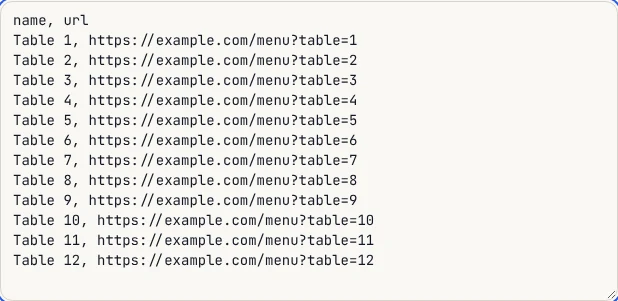
- 2To name each code, put a label first and the link after it, like Table 4, https://example.com/menu?table=4. A header row such as name, url is skipped automatically.
- 3Pick PNG or SVG, the PNG size and colour, and whether to print the label under each code.
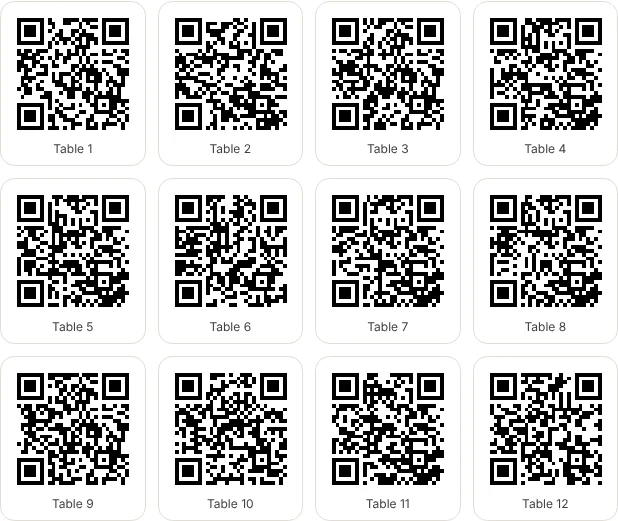
- 4Press Download or Print. Every code is scan-tested first, and any that fails is outlined in red with its line number.
- 5Download the ZIP, or print the A4 sticker sheet with 20 codes per page.
What goes in the list
Each line becomes one QR code. A line can be a web address, an email address, a phone number or plain text. If a line has two parts separated by a comma or a tab, the first part is used as the label and the second as the content, so Room 101, https://example.com/r/101 makes a code for the link with "Room 101" as its name.
From Excel, the easiest way is to keep two columns, label in A and link in B, and either save as CSV or just copy both columns and paste them in. Cells with commas inside quotes are read correctly. Lines that are empty are ignored.
Every code is scan-tested
Before anything is downloaded or printed, each code is read back with a barcode decoder and compared with what you typed. In our test, a list of 150 links from an Excel file was made and checked in about 4.5 seconds, and all 150 passed. If a code ever fails, it is outlined in red and its line number is shown so you can fix that line before you print anything.
The codes are plain static QR codes. The link is stored inside the pattern itself, nothing goes through our servers, and they never expire or stop working.
ZIP download and file names
The ZIP holds one file per code, numbered in list order and named after the label, for example 004-Table-4.png. That keeps them in order in any folder and makes it easy to match a code to its table or product. An index.csv file inside the ZIP lists each file name next to its label and content, which is handy for mail merge or a print shop.
Choose SVG if the codes are going to a designer or a print shop, because SVG stays sharp at any size. Choose PNG at 800 px or more for documents, labels and slides. Our 150-code test made a ZIP of about 3.6 MB at 800 px.
Printing a sticker sheet
Print sticker sheet lays out 20 codes per page in a 4 by 5 grid, each 38 mm wide with its label underneath. Print it on plain paper and cut, or on full-page sticker paper. Codes 38 mm wide scan easily from a phone held at arm's length, which suits tables, shelves, equipment and name badges.
Before printing a big run, print one page and scan a few codes from it with your own phone. Paper, printer and lighting all matter more than the screen test can show.
Common uses
Restaurants use one code per table so orders or feedback show which table they came from. Shops and warehouses put a code on each shelf or product that links to its page. Schools and offices make one code per room or device for booking or fault reports. Events give each ticket or badge its own code. In each case the trick is the same: a spreadsheet with a label column and a link column, pasted in here.
Frequently asked questions
How many QR codes can I make at once?
Up to 1,000 lines per batch. For more, split the list into batches of 1,000; the file numbers restart, so add a prefix to the labels if you need them unique.
Can I import from Excel?
Yes. Drop in an .xlsx file and the first sheet is read, or copy two columns from Excel and paste them in. Put the label in the first column and the link in the second.
Do the codes expire?
No. These are static QR codes with the content stored in the pattern itself. They keep working for as long as the link they point to works, with no account or subscription.
Is my list uploaded anywhere?
No. The codes, the scan test, the ZIP and the print sheet are all made in your browser. Your list never leaves your device.
Can I make Wi-Fi or contact card codes in bulk?
Each line is encoded exactly as typed, so you can paste ready-made Wi-Fi lines (WIFI:T:WPA;S:name;P:password;;) or other text. For a single Wi-Fi sign or business card, the Wi-Fi and business card QR pages are easier.