
 Instagram
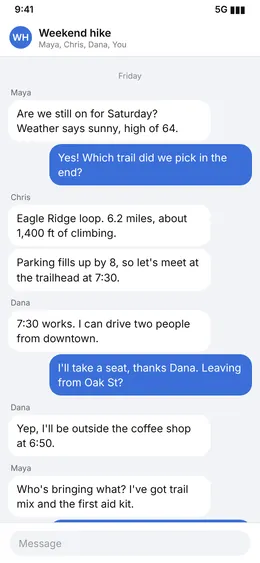
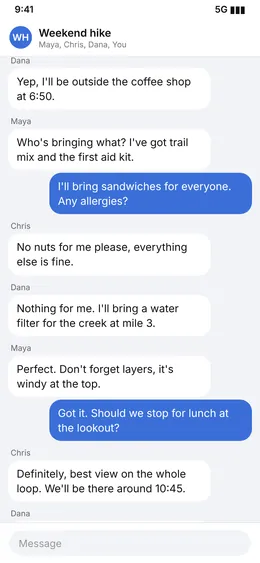
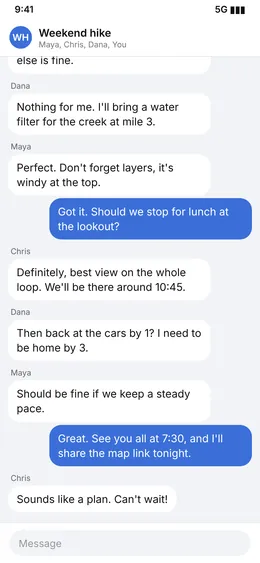
How to use Stitch Screenshots
- 1Take screenshots while scrolling, letting each one overlap the last by a few lines.
- 2Drop all of them into the box, top to bottom. Use Move up and Move down if the order is wrong.
- 3Leave Remove overlapping parts and Show top and bottom bars only once on, unless you want the shots stacked exactly as they are.
- 4Pick JPG or PNG, check the preview, then press Download long image.
How the overlap is found
Each screenshot is compared with the one before it, row by row. The tool looks for the place where the bottom of one shot matches the top of the next and joins them there, so a line of text is never shown twice or cut in half. Plain rows such as empty background are skipped when matching, because they would fit anywhere.
A match is only used when it is clearly better than every other position. If two shots do not overlap at all, they are simply placed one under the other and the tool tells you which join it could not match.
Status bar and menus only once
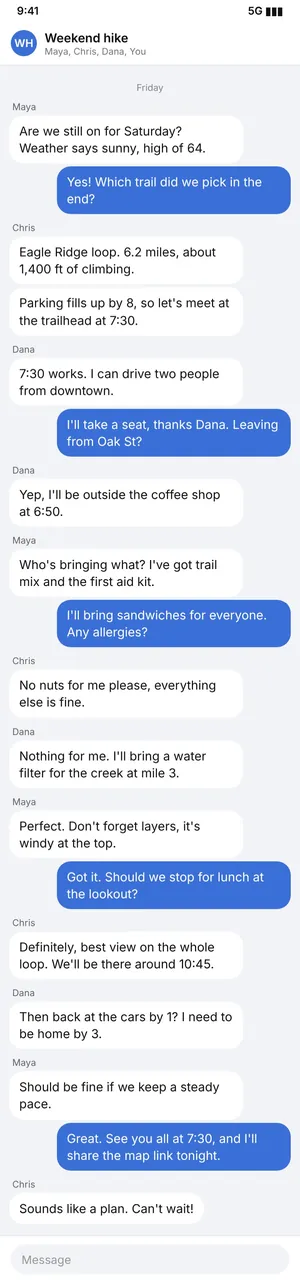
Phone screenshots repeat the same clock and battery at the top, an app header below it, and often a tab bar or a message box at the bottom. With Show top and bottom bars only once turned on, rows that are identical in every screenshot are detected as fixed bars. The top bar is kept on the first image, the bottom bar on the last, and the middle shots show only the content that scrolls.
In our test, four phone screenshots of a long chat (780 x 1688 px each) were joined into one 780 x 5048 px image with every message once, one status bar and one message box.
Tips for clean results
- Scroll a bit less than a full screen between shots, so each one overlaps the previous one by a few lines.
- Do not change zoom or rotate the phone between shots.
- Close pop-ups and wait for images to load before you capture.
- Use PNG for text-only chats if you want the sharpest letters; use JPG to keep the file small.
Very long results
Up to 30 screenshots can be joined. If the result would be taller than browsers can save (about 16,000 px), the whole image is scaled down slightly to fit, and you are told when that happens.
When people use it
- Chats: share a whole conversation as proof of an agreement, an order or directions, instead of five separate images.
- Receipts and orders: online order pages and bank transfers are often taller than the screen.
- Articles and recipes: keep a long page to read offline.
- Bug reports and feedback: show a full settings page or form in one picture.
- Social posts: a long thread or comment section in one image.
Some phones have a built-in scrolling screenshot, but it does not work in every app, and it often stops early or misses chats that load as you scroll. Separate screenshots work everywhere.
Order and reordering
Screenshots are placed in the order you add them. Phone galleries usually hand files over in the order they were taken, which is the right order for scrolling captures. If not, use the up and down buttons next to each thumbnail. A wrong order is easy to spot: the tool reports that it found no overlap at that join.
You can also remove a screenshot from the list, for example a duplicate taken by accident, without starting over.
File size of the result
A long image of 4 to 6 phone screenshots is usually 0.5 to 2 MB as JPG and 2 to 6 MB as PNG. JPG is the better choice for sending in messengers and for screenshots that include photos. PNG keeps text perfectly sharp and is best for documents and settings pages that you will zoom into. Use Compress Image afterwards if a site needs a smaller file.
If something goes wrong
- 'No overlap found' at one join: the two shots share no lines, or they are in the wrong order. Check the order, or retake with more overlap.
- A chat bubble appears cut: a message arrived or a keyboard opened between shots. Retake those two screenshots.
- The result looks smaller than expected: very long results are scaled down to stay within browser image limits. Join fewer screenshots per image.
Frequently asked questions
Can I join screenshots that do not overlap?
Yes. Turn off Remove overlapping parts and the images are placed one under the other as they are.
Does it work with screenshots from a computer?
Yes. Any images of the same width work. If widths differ, each image is scaled to the width of the first one.
Are my screenshots uploaded?
No. Chats and receipts often hold private details, so everything is done in your browser and nothing leaves your device.
Can I blur names or numbers first?
Yes. Use Blur Image on the finished long image before you share it.
Why is there a repeated line at one join?
That join did not overlap enough or the content moved between shots, for example a chat that loaded new messages. Retake that pair of screenshots with a bit more overlap, or turn off Remove overlapping parts for a plain stack.
Does it work for horizontal screenshots?
It joins images top to bottom. For side-by-side layouts, use Combine Images or Collage Maker instead.