How to use QR Code for Business Card
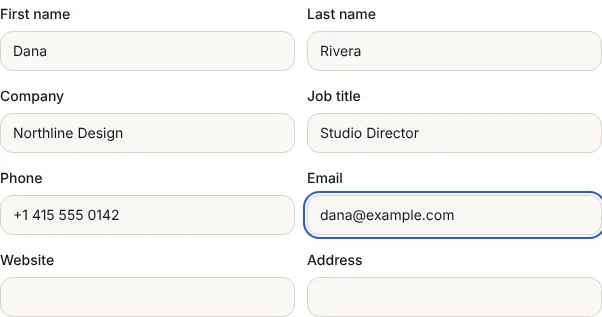
- 1Fill in the fields you want on the card. Name and phone are enough; every extra field makes the code denser.
- 2Check the size note under the preview. It tells you the smallest print size that still scans up close.
- 3Change the colour or add a logo if you want, and wait for Scan test passed.
- 4Download SVG for your printer or design app, or PNG for a quick print.
- 5Before ordering a full box of cards, print one at real size and scan it with two different phones.
What a scan does
The code holds a vCard, the standard contact format every phone understands. On an iPhone or Android phone the camera shows a contact preview with an Add or Save button. Nothing is opened on the web, so it works in places with no signal, such as a trade show hall or a basement venue.
The fields you can include: first and last name, company, job title, mobile number, email, website and address. Korean names are saved family name first with no space, the way Korean phones expect.
How small can it be printed?
A business card is only 9 x 5 cm (3.5 x 2 in), so code size matters. Each extra field adds squares, and more squares need more space. We measured three versions:
| Content | Squares | Smallest print size |
|---|---|---|
| Link to your profile page | 29 x 29 | 1.5 cm (0.6 in) |
| Name, mobile and email | 45 x 45 | 2.1 cm (0.8 in) |
| All eight fields | 61 x 61 | 2.8 cm (1.1 in) |
| All eight fields with a logo | 81 x 81 | 3.6 cm (1.4 in) |
The sizes assume each square is at least 0.4 mm, which a phone reads from about a hand's length away. Adding a logo raises error correction to High, which makes the code denser, so a logo works best on a short code. Between 2 and 2.5 cm fits neatly in a corner of the back of a card.
Contact card or link?
- Contact card (vCard) saves your details straight into the phone with no website in between and works offline. The catch: if your number or job changes, the printed cards are out of date.
- Link to a page you control, such as your team page or a profile, makes the smallest code and can be updated later by editing the page. Use the QR Code Generator with the Link tab for that.
Many people use both: a contact code on the card, and a link code on email signatures and slides.
What we tested
We filled in a full card (name, company, title, mobile, email, website and an office address) and a short one (name, mobile, email). Both passed the built-in scan test, which reads the finished code back and compares it with what you typed. The full card with a round logo also passed, at 81 x 81 squares.
To check the print sizes in the table, we rendered the short code at 2.1 cm and the full code at 2.8 cm at 300 dpi, then shrank and blurred each one to match a phone photo of a card taken from about 15 cm. A standard barcode reader still decoded both, character for character. Pale yellow on white failed the scan test, so keep the code dark even on a fancy card. A real print run is still the final check: print one card at size and scan it with two phones before ordering a box.
Printing tips for business cards
- Send SVG to the printer. It stays sharp at any size; a small PNG can blur.
- Keep the white border. Leave about 2 mm of plain space around the code and do not put it over a pattern or photo.
- Dark on light. Black, navy or dark green on white or cream all scan. Gold foil, silver and light grey often do not.
- Avoid glossy foil on the code. Reflections can stop phones from reading it under bright lights.
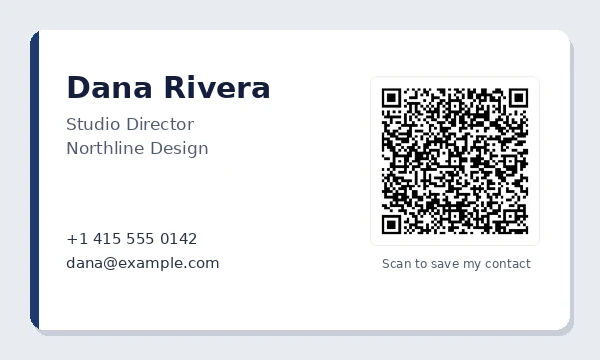
- Say what it does. A short line such as "Scan to save my contact" next to the code gets more scans.
Frequently asked questions
Is this business card QR code free?
Yes. No sign-up, no trial and no watermark, and the code never expires because your details are stored in the code itself.
What size should a QR code be on a business card?
At least 2 cm (0.8 in) for name, phone and email. The size note under the preview tells you the smallest safe size for exactly what you entered.
Will it work on iPhone and Android?
Yes. Both phones' built-in cameras read vCard codes and offer to save the contact. No app is needed.
Can I change my details after printing?
No, the details are printed in the code. If they change often, put a link to a page you can edit instead.
Can I add my company logo?
Yes. Click Add a logo. The code gets denser, so print it a little bigger and check the scan test.