
How to use EPUB to PDF
- 1Add the EPUB file (up to 150 MB).
- 2Choose a page size (A5, 6 x 9 in, A4 or Letter), the margins and the text size.
- 3Click Convert to PDF. Progress shows which chapter is being laid out, and Cancel stops at any time.
- 4Download the PDF and flick through the contents page and a few chapters before printing or sending it.
Why turn an EPUB into a PDF
EPUB is made for e-readers: the text flows to fit whatever screen it is shown on, which is great on a phone and awkward everywhere else. A PDF has fixed pages, so it prints predictably, shows the same page numbers to everyone in a reading group, and opens in the PDF viewer that every computer and phone already has. People convert EPUBs to print a public-domain classic for a class, to read on a large tablet with a pen and mark up the pages, to send a chapter to someone who has no e-reader app, or to keep an archive copy that will look the same in twenty years.
What the converter keeps
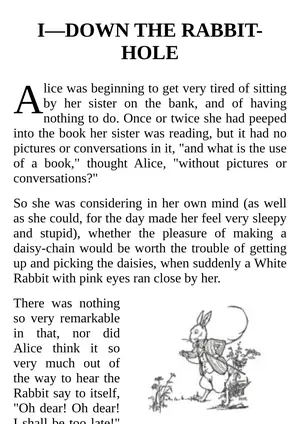
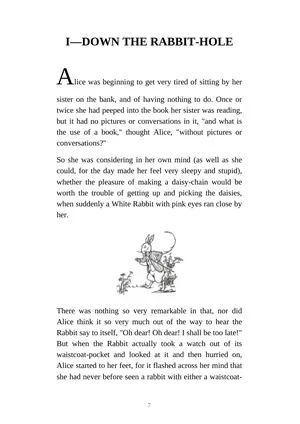
The converter reads the chapters in the book's reading order and lays them out again on real pages. Headings, paragraphs, bold and italic, bulleted and numbered lists, block quotes, preformatted text, simple tables with wrapping cells and pictures all come through. Pictures are scaled down to fit the page when they are larger than it, and a picture that would not fit at the bottom of a page moves to the next one.
The basic styling that matters on paper is applied from the book's own CSS: text alignment, bold and italic, font size, margins and first-line indents, forced page breaks and hidden elements. Anything else in the stylesheet, such as colours, floats or animations, is ignored quietly; a book is never refused because of its styling. Every chapter file starts on a new page, and each page gets a page number in the footer.
Contents page, bookmarks and links
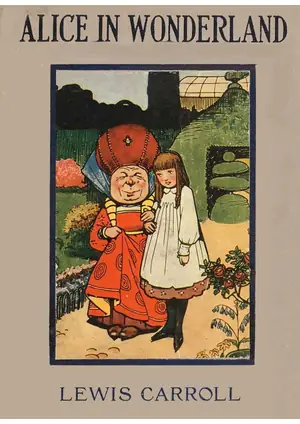
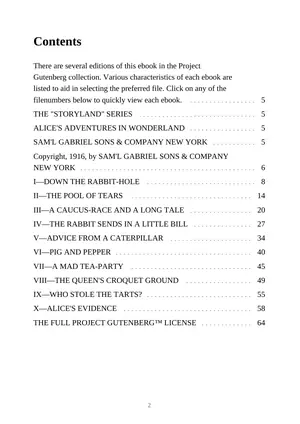
If the EPUB has a cover picture, it becomes the first page. Next comes a contents page built from the book's own table of contents, with dotted leaders and page numbers; click an entry to jump to that chapter. The same entries are added as PDF bookmarks, so the sidebar of your PDF viewer shows the chapters too. Links inside the book, such as cross references and footnote markers, keep working between chapters, and links to web addresses stay clickable.
EPUB 3 footnotes that are marked as pop-up notes are collected at the end of their chapter, below a short rule, so they are not lost in print. Footnotes that the book already places in the text or at the end of a chapter stay where they are, with their links intact.
Fonts, Korean, Japanese and Chinese
When the book embeds its own TrueType fonts, they are used if they can be embedded cleanly, with bold and italic simulated if the book only supplies the regular style. Otherwise Western text is set in a classic serif typeface. Greek, Cyrillic and extended Latin letters use Noto Serif. Korean, Japanese and Chinese text uses Noto Serif KR, JP or SC, chosen from the language the book declares and from the characters themselves.
These fallback fonts are split into small pieces by character range. The converter downloads only the pieces that contain characters the book actually uses, from a fixed version on a public font server, and only the glyphs used end up in the PDF. Your book is never sent anywhere; only the font pieces are fetched. Chinese and Japanese text can break between any two characters, while closing punctuation such as a full stop is never left at the start of a line. Western text breaks at spaces and after hyphens and dashes, without automatic hyphenation.
Choosing page size, margins and text size
A5 and 6 x 9 in feel like a printed book and suit tablets. A4 and Letter are for printing on ordinary office paper. Small margins fit more text on each page; Large leaves room for notes and for binding. The S, M and L text sizes set the body text at 9.5, 11 and 13 points, and headings scale with them. A smaller page or a larger text size means more pages. Your choices are remembered on this device.
What happened when we tested it
We converted four public-domain books from Project Gutenberg in headless Chromium on a desktop computer, with A5 pages, Normal margins and M text. Pride and Prejudice with 164 illustrations (24.9 MB EPUB) became 547 pages and 25.9 MB in about 2 seconds; its size is almost all pictures, which are kept at their original quality. War and Peace (1.8 MB) became 2,969 pages and 4.3 MB in about 5 seconds, with 385 bookmarks. The illustrated Alice in Wonderland became 102 pages in under a second. The Japanese Rashomon became 23 pages in about 4 seconds, most of it spent fetching the Japanese font pieces. A Korean short story, Unsu joeun nal by Hyun Jin-geon, exported from Wikisource, became 10 pages. In every PDF the text could be selected and copied, the pictures were in place, and the contents page links and bookmarks went to the right chapters.
What it cannot do yet
Books protected with DRM cannot be opened; most books bought from online stores are locked this way, while public-domain and DRM-free books work. Right-to-left books in Arabic or Hebrew are refused with a clear message instead of producing a PDF with the letters in the wrong order. Vertical Japanese text is laid out horizontally. Layout that depends on advanced CSS, such as floating sidebars, multi-column text, coloured boxes and SVG drawings, is simplified or left out, and fixed-layout EPUBs such as picture books are reflowed rather than kept page for page. Page breaks will not match your e-reader, because the text is set on new pages.
Frequently asked questions
Is my book uploaded?
No. The book is opened and converted inside your browser in a background worker. The only network requests during a conversion are for Noto font pieces when the book needs characters that the built-in serif cannot show.
Can I select and search the text in the PDF?
Yes. The pages contain real text, not pictures of text, so you can search with Ctrl+F, copy passages and use a screen reader.
Why does it say my EPUB is protected?
The file carries DRM, the copy protection most online bookstores apply. The converter does not remove DRM. DRM-free and public-domain EPUBs convert normally.
Why are the page numbers different from my e-reader?
An EPUB has no fixed pages. The converter sets the text on the page size, margins and text size you chose, so page breaks and numbers are new. The contents page and bookmarks use the PDF's own page numbers.
Does it work with Korean, Japanese and Chinese books?
Yes. Those characters are set in Noto Serif KR, JP or SC, and only the font pieces the book needs are downloaded. Right-to-left scripts such as Arabic and Hebrew are not supported yet.
How long and how large a book can it handle?
EPUB files up to 150 MB. Chapters are processed one at a time and each finished page is compressed straight away, so long novels work: a 2,969-page War and Peace took about 5 seconds on a desktop computer. Phones are slower, and Cancel stops a conversion at any point.