

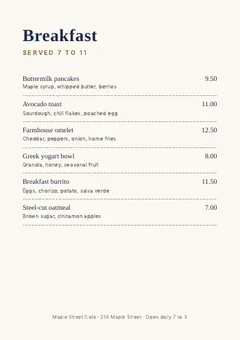
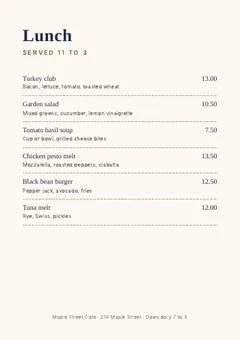
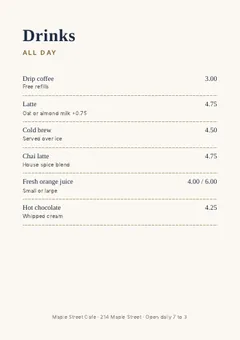
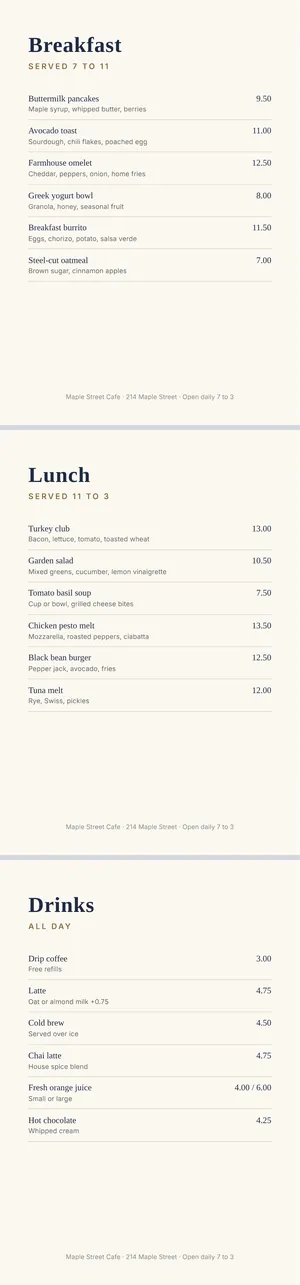
How to use PDF to Long Image
- 1Drop your PDF into the box. If it has an open password, type it when asked.
- 2Choose the width: 720 px (small), 1080 px (phone) or 1600 px (sharp).
- 3Pick JPG or PNG and decide whether you want a thin grey gap between pages.
- 4Press Make long image, check the preview, then press Download image.
Which width to choose
- 1080 px (phone): the width most phones and social apps display at. Text stays readable when the image fills the screen.
- 720 px (small): smaller file for messengers that shrink big images anyway.
- 1600 px (sharp): for small print, tables and diagrams that someone will zoom into.
A 10-page A4 PDF at 1080 px wide becomes an image about 15,000 px tall. In our test it took under a second on a laptop and came out at 1.9 MB as JPG.
Why very long PDFs come out in parts
Browsers and many apps cannot open an image taller than about 16,000 pixels, and some phones refuse much less. So when the stacked pages would be taller than 15,000 px, the image is split at page boundaries into Part 1, Part 2 and so on, and you download them together as a ZIP. Each part still starts at the top of a page, so nothing is cut in half.
JPG or PNG
JPG is the right choice for scans and pages with photos: files are several times smaller. PNG keeps text edges perfectly crisp and is better for pages that are mostly text, charts or line drawings, but the file is bigger.
Good uses
- Sending a menu, price list or event flyer in a group chat.
- Posting a short document on a site that only accepts images.
- Reading lecture notes or a handout by scrolling on a phone.
- A single preview image of a whole document for a website or portfolio.
How the pages are drawn
Each page is rendered at the width you chose, so text is drawn fresh at that size instead of being stretched from a small preview. Pages are placed one under another in their original order, with the same left and right edges, and the background of each page is kept. If the PDF has pages of different sizes, such as a landscape table between portrait pages, each page is scaled to the same width so the image has straight edges.
The gap between pages is a thin light grey band. It helps the reader see where one page ends when scrolling, and makes a menu or a set of slides look like separate cards. Turn it off for a document that should read like one continuous page, such as a long receipt or a scrolling infographic.
Sending the image in a chat
Most messengers shrink large photos before sending. A 1080 px wide image survives that well on phones, which is why it is the default. If an app makes the text blurry, send the image as a file instead of a photo, which keeps the original pixels. On sites that limit image height, such as some forums, use the parts option by keeping pages under the height limit, or send the PDF as well.
If the long image is too big for an upload form, run it through Compress Image or Resize Image to KB afterwards.
Privacy
Menus and flyers are public, but the same tool is often used for statements, notes and contracts. The PDF is opened and drawn in your browser and the image is created on your device. Nothing is uploaded, and the file is gone from the page when you close the tab.
If something goes wrong
- It asks for a password: the PDF is locked for opening. Type the password; it is used only in your browser.
- Some text looks wrong: the PDF uses a font it did not embed. Open it in a PDF reader and print it to a new PDF first, then join that.
- The download is a ZIP: the stacked pages were too tall for one image, so they were split into parts at page edges.
- It is slow on a phone: drawing many large pages takes memory. Choose 720 px or split the PDF first.
Frequently asked questions
Can I pick only some pages?
This tool joins every page. To use only some pages, first use Extract PDF Pages to make a PDF with just those pages, then join it here.
Is the text still selectable?
No. The result is a picture of the pages. Keep the PDF if someone needs to copy text or search it.
Is my file uploaded?
No. Pages are drawn in your browser and the image is made on your device.
How do I make one image per page instead?
Use PDF to JPG, which saves each page as its own image.
Why is the image blurry when I zoom in?
Pick 1600 px (sharp) for documents with small print or detailed tables. The 720 px option is meant for quick viewing in messengers that shrink images anyway.
Can I convert a long image back into a PDF?
Yes. Image to PDF can place the long image on pages, and Print Image on Multiple Pages can split a tall image across several printed pages.