How to use PDF to Excel
- 1Open a PDF up to 80 MB.
- 2Click Find and read tables to read every page at once. Tick Bank or card statement clean-up first if the PDF is a statement.
- 3For a single table, or a scanned page with OCR, drag around the table instead and click Read selected table.
- 4Check the preview, fix any cell, then download an Excel workbook or CSV.
Typical jobs for this tool
Bank and card statements that only come as PDF, supplier price lists, invoice registers exported from an accounting system, or tables in a published report all share one problem: the numbers look like a table but cannot be sorted or added up. Copying from a PDF viewer often pastes everything into one column. Reading the table by its layout keeps rows and columns apart, so you can filter and total them in a spreadsheet.
Find tables automatically
Find and read tables goes through every page, up to 60, without any dragging. On each page it looks for the longest run of lines that are laid out in columns and ignores what sits around it: the bank name and address at the top, an account summary separated by white space, and the page number and small print at the bottom. All pages share one set of column positions, so a table that continues from page 1 to page 3 lands in one sheet with its rows in order. When the same column titles are printed at the top of every page, only the first copy is kept.
Choose This page only in the Pages list when the document mixes several kinds of tables and you only want one of them. If a page has no table, the preview says which page was skipped, so nothing goes missing without a note.
Bank and card statements
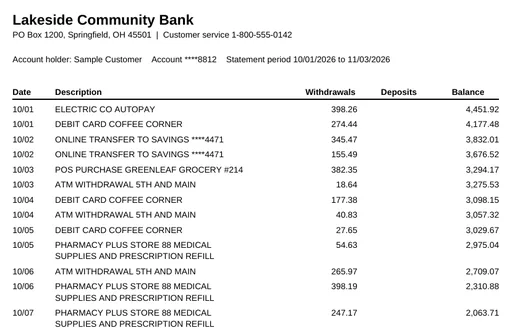
Statements are the most common reason people need this tool, and they have three habits that make a plain copy messy. Long descriptions wrap onto a second line, amounts carry currency signs and thousands separators, and refunds or payments are printed as (45.00), 45.00- or 45.00 CR. Tick Bank or card statement clean-up before you click Find and read tables and the tool handles all three: a line with no date and no amount is joined to the transaction above it, and every amount column becomes a plain number such as -45.00 or 1234.50 that a SUM formula can add.
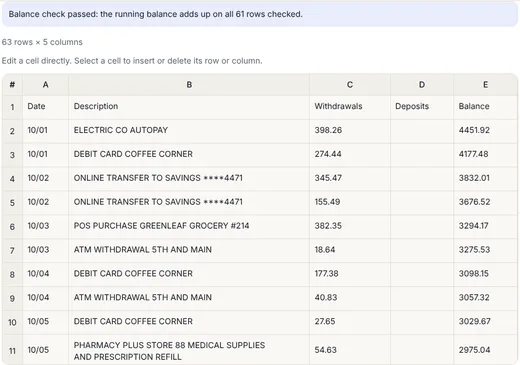
It then runs a balance check. Where the statement has a running balance, each row's balance should equal the previous balance plus deposits and minus withdrawals. The preview tells you on how many rows that holds. If every row adds up, you can trust that no amount was misread or dropped. If a few rows do not, compare those rows with the PDF; the usual cause is a fee printed in an unexpected column. Because the file is read on your own device, account numbers and transactions are never sent anywhere.
Selecting one table by hand
Dragging is still the better choice for a single table on a busy page, for a scanned page that needs OCR, or when the automatic reading picked the wrong block. Select the table itself and leave out headings and footnotes. With clean borders, the tool uses the grid lines; for borderless tables it looks at word positions and whitespace. If the columns are shifted, move the dashed guides and apply them before editing the cells. A hand-picked table can have up to 300 rows and 40 columns.
Keep several tables in one workbook
Use Keep as worksheet before reading another page or region. The Excel download includes each saved table and the current preview. Turn on plain number conversion if you want values you can sum. In a test with one ruled table and one borderless table, the workbook contained both worksheets. The edited label and leading-zero ID 001 were preserved.
Making a precise selection
Drag around the table on the page preview, or open Set exact selection (%) and type the edges as percentages of the page. Zoom in on selection shows an enlarged view so you can confirm the first and last rows are inside the box. Use whole source resets the selection to the full page. Go to the right page first with the page arrows; each page is read separately.
What happened when we tested it
We built a three-page sample checking account statement with 62 transactions in five columns: date, description, withdrawals, deposits and balance. Each page had the bank name, an address line, an account line, the column titles and a page footer, and three kinds of description wrapped onto a second line. Find and read tables with statement clean-up took about 0.3 seconds in a desktop browser and returned 63 rows, the column titles plus all 62 transactions in order, with the wrapped descriptions joined and the repeated titles and footers gone. The balance check passed on all 61 rows it could check. Without clean-up the same file gave 79 rows, because each wrapped line stays as its own row.
A one-page card statement with a single Amount column read as 8 transactions; the payment printed as ($500.00) and the return printed as ($19.99) came out as -500.00 and -19.99, and the Total new charges line below the table was left out. A ruled quarterly sales table read as 7 rows and 5 columns with the thousands kept as printed. On the Korean page, a sample 거래내역 with dates such as 2026.10.01 and won amounts without decimals read as 9 transactions and passed the balance check. We also kept the earlier test of a single ruled invoice table, which read 31 rows and 5 columns in about 0.15 seconds and saved amounts like 704.19 as real numbers while keeping invoice numbers and dates as text.
Honest limits
The workbook contains values, not the look of the PDF: no merged cells, colors or fonts. Dates are kept as the text printed on the page, so convert them in your spreadsheet if you need date math. Automatic reading needs a PDF with real text, which is what banks and accounting software produce when you download a statement. A scanned or photographed page has no text layer, so turn on OCR and select the table by hand on each page; OCR is slower and can confuse 0 and O or 1 and l. Every bank lays out its statement differently, and a layout with amounts in a single column next to a separate DR/CR column, or a summary box squeezed into the table, may need a guide moved or a column fixed in the preview.
After the download
Open the workbook and spot-check a few totals against the PDF before relying on it. If you left number conversion off, values stay as text, which protects codes like account numbers but means a SUM formula will ignore them. For dates, use your spreadsheet's text to columns or date functions to turn printed dates into real dates. If you only need the values in another system, Download current CSV is the simplest file to import.
Common problems and fixes
If the tool says the PDF has no selectable text, it is a scan; turn on Use OCR for a scanned page and drag around the table. If automatic reading picked a summary box instead of the transactions, choose This page only on the right page or drag around the transactions. If two columns land in one, select the table by hand, add a guide between them and click Apply guides. If the balance check fails on a few rows, compare just those rows with the PDF. If the PDF asks for a password, enter it in the PDF password box.
Frequently asked questions
Can I convert a bank statement PDF to Excel?
Yes. Tick Bank or card statement clean-up and click Find and read tables. Wrapped descriptions are joined, amounts become plain numbers and the running balance is checked. The statement is read in your browser and never uploaded.
Do I have to select each table?
No. Find and read tables reads every page automatically. Selecting by hand is only needed for scanned pages or when you want one particular table from a busy page.
Does it work with scanned PDFs?
Yes. Turn on OCR for a scanned page and choose a language. Check the result closely, especially decimal points and similar-looking characters.
Will the workbook keep formulas and cell styling?
A PDF contains the printed result. The workbook contains the extracted table values, with optional header formatting.
Which OCR languages are available?
English, Korean + English and Japanese + English.
Can I get several tables into one file?
Yes. Click Keep as worksheet after each table. The Excel workbook then holds one worksheet per saved table plus the current preview.
Can it read a table that continues onto the next page?
Yes. Find and read tables joins a table that runs over several pages into one sheet, keeps the rows in order and drops the column titles repeated at the top of each page.
Is the PDF uploaded?
No. The PDF is opened, read and converted in your browser.