How to use Audio Cutter
- 1Drop an audio file (or a video) into the box.
- 2Move the Start and End sliders, and press Play selection to hear exactly what you will keep.
- 3Choose the format and quality. MP3 at 192 kbps suits most uses; WAV for editing.
- 4Click Convert, listen to the result, then click Download.
Exact cuts, straight from the sliders
The cut is made to a tenth of a second, and the player under the sliders plays only the selected part, so you can check both ends before saving. For files longer than ten minutes the sliders move in half-second steps; for shorter files, tenths. The output name gets a -cut suffix so the original is never overwritten.
In our test, selecting 0:05.0 to 0:12.0 of a 20-second MP3 produced a 7.05-second MP3 of 168,837 bytes in 0.4 seconds.
Ringtones, podcasts and videos
For an iPhone ringtone, cut up to 30 seconds and save as M4A; rename the download to .m4r and add it through iTunes or Finder. Android phones accept MP3 ringtones directly. For a podcast quote, 128 kbps MP3 keeps the clip small for sharing. Drop a video and the tool takes only its sound track, which is a quicker route than converting the whole video first; for a video clip with picture, use Trim Video.
Good reasons to cut audio
Most cuts are small jobs: a ringtone from the chorus of a song, a voicemail greeting, a 20-second quote from a podcast for a social post, or one question from an hour-long recorded interview. Musicians cut a hard passage to loop while practising. Teachers trim the silent minutes at the start of a lecture recording before sharing it. Each of these needs only a start, an end and a format, and none of them needs the file to leave your computer.
Every option, top to bottom
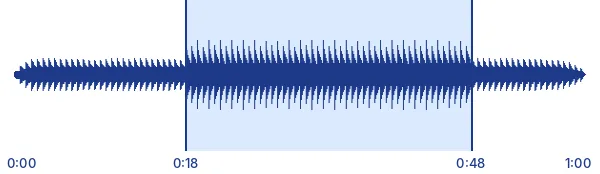
After you drop a file, a bar shows the selected part of the whole track, with Start and End sliders and their times beside them. Play selection starts at the Start point and stops by itself at the End point, and Length of the cut shows the duration you will keep.
Format offers MP3 (plays everywhere), M4A and WAV (uncompressed, for editing). Quality offers 128, 192 or 320 kbps for MP3; for M4A the top choice is 256 kbps. If the source is already AAC, as in most M4A files and phone videos, and you pick M4A, the sound is copied without re-encoding and the tool says so. WAV shows a note that it uses about 10 MB per minute. The tool remembers your quality choice for next time, and an estimated size appears before you convert.
What happened when we tested it
We ran the tool in headless Chromium on a Linux test machine. From a 3-minute 192 kbps MP3 (4,321,533 bytes) we selected 0:42.0 to 1:12.0 and saved it as MP3 at 192 kbps. The result was 30.07 seconds long and 721,170 bytes, made in 0.9 seconds; the estimate before converting said about 703 KB.
We also dropped a 12-second WebM screen recording with Opus sound, selected 0:02 to 0:08, and saved it as M4A. The tool ignored the picture and produced a 6.04-second AAC file of 109,821 bytes in 0.9 seconds.
Limits worth knowing
Each run keeps one continuous section. You cannot delete a part from the middle and keep both sides in one step; cut the two parts separately and join them with Merge Audio. There are no fades, no waveform display and no volume control here; to make a quiet clip louder, use Audio Volume Booster.
An MP3 is re-encoded rather than split at its original frames, which is why the 30-second cut above came out a few hundredths of a second longer: MP3 files carry a little padding at the start and end.
Common problems and fixes
A click or cut-off word at the start. Move Start a tenth of a second earlier into a quiet moment and listen again with Play selection. The iPhone ringtone does not appear. Keep it to 30 seconds or less, save as M4A and rename the file to .m4r before adding it. The tool says the file has no sound track. The video really has no audio, which is common for screen recordings made with sound off.
Frequently asked questions
Does cutting an MP3 lose quality?
The selected part is decoded and re-encoded at the quality you pick. At 192 kbps or higher the difference from the source is very hard to hear; choose WAV if you need it lossless.
Is my file uploaded?
No. The conversion runs in your browser tab and the file never leaves your device. You can confirm it on the privacy page.
Can I cut several parts from one file?
One section per run. Convert, download, then move the sliders and convert again; the file stays loaded.
Can I fade the ends in and out?
Not yet. Fades are on our list for this tool.
Can I remove the middle of a track and keep the rest?
Not in one step. Cut the part before and the part after as two files, then join them with Merge Audio.
Why is my cut a few hundredths of a second longer than I chose?
MP3 files include a short stretch of padding at the start and end. Our 30.0-second selection became a 30.07-second MP3. Choose WAV for an exact length.
Can I cut the sound from a video?
Yes. Drop an MP4, MOV, WebM or MKV file and the tool keeps only the audio of the part you select. To keep the picture, use Trim Video.