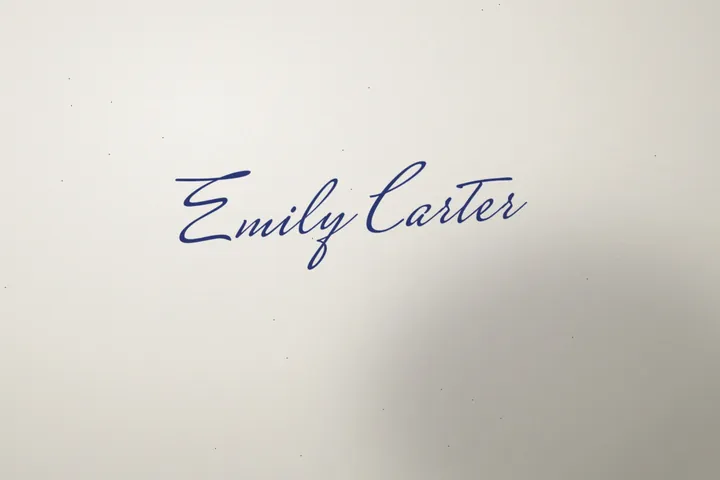

How to use Signature Cleaner
- 1Sign on plain white paper with a dark pen and take a straight, well-lit photo. Fill most of the frame with the signature.
- 2Drop the photo into the box. The cleaned signature appears next to the original.
- 3Move the strength slider until thin strokes are kept and the paper is gone. Choose the ink colour and turn Remove specks on or off.
- 4Pick PNG, transparent or JPG, white background, a width and a file size limit if a form needs one, then press Download signature.
How the paper is removed
A photo of white paper is never evenly white. One corner is darker, your hand casts a shadow, and the camera adds a colour tint. So the tool does not cut at one fixed brightness. It works out how bright the paper is in every part of the photo, then keeps only what is clearly darker than the paper around it. That is why a signature in a shadowed corner comes out as clean as one in the light.
Edges are kept soft, so curves look like ink and not like jagged pixels. Small specks that are not connected to the signature are removed when Remove specks is on.
Ink colour
- As written: keeps your pen's colour, made slightly deeper so it does not look faded.
- Black: the safest choice for printed documents and forms.
- Blue: some offices and banks prefer a blue signature, because it shows the page was signed by hand and is not a photocopy.
Fitting a file size limit
Job portals, school sites and government forms often ask for a signature image under 50 KB, 20 KB or even 10 KB. Choose the limit and the tool shrinks the image step by step until it fits, keeping it as large as possible. In our test, a 3000 x 2000 phone photo gave an 81 KB PNG at 1200 px wide with no limit. With limits it gave 48 KB (796 px), 19.2 KB (440 px) and 9.2 KB (239 px), all still readable. A white-background JPG at 20 KB stayed at the full 1200 px.
If a form asks for exact pixel dimensions as well, use Resize Image or Crop Image after downloading.
Using the signature
- In a PDF, use Sign PDF and add the PNG as an image signature.
- In Word or Google Docs, insert the PNG as a picture and set text wrapping to In front of text so it sits on the signature line.
- Keep the file private. Anyone who has it can paste it into a document.
How to take a good signature photo
- Paper: plain white printer paper, no lines or grid. Lined paper leaves faint lines that look like ink.
- Pen: a black or dark blue gel or felt-tip pen gives solid strokes. Pencil and light ballpoint are harder to separate from the paper.
- Light: daylight from a window or a bright room light, coming from the side so your phone does not cast a shadow over the signature.
- Angle: hold the phone flat above the paper. A tilted photo makes the signature look squashed.
- Size: sign at your normal size, a bit larger is fine. Fill about two thirds of the photo width.
A scanner works even better than a phone. Scan at 300 dpi in colour or greyscale and drop the scan in the same way.
PNG or JPG?
Choose PNG, transparent when you will place the signature over a document, because the paper around the ink becomes see-through and the signature sits on the signature line without a white box. Choose JPG, white background when a form specifically asks for JPG, or when an upload site shows transparent images on a black background. JPG files are smaller at the same width, which is why a 20 KB JPG can stay at full width while a 20 KB PNG has to be narrower.
Common size requirements
Requirements vary, but many application portals ask for a signature image around 140 x 60 px up to 600 x 200 px, under 10 to 50 KB, as JPG or PNG. Width options here are Up to 1200 px, 600 px and 300 px; together with the file size limit, that covers almost every form. If a site asks for an exact pixel size, download at a larger width and use Resize Image, or Crop Image if it asks for a set aspect ratio.
Exam and government sites often say the signature must be in black or blue ink on white. Black or Blue in Ink colour, with JPG, white background, meets that.
Frequently asked questions
Is my signature uploaded?
No. The photo is processed in your browser and the result is made on your device. Nothing is sent or stored anywhere.
Why are some thin strokes missing?
The pen was light or the photo was dim. Move the slider towards Keep faint strokes, or take a new photo in brighter light with a darker pen.
Why is there still a grey patch?
A strong shadow or a fold in the paper can look like ink. Move the slider slightly the other way, turn on Remove specks, or retake the photo with the paper flat and lit evenly.
Is an image signature legally valid?
That depends on the document and where you live. Many everyday forms accept it, while some contracts need a certified e-signature. Check with whoever asked for the signature.
Can I draw my signature instead of photographing it?
Yes. Signature Maker lets you draw it with a finger, mouse or stylus and download the same transparent PNG, and Sign PDF can draw one straight onto a PDF. This tool is for when you want your real pen signature, which usually looks more natural.
Will the signature look pixelated in a document?
Use the largest width (Up to 1200 px) for documents. It stays sharp when printed at normal signature size. Smaller widths are only for upload forms with size limits.