
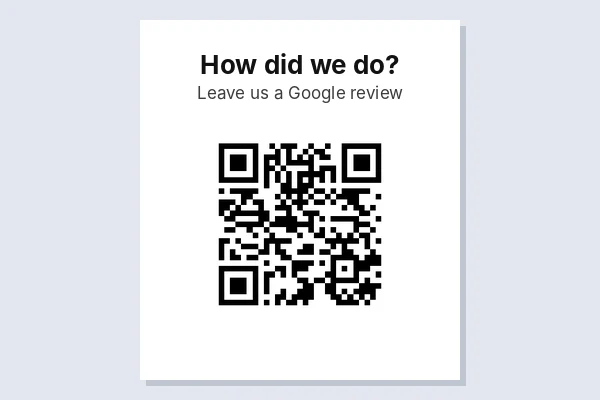
How to use Google Review QR Code
- 1Get your review link: open your Business Profile on Google, select Read reviews, then Get more reviews, and copy the link.
- 2Paste it in the box. A green note confirms it is a Google review link. You can also paste a Place ID that starts with ChIJ.
- 3Add your logo or brand colour if you like, and wait for Scan test passed.
- 4Open Print for a counter sign, a folding table tent or a sheet of stickers for receipts and bags.
- 5Scan the printed code once with your phone to check it opens the review form for the right business.
Where to find your review link
Google gives every Business Profile owner a short review link. Sign in with the account that manages the profile, go to your Business Profile, select Read reviews, then Get more reviews. Copy the link it shows; it looks like https://g.page/r/AbCdEf123/review.
No access to the profile? If you know your business's Place ID (Google's own Place ID Finder shows it), paste the ID that starts with ChIJ and the tool builds the direct review link, https://search.google.com/local/writereview?placeid=..., for you.
Why not just use Google's own QR code?
The same Get more reviews screen also offers a plain QR image, and it works. Make one here when you need more than that:
- Print layouts: a full-page counter sign, a table tent that stands up on its own, and sticker sheets in three sizes with cut lines.
- Your look: brand colour, your logo in the middle, and SVG for a designer or print shop.
- Scan test and size note: the code is read back before you print, and you are told the smallest size that still scans.
Where to put it
- At the counter or till, at eye level, while people wait for their card to go through.
- On table tents in cafes and restaurants, facing the seat.
- On receipts and invoices. A 2.5 cm code fits at the bottom of a printed receipt.
- On takeaway bags, boxes and thank-you cards with a sticker from the sticker sheet.
- In thank-you emails, where the plain link works too.
Keep the wording neutral, such as "How did we do? Leave us a Google review", which is what the print layout starts with.
Google's rules on asking for reviews
Asking every customer for a review is fine. Google's Business Profile help is clear about what is not:
- No rewards. Offering free or discounted goods or services in exchange for posting, changing or removing reviews is treated as fake content and is strictly prohibited. Skip "10% off for a 5-star review" signs.
- Do not only ask happy customers. Google's contribution policy does not allow selectively asking for positive reviews or discouraging negative ones, so put the code where everyone sees it.
- Reviews must come from real customers, not staff, family or paid services.
Breaking these rules can get reviews removed or the profile restricted, so the safest QR sign simply invites everyone.
What we tested
We pasted a review link in the g.page format and a bare Place ID. The page marked both as Google review links, turned the Place ID into the full writereview address, and both codes passed the scan test. The short g.page link makes a 29 x 29 square code that scans from 1.5 cm; the longer Place ID link makes 37 x 37 squares (1.8 cm), and adding a logo raises it to 49 x 49 squares (2.3 cm). A link to an ordinary website was still accepted, with an orange note asking you to check that it opens a review form.
Frequently asked questions
Is this Google review QR code free?
Yes. No sign-up, no trial and no watermark. The code holds your review link directly, so it never expires.
How do I get my Google review link?
Open your Business Profile, select Read reviews, then Get more reviews, and copy the link. It usually looks like g.page/r/.../review.
Can I offer a discount for a Google review?
No. Google strictly prohibits offering free or discounted goods or services in exchange for reviews.
Does the QR code still work if my business moves?
Yes, as long as it stays the same Business Profile. The review link points to your profile, not to an address.
What size should the QR code be on a table card?
About 4 to 5 cm works well from a seated distance. The size note under the code tells you the smallest safe size.