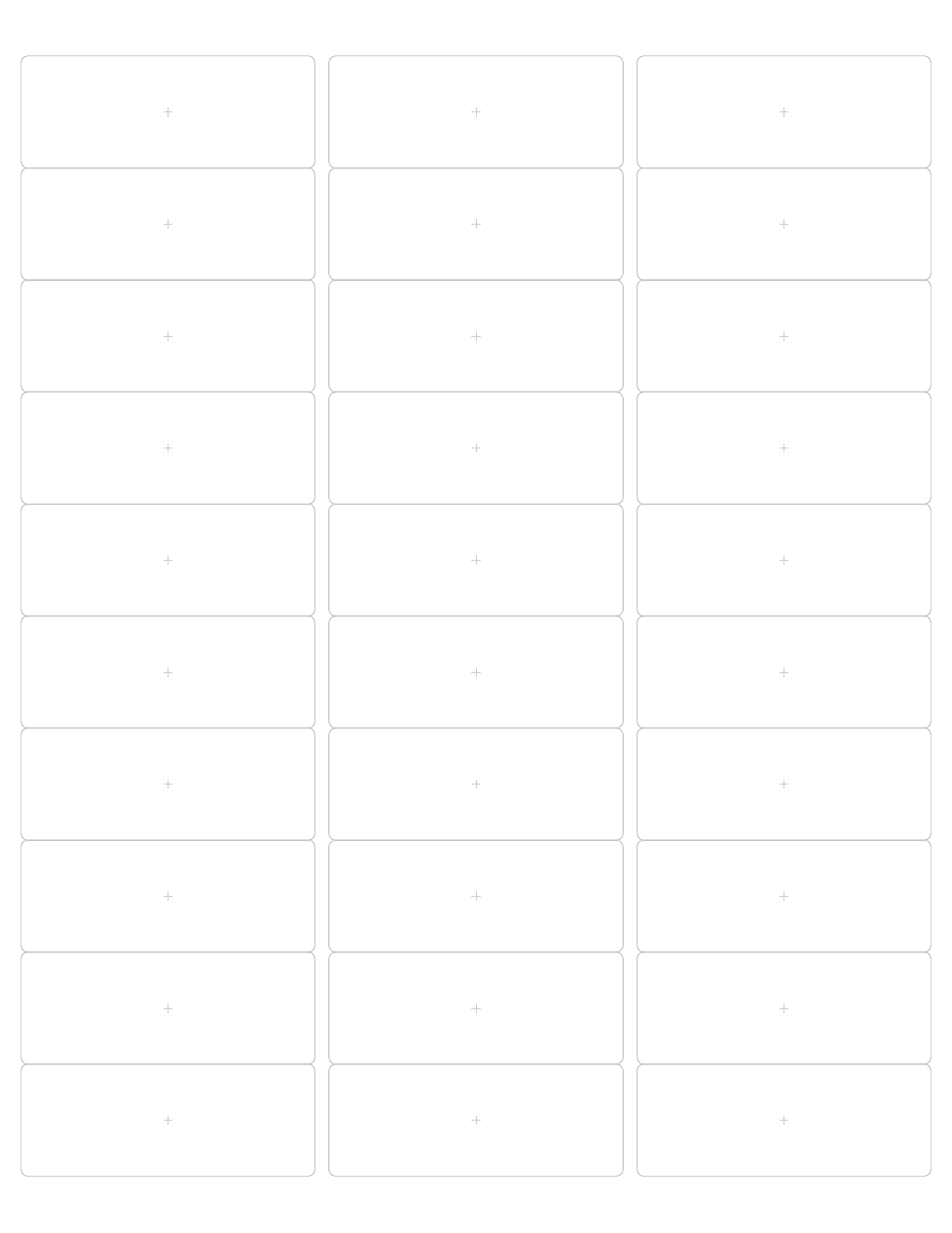
Preview of the PDF, 30 labels, 1 x 2 5/8 in, US Letter file
Office
Address Label Template
Blank 30-per-sheet (1 x 2 5/8 in) and 21-per-sheet (63.5 x 38.1 mm) label templates as PDF and editable Word files.
- Price
- Free
- Format
- PDF, DOCX
- Size
- 1 page per file
Download
- PDFPDF, 30 labels, 1 x 2 5/8 in, US Letter2 KBDownload
- DOCXWord (DOCX), 30 labels, US Letter, editable2 KBDownload
- PDFPDF, 21 labels, 63.5 x 38.1 mm, A42 KBDownload
- DOCXWord (DOCX), 21 labels, A4, editable2 KBDownload
Free for home, classroom and office use. No sign-up.
About this printable
Address labels only work if every line of text lands inside its label, and the whole sheet is unforgiving: shift the grid by 2 mm and the bottom row prints across the cut. This template gives you the two layouts most people use. On US Letter it is 30 labels of 1 x 2 5/8 inches in 3 columns and 10 rows, the size sold as 5160 for laser printers and 8160 for inkjet printers. On A4 it is 21 labels of 63.5 x 38.1 mm in 3 columns and 7 rows, the most common A4 address label size.
Each layout comes as an editable Word file and a PDF. The Word file is a table whose cells are exactly the size of the labels, with fixed row heights so typing never stretches a row and pushes the grid out of line. The table has no borders, so nothing prints except your text. The PDF shows the label outlines and a small cross at the centre of each label, for a test print on plain paper before you use a real sheet.
We checked the geometry after generating the files. On a 300 DPI render of the Letter PDF the label edges fall at 0.1875, 2.8125 and 2.9375 inches across and every row is exactly 1.00 inch tall, starting 0.50 inch from the top. We also opened both Word files in a word processor with a short text in every cell: each stayed on one page, the Letter columns sat 2.75 inches apart and the rows 1 inch apart, and the A4 columns 66.0 mm apart with rows of 38.1 mm. Nothing else is printed: no logo, no website address.
Fill the labels in Word or Google Docs
- Open the DOCX file. In Word, turn on View Gridlines (Table Layout tab) so you can see the label cells, which have no printed borders.
- Click in a cell and type the name and address, one line per line. Up to 4 lines of 10 pt text fit a 1 inch label; the A4 labels fit 5 or 6 lines.
- Text is centred vertically in each label and kept about 3 mm in from the sides, so it clears the rounded corners.
- To repeat one return address on every label, fill the first cell, copy it, select the other label cells and paste.
- Leave the narrow empty columns between labels alone. They are the gaps between the labels on the sheet.
- In Google Docs, upload the DOCX with File, Open. The cell sizes carry over, but check the page margins in File, Page setup are unchanged before printing.
Do a plain-paper test first
Label sheets are expensive and every printer feeds paper a little differently. Print your filled-in page on ordinary paper first, at 100% scale with Fit to page turned off. Lay the printout on top of a label sheet and hold both up to a window or a lamp. Every address should sit inside a label, with some room to spare on all sides.
If everything is shifted the same way, the printer is offsetting the page. Move the content by changing the top or left page margin in the Word file by the amount you measured, rather than retyping anything. If the error grows towards the bottom of the page, the printer is scaling: check the print dialog for Fit, Shrink or Scale settings. The PDF with its centre crosses is the quickest way to see which of the two is happening.
Have a whole list of addresses?
For a mailing list, a wedding invitation run or holiday cards, typing 30 addresses by hand is slow. If your addresses are in Excel or a CSV file, the Excel and CSV to Address Labels tool on this site turns each row into a label on the same 30-per-sheet layout, so you can skip the typing and print straight onto a sheet.
How to print it
- 1Choose the file that matches your label sheets: Letter files for 30-per-sheet US labels, A4 files for 21-per-sheet labels.
- 2Print at 100% or Actual size. Turn off Fit to page and Shrink oversized pages.
- 3Do a test print on plain paper and hold it against a label sheet in front of a light.
- 4Feed label sheets one at a time if your printer tends to pull two sheets or print at a slant.
- 5Use a laser printer with laser labels and an inkjet printer with inkjet labels; the wrong type can smear or peel.
Questions
Is this the same layout as 5160 labels?
Yes. The US Letter file uses 30 labels of 1 x 2 5/8 inches in 3 columns and 10 rows, with a 0.5 inch top margin, 0.1875 inch side margins and 0.125 inch between columns. That is the layout of 5160 and 8160 labels and other 30-per-sheet address labels of the same size.
Which file do I use for A4 labels?
Use the A4 files for 21 labels of 63.5 x 38.1 mm in 3 columns and 7 rows. That is a different size from the US labels, so the US Letter file will not line up on A4 sheets.
Why can't I see any lines in the Word file?
The table has no borders on purpose, so no lines print on your labels. Turn on View Gridlines in Word to see the cells while you type.
My text is printing too low on the labels. What do I do?
Measure how far off it is on a plain-paper test, then reduce the top page margin in the Word file by that amount. If only the lower rows are off, your printer is scaling the page, so set the scale to 100%.
Can I print labels from a spreadsheet instead?
Yes. If your addresses are in Excel or CSV, the Excel and CSV to Address Labels tool on this site lays them out on the same 30-per-sheet grid for you.