Compare Two PDFs: What Text and Visual Diffs Each Catch
By the UtilityNest team · · 6 min read
You have two versions of a PDF and need to know what changed before you sign, send or approve the new one. The comparison tools all promise the same thing, but they answer different questions. A text comparison tells you which words changed. A visual comparison tells you which parts of the page look different. Neither is complete alone, and a few assumptions people make about them lead to missed changes. Here is what we saw testing Compare PDF on a small lease summary.
Our test files were three PDFs made from the same page layout. File A is a 3-page lease summary. File B changes the monthly rent from $1,200 to $1,250, the notice period from 30 to 60 days, "Quiet Hours" to "QUIET HOURS", and moves the Pets clause from page 2 to page 3. A third file, B_logo, is identical to A except that the logo block changes from blue to green.
A clean text comparison does not mean nothing changed
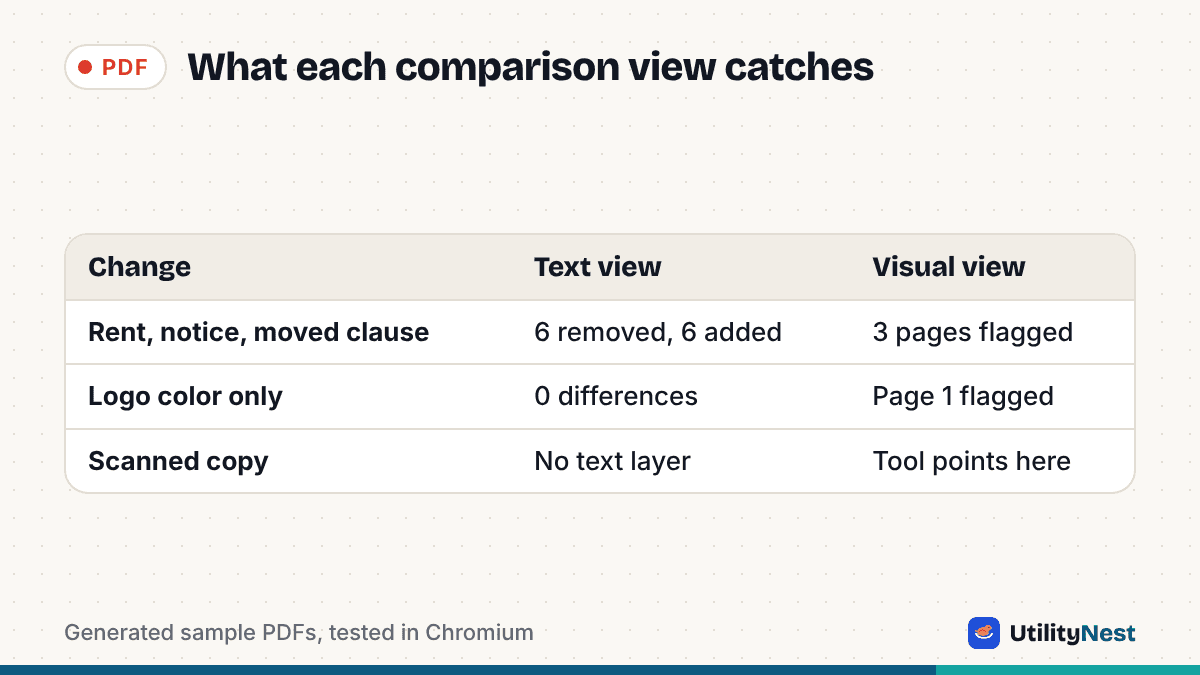
The logo file is the proof. Comparing A against B_logo, the Text changes tab reported 0 removed and 0 added lines and said "No text differences found", followed by a pointer to the Visual overlay for images, layout and formatting. The Visual overlay flagged page 1 with 0.41% of the page highlighted. The only difference was a colored rectangle, which is exactly the kind of change a text tool cannot see.
That matters for documents where the non-text parts carry meaning: a swapped signature image, a changed chart, a table border or a redesigned letterhead. If a comparison says the text is identical, treat it as "the words match" and glance at the visual view before you conclude the files are the same.
A moved paragraph counts as a deletion plus an addition
Between A and B the tool reported 6 removed lines and 6 added lines. Half of that was real edits: the rent line, the notice line and the Quiet Hours line each appeared once as removed and once as added. The other half was the Pets clause, three lines that only moved from page 2 to page 3. A line-by-line comparison has no notion of "moved", so the clause showed as removed on page 2 and added on page 3.
When a long report looks scarier than the real edit, check whether the same text appears on both the removed and the added side. If it does, it likely moved or reflowed rather than changed. This is common when someone inserts a paragraph and everything below it shifts onto the next page.
Changes can ripple onto pages you didn't edit
In the Visual overlay all three pages were flagged for A against B: about 0.19% of page 1, 0.74% of page 2 and 1.34% of page 3. The page 1 figure is the small edits to three lines. Page 2 lost the Pets clause and page 3 gained it. The percentage is the share of the page area that looks different, not a measure of how important the change is. A one-digit change to a price can be a small percentage and a large problem, and a moved block can be a large percentage and harmless, so read the highlighted areas themselves rather than ranking pages by the number.
| Test (A against) | Text changes tab | Visual overlay |
|---|---|---|
| B: rent, notice, case, moved clause | 6 removed, 6 added lines | Pages 1, 2 and 3 flagged (0.19%, 0.74%, 1.34%) |
| B_logo: logo color only | 0 removed, 0 added | Page 1 flagged (0.41%) |
| Scanned copy of page 1 | No text layer, comparison not possible | The tool points you here |
A change in capitalization is still a change, unless you tell the tool otherwise
The Quiet Hours line became "QUIET HOURS" in file B. By default the tool treats that as a difference, because the characters are different. Turning on Ignore case reduced the counts from 6 and 6 to 5 and 5 in our test. That is the right setting when you are checking a reformatted copy of a document, and the wrong one when a legal or technical document might change meaning with capitals, such as an identifier or a code.
There is also an Ignore spacing switch, which is on by default. In our test the extra space in "The Tenant shall" never showed up as a change either way, because the tool collapses repeated spaces when it reads the text. Spacing differences from re-exporting a document should therefore not flood your report.
A scanned PDF has no text to compare
A scanned page is a picture of text, so there are no words to read. We made a PDF that was only an image of page 1 and compared it with the real text version. The Text changes tab reported that one of the files has no text layer, probably because it is scanned, so a text comparison is not possible, and it pointed us to the Visual overlay. Note that the counters above the notice still showed numbers (14 lines added in our case). Ignore them when the notice appears, since they only reflect the empty side.
For scans, the visual comparison works on the page images, which makes it sensitive to slight differences in how the pages were scanned or aligned, so expect noise from shifts that don't reflect real edits. The tool does not do OCR on this page, so it will not turn a scan into comparable text.
Which file is A matters
The tool labels the first file Original (A) and the second Changed version (B), and it reads the difference as "what happened to get from A to B". Removed lines are in A but not B, and added lines are in B but not A. If you load the files the wrong way round, every removal shows up as an addition and the report reads backwards, which is easy to miss when you are checking a counter-offer or a revised contract. The swap button between the two upload boxes flips them without reloading anything. Before you rely on a report, glance at the file names shown under each side.
Files with different page counts
An inserted page shifts every later page, which is why a short addition near the start can light up the whole visual report. Page numbers on the overlay and the side-by-side view follow the page position in each file, so page 5 in A is compared with page 5 in B even if the content moved. If one file is shorter, the tool's page viewer says there is no such page in that file instead of failing. In that situation the text comparison is the more useful view, because it reports differences line by line instead of by page position. The fix for noisy page-by-page results is simple: compare the text first and use the visual view only on pages where you expect layout to matter.
A good order of checks
Start with Text changes to see which words, numbers and dates changed, and read each removed and added pair. Scan the report for text that appears on both sides, which marks moved passages. Then open the Visual overlay and look at every page it lists under Pages with changes, because that catches images, layout and formatting. Use Side by side to look at a page in both versions when something is flagged but you cannot tell what, and Export report (.txt) if you want to keep the text differences. If a PDF is password-protected, the tool asks for the password before comparing. Everything runs in your browser, so neither file is uploaded.
Tested on November 4, 2026 with UtilityNest's Compare PDF tool in Chromium, using three generated PDFs and one image-only PDF.