How to Compress a PDF to Under 1 MB (Tested on Real Scans)
By the UtilityNest team · · 6 min read
A 1 MB limit sounds generous until you scan something. One color page from a phone scanner app or an office copier is often 500 KB to 1 MB by itself, so a ten-page application packet can arrive at 8 or 9 MB. Getting that under 1 MB is very doable, but how you do it depends on what is inside the PDF, and on what "1 MB" means to the site you are uploading to.
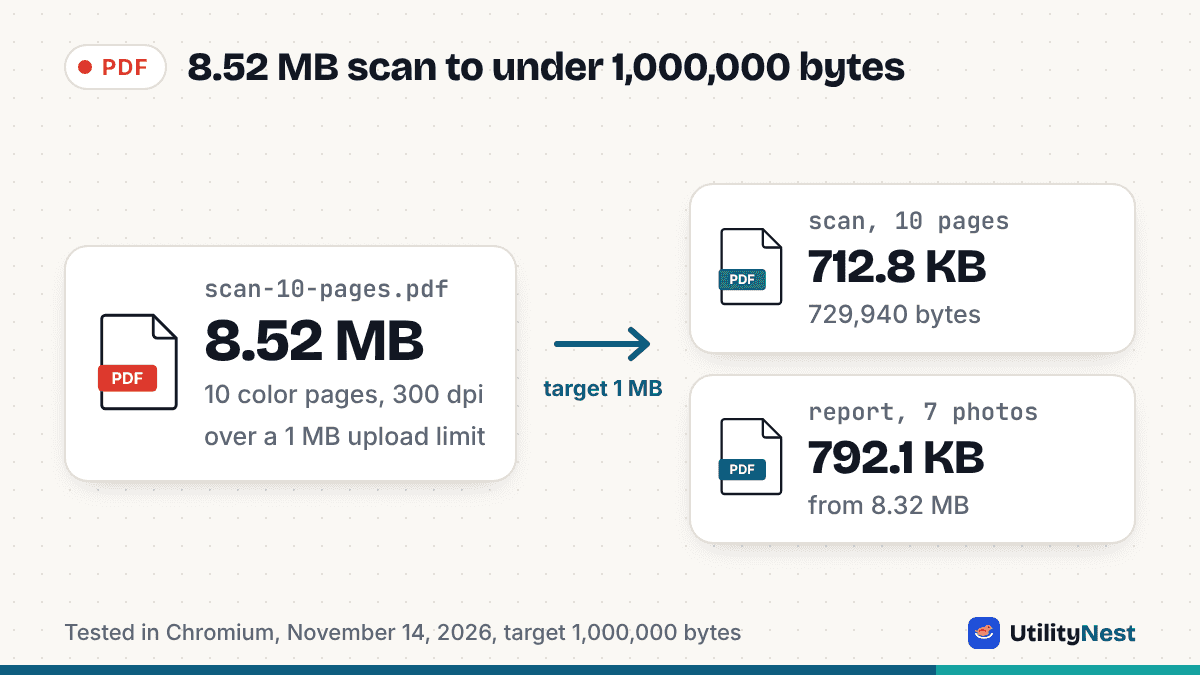
We tested the steps below with four files: a 10-page color scan (8.52 MB), a 30-page color scan (27.35 MB), a 5-page move-in report made in a word processor with seven photos pasted in (8.32 MB), and a 5-page text-only lease (25.8 KB). The results are in the table near the end.
Step 1: Find the exact limit in bytes
"1 MB" is two different numbers. Under the SI definition used by storage makers and by recent versions of macOS, 1 MB is 1,000,000 bytes. Under the binary definition, the same label is often used for 1,048,576 bytes (strictly a mebibyte, MiB). Windows File Explorer divides by 1,024, so a file of 1,030,000 bytes shows there as about 1,006 KB, which looks like it fits but fails on a site that counts 1,000,000. The same trap is behind a 2 MB upload limit rejecting a file that looks smaller.
Most upload forms don't say which one they use. Aim for under 1,000,000 bytes and the file passes either way. To see the exact size, right-click the file and open Properties on Windows or Get Info on a Mac, and read the number in bytes, not the rounded figure.
Step 2: Work out what kind of PDF you have
Open the file and try to select a word with your cursor.
- You can't select anything: it is a scan. Every page is a photo of paper, and the size depends on the number of pages and the image quality. This is the most common reason a PDF is over 1 MB.
- Text selects, but there are photos: it was made on a computer, and the photos are the weight. Our move-in report had 1,024-pixel photos pasted in as PNG images, and five pages came to 8.32 MB, almost all of it pictures.
- Text only, still over 1 MB: unusual. The weight is probably a fully embedded font or something hidden, such as attached files. Our guide to PDFs that stay over 100 KB covers the font case, and the fix is the same at 1 MB.
Our text-only lease was 25.8 KB for five pages. Text on its own is tiny, so if your file is mostly text and huge, look for what else is inside before you compress anything.
Step 3: Fix it at the source if you still can
Compressing an existing PDF works, but starting smaller works better, because every round of compression costs some sharpness.
- Scanning again? 150 to 200 dpi is plenty for printed text, and grayscale is smaller than color when the paper has colored stamps, patterns or photos. Check the scanner app's settings before you scan, not after.
- Exporting from Word? Microsoft's instructions say to choose Minimum size (publishing online) in the Save As PDF options when file size matters more than print quality.
- On a Mac? Apple's Preview guide describes File, then Export, and the Reduce File Size Quartz filter. It has no size target, so check the result in bytes and check that it is still readable.
- Photos in a report? Resize them before inserting. A photo that will appear 6 inches wide on paper doesn't need to be 4,000 pixels across.
Step 4: Compress to a target, not a level
Most compressors ask you to pick "low, medium or high" and tell you the size afterwards. If that lands at 1.2 MB, you try again, and the second pass may overshoot to something blurry. A target-size tool works the other way: you give it the limit and it finds the best quality that fits.
Our Compress PDF to 1MB tool does this in the browser without uploading the file. It counts 1 MB as 1,000,000 bytes by default (there is a 1 KB = 1,024 B setting if you know the site counts that way), tries the gentlest method first, and keeps real text and drawings as they are while recompressing images. Here is what it did with our test files:
| Test file | Before | After | What changed |
|---|---|---|---|
| Color scan, 10 pages | 8.52 MB | 712.8 KB (729,940 bytes) | Images at 70% quality, up to 1,700 px. Small print sharp. |
| Color scan, 30 pages | 27.35 MB | 788.4 KB (807,300 bytes) | Images at 55% quality, up to 1,000 px. Readable but visibly softer. |
| Report with 7 photos, 5 pages | 8.32 MB | 792.1 KB (811,083 bytes) | Photos at 85% quality, up to 3,000 px. Text still selectable. |
| Text-only lease, 5 pages | 25.8 KB | 25.8 KB | Already under the limit, left unchanged. |
Each run took under 11 seconds in Chromium on a laptop. Turning on Black and white made almost no difference for our scans (711.9 KB instead of 712.8 KB on the 10-page file), because the pages were black text on off-white paper. It helps more with color photos and patterned ID cards.
Step 5: Check the smallest text before you upload
A file that fits but can't be read gets rejected later, by a person instead of a form. Open the compressed PDF, zoom to 100 percent, and read the smallest things on the page: dates, account or registration numbers, the line under a signature. Our tool shows a preview of each page and lets you flip between the compressed version and the original before you download.
A useful rule of thumb from our tests is the page budget: divide the limit by the number of pages. Ten scanned pages under 1 MB leaves about 100 KB per page, which kept small print sharp. Thirty pages leaves about 33 KB per page, and that is where scans start to look soft. Below roughly 30 KB per page, expect fine print to blur.
Step 6: If it still won't fit, change the file, not the setting
When the page budget is too small, pushing the quality lower only produces an unreadable file. These work instead:
- Send fewer pages. Blank backs, cover sheets and duplicate pages all count against the limit. Delete what the form didn't ask for.
- Split the file. If the form has several upload slots, or accepts more than one file, split the PDF with Split PDF and compress each part. Each part then gets the full 1 MB.
- Rescan the worst pages. A single photo page or a color brochure page can take more room than ten pages of text. Rescanning that one page in grayscale at 150 dpi often frees enough space for the rest.
One trap to avoid at the end: both the original and the compressed copy are often in the same folder with similar names. Before you click Upload, check the size of the file you are actually picking.
Sources
- NIST: Prefixes for binary multiples (1 MB = 1,000,000 B; 1 MiB = 1,048,576 B)
- Apple Support: How storage capacity is measured on Apple devices
- Microsoft Support: Save or convert to PDF or XPS in Office desktop apps
- Apple Preview User Guide: Compress a PDF
UtilityNest results from tests in Chromium on November 14, 2026, with sample scans made at 300 dpi (US Letter) and a sample report with seven photos. Checked on November 14, 2026.