QR Code Not Scanning? Fixes for iPhone, Android and Samsung
By the UtilityNest team · · 6 min read
When a QR code won't scan, the first question is whether the problem is your phone or the code. Try a second phone, or a second app on the same phone. If the other one reads it in a second or two, the code is fine and your phone needs a setting changed. If nothing reads it, the code itself is the problem, and no amount of tapping will help. The phone sections below come first, then the code problems, with results from a scanning test we ran on purpose-made bad codes.
iPhone: use Photo mode, or the Scan Code control
Apple's guide says to open Camera, stay in Photo mode, and frame the code until a link appears at the bottom of the screen. You don't take a picture. Other modes such as Portrait, Video or Pano are where people get stuck, because they are easy to land on by swiping.
If the camera still ignores the code:
- Open Control Center and use the Scan Code control. If you don't see it, Apple's guide explains how to add it through Control Center's customize option. It opens a scanner that only looks for codes, so it is a good second test.
- Check Settings > Camera. On recent iOS versions there is a Scan QR Codes switch (the exact name can vary with your iOS version). If it is off, the Camera app won't show links from codes.
- In low light, tap the flashlight button in the Scan Code view. Apple suggests this in its guide, and it helps most with codes on menus and dim posters.
- Step back. A phone held a few centimeters from a small code often can't focus. Start about 20 to 30 cm away and move closer slowly.
Pixel and other Android phones: Camera or Google Lens
Google's Pixel help says to point the Camera app at the code, keep the whole code on screen, and wait for a link bubble. Again, no picture is needed. For Camera from Google, Google notes that you can't scan in Portrait or Video mode, and that there is also a dedicated QR mode.
If your phone's camera doesn't react at all, open Google Lens (in the Google app, or from the camera icon in Chrome's search bar) and point it at the code. Lens reads QR codes on almost every Android phone, so it is the quickest way to tell a camera setting from a broken code.
Samsung Galaxy: turn on the Scan QR codes switch
Samsung's support page is direct about this one: if the Camera app won't scan, open the Camera's Settings and turn on Scan QR codes. It also needs Photo selected at the bottom. On many Galaxy phones you can also add a QR scanner tile to Quick settings, which skips the camera settings entirely.
Scanning a code that is already on your screen
A code in a screenshot, an email or a PDF can't be pointed at with the same phone. Three ways around it:
- On iPhone, open the screenshot in Photos and touch and hold the code. On recent iOS versions a link option appears.
- On Android, open the image in Google Photos and tap Lens.
- On any device, drop the image into our QR Code Scanner. It reads the code from the picture in your browser, shows the link or Wi-Fi details before opening anything, and does not upload the image.
When no phone can read it: problems with the code
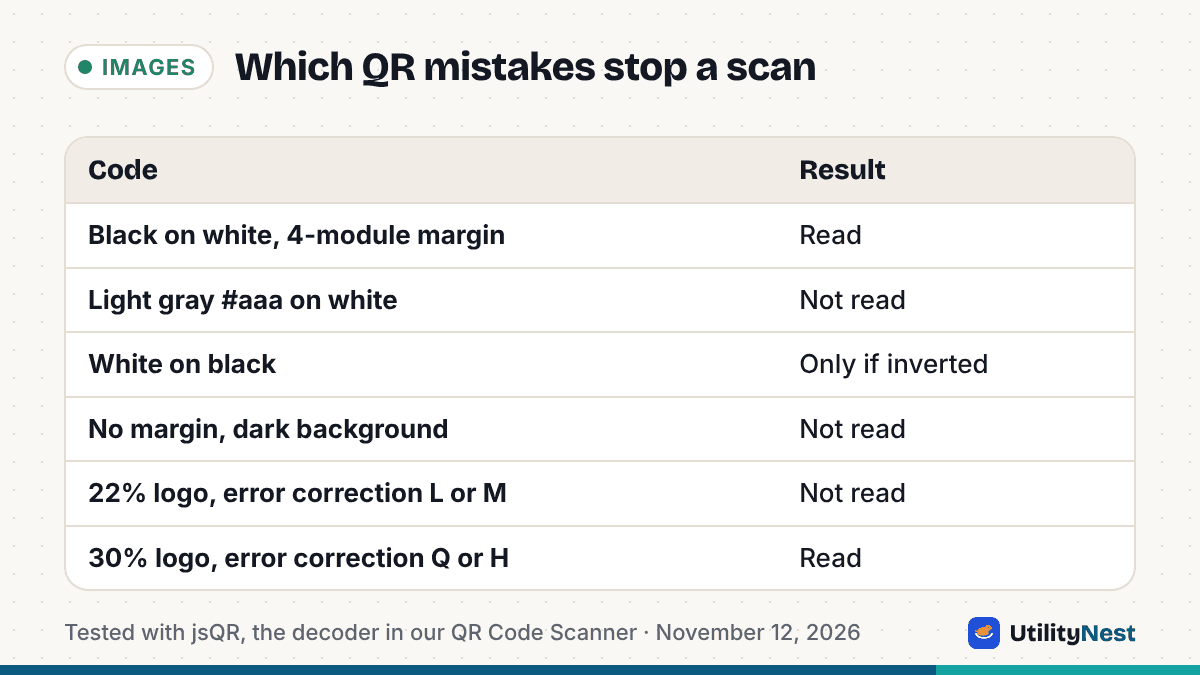
To see which code problems actually stop a scan, we generated codes for a short link (https://example.com/menu) with the same QR library our generator uses, damaged them on purpose, and ran each through jsQR, the decoder behind our QR Code Scanner. Phone cameras use their own decoders, and some cope better than jsQR, so treat this as a guide to which mistakes are risky, not as a promise about any one phone.
| What we changed | Result |
|---|---|
| Black on white, 4-module margin (the normal case) | Read |
| Code color #888888 (mid gray) on white | Read |
| Code color #aaaaaa (light gray) on white | Not read |
| White code on black, scanner not told to try inverted | Not read |
| Same inverted code, scanner allowed to try both | Read |
| No margin, placed on a dark background | Not read |
| 1-module margin on a dark background | Read |
| Logo covering 22% of the width, error correction L or M | Not read |
| Logo covering 22% or 30%, error correction Q or H | Read |
| Short link, 120 px wide, slightly blurred | Read |
| Long tracking link, 120 px wide, slightly blurred | Not read |
Tested November 12, 2026. Each fix below matches one of these rows.
The colors are too close
Scanners only care about dark versus light. Mid gray on white still read in our test; light gray did not. Brand colors fail the same way when the code color is a pale tint, or when a dark code sits on a busy photo. Keep the code clearly darker than the background. Our QR Code Generator shows a warning when the two colors you pick are too close.
It is light on dark
A white code on a black card looks sharp, but scanners expect dark modules on a light background. jsQR read our inverted code only when we told it to also try the inverted image. Many phone cameras handle this, some apps don't, so if the code goes on a menu or a ticket that strangers will scan, print it dark on light.
The margin was cropped off
The QR format needs a clear border. DENSO WAVE, the company that invented QR codes, specifies a quiet zone four modules wide on all sides (a module is one small square). Designers often trim it to fit a layout, then place the code on a colored panel. With no margin on a dark background, our test code could not be read. A thin margin still worked in jsQR, but four modules is the safe setting. In our generator, set the Margin slider to 4.
The logo covers too much
QR codes carry spare data so damaged parts can be rebuilt. The four error correction levels, L, M, Q and H, restore roughly 7, 15, 25 and 30 percent of the code. A logo in the middle uses up that spare. In our test, a logo across 22% of the width broke codes made at L and M, while Q and H still read with a logo up to 30% wide. When you add a logo in our generator, it switches error correction to High automatically and keeps the logo to 22% of the width.
The link is long and the print is small
Every character adds modules. Our short link made a code 25 modules across; a long link with tracking parameters made one 53 modules across at the same level, so each square is half as wide at the same print size. At 120 pixels wide with a slight blur, the short code still read and the long one did not. Shorten the link or drop tracking parameters you don't need, and print the code larger. Our guide to QR codes that print blurry covers print sizes and file formats in detail.
It scans, but nothing happens
If the camera shows the link but the page doesn't load, the code works and the link is the problem: a typo, an expired page, or a link that needs a sign-in. Scan the code with a scanner that shows the text before opening it, check the address, and fix the link. If you control the code, regenerate it with the corrected address and replace every printed copy, because a regular QR code holds the address itself and can't be edited after printing.
Before printing a batch, scan the proof with two different phones (one iPhone, one Android if you can) at the distance people will stand from it. That one test catches nearly every problem in the table above.
Sources
- Apple: Scan a QR code with your iPhone camera (checked on November 12, 2026)
- Google: Scan QR codes with your Pixel phone
- Google: Scan QR codes on Camera from Google
- Samsung: Ways to scan a QR code on your Galaxy phone or tablet
- Samsung Canada: How to scan a QR code with your Samsung Galaxy (Quick settings scanner)
- Google: Search with Google Lens in Chrome on Android
- DENSO WAVE: QR code size and quiet zone
- DENSO WAVE: Error correction levels