CSV Opens in One Column in Excel? How to Split It
By the UtilityNest team · · 4 min read

If Excel opens a CSV with everything in column A, check which character separates the fields. A file can be named .csv and still use semicolons or tabs. Import it through Data → From Text/CSV and choose the delimiter shown in the file. The preview should split the fields before you load anything into a worksheet.
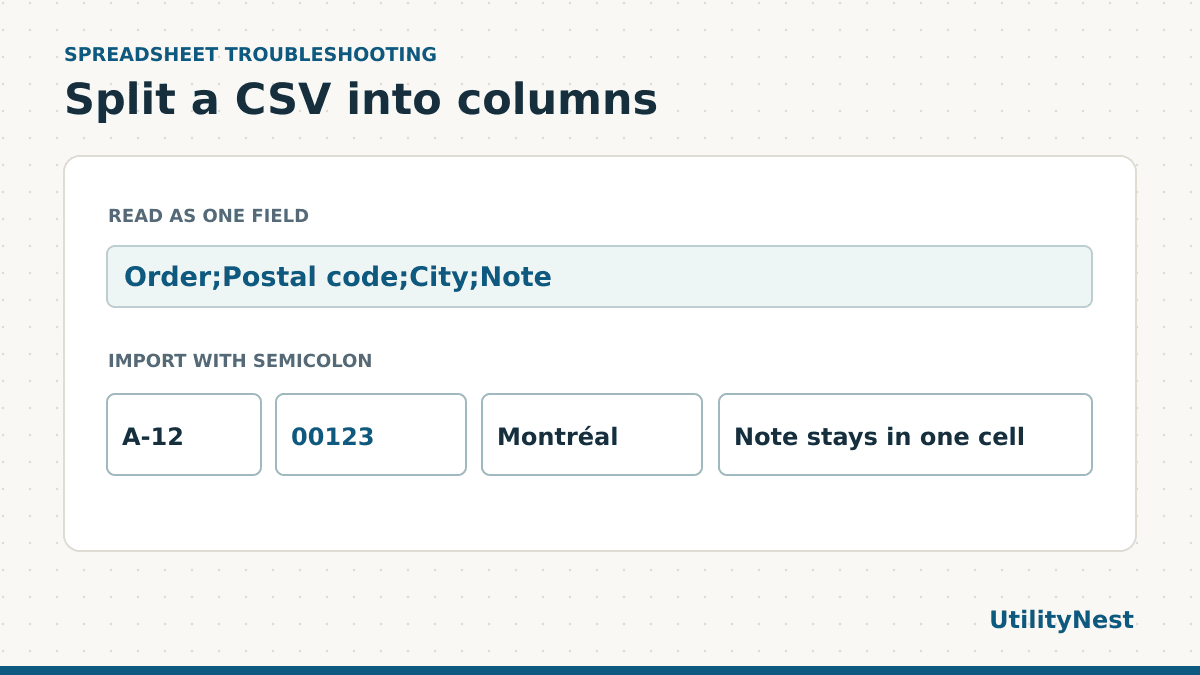
Find the delimiter in the original file
Open the CSV in a plain-text editor and look at its header row. A header such as Order;Postal code;City;Note has four fields separated by semicolons. A header with commas needs the comma setting. If the fields line up with big gaps and you see no punctuation, the file may use tabs. Make the first check in the original file. A spreadsheet that has already imported everything into one cell can be harder to inspect.
Look at two or three rows as well. A note surrounded by double quotes can contain punctuation that belongs inside the field. The quoted note "Leave at reception; side door" should stay together even when semicolons separate the other fields. A spreadsheet import handles those quotes. Splitting text with a simple search-and-replace can break the note into an extra column.
Import into Excel and preserve identifiers
- Open a blank workbook and choose Data → From Text/CSV, or the equivalent text import command in your Excel version.
- Select the original file. In the preview, pick Comma, Semicolon or Tab to match the header. Confirm the same number of columns in the first few rows.
- If your version offers Transform Data, use it to review types before loading. Treat postal codes, account references and long identifiers as text. If the preview already removed zeros, go back to the original CSV and import those columns as text from the start.
- Load the data and save as
.xlsxif you want to keep your spreadsheet’s column types and layout. Keep the original CSV as a separate source copy.
If the columns are correct but names show odd symbols, check the file’s encoding. This is a separate setting from the delimiter. Changing the separator moves fields into columns. Choosing the correct encoding makes letters display as intended. Try UTF-8 when the export says it uses UTF-8 and compare a name that includes accented characters.
Work through the sample
Download the semicolon-delimited sample CSV. It has two orders, four columns, postal codes with leading zeros and a quoted note containing a semicolon. The header reads as one field if you choose Comma. With Semicolon selected, the headers become Order, Postal code, City and Note.
We ran that sample through UtilityNest’s CSV parser. It detected semicolons and returned 00123 and 09008 intact. It also preserved the semicolon inside the first note as part of the note. Check those values in your import. Seeing four columns proves the split worked. Seeing the leading zeros proves the postal codes kept their intended representation.
If you want to create an Excel file directly
Open CSV to Excel, choose the file and inspect the preview. The delimiter and encoding controls let you override automatic detection. Use the column settings to keep identifiers as text, then convert to XLSX. Open the download and check a row with a leading zero and one with punctuation in a quoted field.
If the spreadsheet still shows an ID in scientific notation, widen the column as a quick check. For long identifiers, compare the displayed value with the source characters. If Excel already converted or rounded the value, changing the formatting afterwards cannot reconstruct the original string. Reimport that column from the original as text.
Check the lines that are most likely to break
Count the column headers and then check a row with a quoted note. In the sample, a comma belongs inside the second note and a semicolon belongs inside the first. Both notes should stay in one cell each. If a note splits despite choosing the right delimiter, inspect the original for an unmatched quote. If you can request a new export from the sending system, do that before editing a large file by hand.
Check a row with an empty field too. The surrounding data should stay in its own column. An empty field between two delimiters represents a blank cell. Removing repeated separators globally can shift the data that comes after the blank. Keep the untouched CSV so you can return to the original when a row looks suspicious.
When to use Text to Columns
For a short list already pasted into one column, Excel’s split feature can be convenient. Give the output room so it does not overwrite nearby cells. When you still have the file, importing the original is the better place to handle quotes, encoding and column types in one pass. If the same problem returns each week, ask the sender which separator and encoding their system exports and keep those settings with your import instructions.