CSV Too Large for Excel? How to Open or Split It
By the UtilityNest team · · 7 min read

If Excel opens your CSV and then warns that the file was not loaded completely, or that the data set is too large for the Excel grid, the rows past the limit were simply left out. An Excel worksheet holds 1,048,576 rows by 16,384 columns in Excel 2016 through 2024 and Microsoft 365. One of those rows is usually your header, so a single sheet can show at most 1,048,575 data rows.
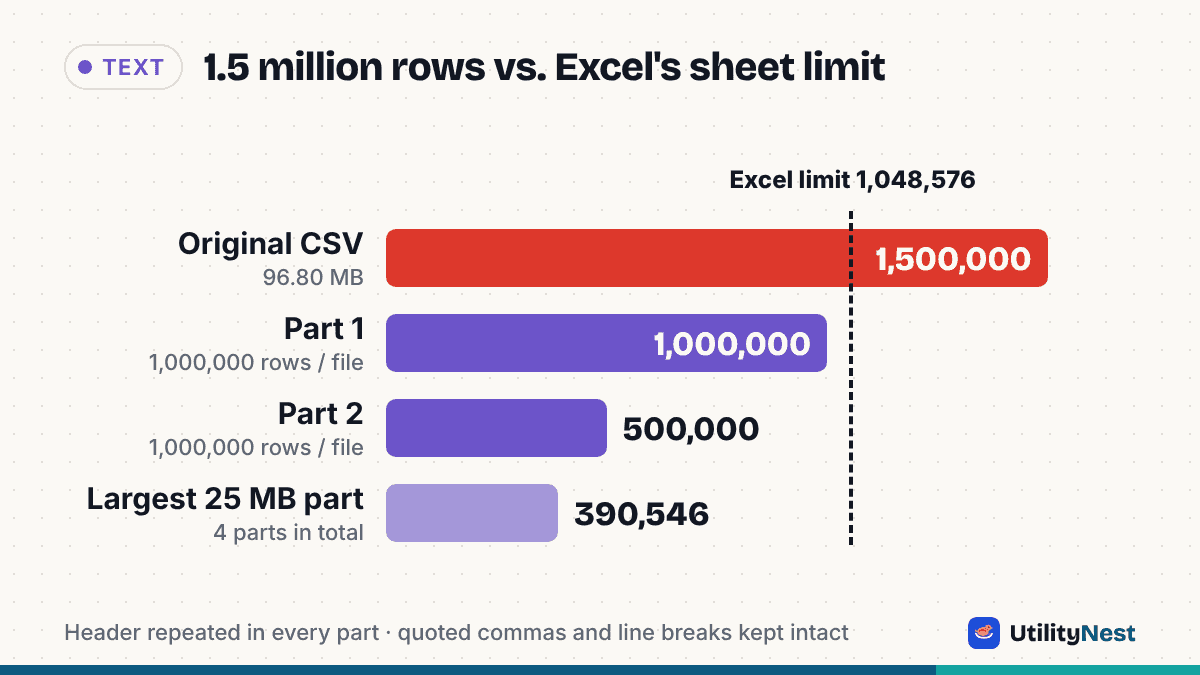
The steps below cover the two routes that actually work: load the full file through Power Query without putting it on a sheet, or split the CSV into parts that each fit. We tested the splitting route on a generated 1.5 million row CSV, and the numbers are in the table further down.
Step 1: Close the truncated workbook without saving
When Excel cuts a CSV short, the open workbook only contains the first 1,048,576 rows. If you press Save, Excel writes that shorter version back to the same .csv file and the missing rows are gone from disk. Microsoft's own advice for this warning is not to save over the original, and to use File > Save a Copy with a name that makes clear it is truncated if you need to keep what loaded.
Close the workbook, choose Don't Save, and make a backup copy of the original CSV before you try anything else.
Step 2: Count what you actually have
Before choosing a route, find out how many records the file contains. A line count is not the same thing: a quoted field can contain a line break, so one record can span two lines. In our test file, 1,500,000 data rows plus a header took up 1,501,501 physical lines because 1,500 of the notes contained a line break inside quotes.
- On macOS or Linux,
wc -l file.csvgives a fast line count, which is an upper bound if any fields have embedded line breaks. - Our Split CSV tool counts records, not lines, as soon as you add the file. For our test file it showed "96.80 MB · UTF-8 · comma · 1,500,000 data rows" after about 1.5 seconds in our test.
If the count is under 1,048,576, look for another cause, such as a stray unclosed double quote.
Step 3: Decide whether you need rows on a sheet
There are two different goals hiding behind "open this file in Excel":
- You want totals, counts or averages. You do not need every row visible. Load the whole file into Power Query and summarize it with a PivotTable (step 4).
- You need to scroll, edit, filter and send the rows themselves. Split the CSV into parts that each fit on a sheet (step 5).
Google Sheets is not an escape hatch for files this size. Google's Drive help page lists a limit of 20 million cells or 100 MB for a spreadsheet created in or converted to Sheets. Our 7-column test file had about 10.5 million cells but, at 101,497,653 bytes, sat right at the size cap.
Step 4: Load the full file with Power Query (Excel for Windows)
Microsoft's support article for this warning describes this route for Excel on a PC:
- Open a blank workbook.
- On the Data tab, in the Get & Transform Data group, choose From Text/CSV.
- Pick the file and click Import.
- In the preview window, do not click Load. Open the arrow next to Load, choose Load To, and pick PivotTable Report.
- Build the summary in the PivotTable Field List.
An older Microsoft blog post on loading CSV files with more than a million rows describes a variant: in the Load To dialog, choose Only Create Connection and tick Add this data to the Data Model, then open Power Pivot > Manage and create the PivotTable from there. The rows live in the Data Model rather than on a worksheet, so the grid limit does not apply. The post is archived and written for Excel 2016, so labels may differ.
You can refresh the query when the CSV changes, but you never get a sheet you can scroll from row 1 to row 1,500,000.
Step 5: Split the CSV into parts that fit
If you need the rows themselves, split the file. A good split has to do four things: repeat the header row at the top of every part, never cut a record in half (including records with commas or line breaks inside quotes), keep the text encoding intact, and keep each part under 1,048,575 data rows.
We generated a test CSV in Python with 1,500,000 data rows and 7 columns: an order number, a five-digit ZIP code with leading zeros (such as 05305), a 16-digit account number, a quoted name with a comma ("Smith, J1"), a city column with non-English names (São Paulo, Kraków, 東京, 서울), a note that was sometimes a quoted phrase with a comma and in 1,500 rows a quoted two-line text, and an amount. The file was 101,497,653 bytes, UTF-8 without a byte order mark. We split it in our Split CSV tool in Chromium 141 twice:
| Setting | Parts | Data rows per part | Part sizes | Time |
|---|---|---|---|---|
| Rows per file: 1,000,000 | 2 | 1,000,000 and 500,000 | 64.18 MB and 32.62 MB | about 5.6 s |
| Max file size: 25 MB | 4 | 390,546 / 388,910 / 386,445 / 334,099 | 25.00, 25.00, 25.00 and 21.80 MB | about 5.4 s |
Both runs reported 1,500,000 data rows in total, and every part started with the same header row. Checked with Python's csv module, each part parsed cleanly, the two-line notes (1,000 and 500) and city names were intact, and with headers removed the two parts joined back into a byte-for-byte copy of the original data. In size mode, the largest part was 26,214,400 bytes, exactly 25 MB with 1 MB counted as 1,048,576 bytes, as the tool's hint says.
A few details from the tool's code that matter here:
- The file is read in 8 MB slices on your device and written straight into a ZIP, rather than loading the whole file as text at once. Files up to 2 GB are accepted.
- "Rows per file" counts data rows, not the header. The tool warns you if you enter more than 1,048,575, because those parts would not fit on a sheet.
- "Add UTF-8 BOM (for Excel)" is on by default for UTF-8 files. It adds three bytes at the start of each part so Excel recognizes the encoding when you double-click it. Without it, accented and Asian text can show up garbled in Excel.
Choose 1,000,000 rows per file rather than the exact limit. Part 2 then starts at record 1,000,001, and each part leaves room for a few added rows.
Step 6: Open each part without losing leading zeros or long numbers
Splitting solves the row limit, but double-clicking a CSV still lets Excel guess each column's type. Microsoft documents what that guess does: Excel removes leading zeros, and it keeps only 15 digits of precision, so a 16-digit number such as an account or card number is shown in scientific notation and digits past the 15th are rounded down to zero. In our test file that would turn ZIP 05305 into 5305 and change the last digit of every account number. Save the CSV and the damage is permanent.
Three ways to avoid it:
- Import instead of opening. Use Data > From Text/CSV, click Transform Data (Edit in some versions), select the ZIP and ID columns and set Data Type to Text, choosing Replace Current when asked.
- Change the default. Excel for Microsoft 365 and Excel 2024 have an Automatic Data Conversion section under File > Options > Data on Windows (Excel > Preferences > Edit on a Mac), where you can turn off removing leading zeros and truncating to 15 digits. Microsoft notes these settings do not apply to data imported through Power Query, which has its own type settings.
- Convert each part to .xlsx first. Our CSV to Excel converter always keeps values with a leading zero, a + sign or more than 15 digits as text cells, so the .xlsx opens with them intact.
Step 7: Check the row count in Excel
After opening a part, click a column letter and read the Count in the status bar at the bottom. It should equal the data rows for that part plus one for the header (1,000,001 for our first part). Microsoft suggests the same check.
Sources
- Microsoft Support: Worksheet and workbook specifications and limits
- Microsoft Support: What to do if a data set is too large for the Excel grid
- Microsoft Learn archive: Loading CSV/text files with more than a million rows into Excel (2017)
- Microsoft Support: Keeping leading zeros and large numbers
- Microsoft Support: Set automatic data conversions
- Google Drive Help: Files you can store in Google Drive
Checked on October 24, 2026. Split CSV tested in Chromium 141; test file generated and verified with Python 3.