How to Open an AVIF File on Windows, Mac, or Phone
By the UtilityNest team · · 4 min read
An .avif file is an image in the AV1 Image File Format. The fastest way to open one on Windows or Mac is often to drag it into a tab in a current web browser. That lets you see the image and decide whether to keep it as AVIF or make a copy in another format for the app that needs it.
Download a sample AVIF image to test your setup. It is an original 480 × 320 graphic with transparent corners. The colored shapes should appear as soon as the viewer opens it. Your viewer may show the transparent area as white, gray or a checkerboard.

Windows and Mac
Open a new tab in an up-to-date browser and drag the file from File Explorer or Finder into the tab. On Windows, try Edge, Chrome or Firefox. On Mac, try Safari, Chrome or Firefox. If dragging the file into the window is inconvenient, use the browser’s open-file command. In Chrome the shortcut is Ctrl+O on Windows and Command+O on Mac. Select the local file and check whether the image appears. This method opens the file on your device.
Modern browser support for AVIF is documented in the MDN format guide. Exact support can depend on the version and on features such as animation. If your default photo app rejects the file but your browser opens it, make a compatible copy for that app. If the browser cannot open even the sample, check for an update or try a different viewer first.
iPhone and Android
Open the sample link in your phone’s browser. If tapping the link downloads the file, find it in the phone’s downloads or files app and try its preview. A download on its own only tells you that the file was saved. To see if the browser can display the image directly, open the sample in a tab. If the image opens there but a chat, editor or form rejects it, check which formats the receiving app lists and convert a copy to one it accepts.
When the AVIF came from a shared website or message, try saving it a second time if it will not open. An interrupted download or a saved error page can leave you with a file that has the right name and no usable image inside.
Choose JPG or PNG based on what you need
| What you want to do | Format to try | What to check |
|---|---|---|
| Keep using the image where it already opens | AVIF | Keep the original copy, especially if it is animated. |
| Share an ordinary photo or meet a JPG-only upload rule | JPG | Choose a background if the original had transparency. |
| Keep a transparent logo, sharp edges or a graphic | PNG | Check the transparent area and file size after export. |
Use AVIF to PNG when you need transparency, or AVIF to JPG when the recipient needs JPG. Keep the AVIF as a separate original. Renaming picture.avif to picture.jpg leaves the image data in its original format, so a receiving app can still reject it. If you need all frames of an animated image, use a workflow that explicitly supports that output. JPG and ordinary PNG are still images.
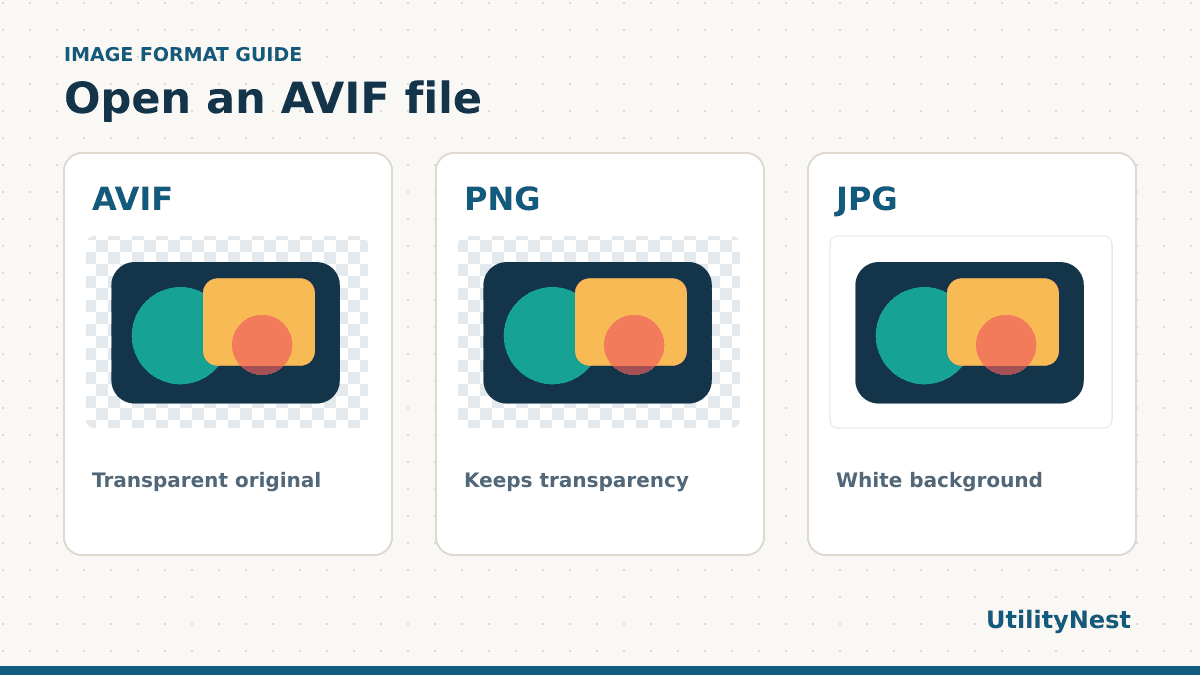
For the downloadable graphic, we decoded the file and exported reference copies to PNG and JPG. Both reopened at 480 × 320. The PNG kept the transparent corners and the JPG had them filled with white. The PNG was also smaller than the JPG in this particular test. That result makes sense for a simple graphic with flat color, and it can go the other way for a photo. Choose based on compatibility and transparency, then check the actual file size.
Keep the original when the image matters
Export the compatible copy directly from the original AVIF each time. If you first save a JPG and then convert that JPG to PNG, the PNG will carry forward any artifacts from the JPG. It also cannot recover transparent areas that were filled during the first export. For a logo placed over a colored page, try the PNG on a light and a dark background. Look at the edges at the size you plan to use it.
If the sample works and your file does not
Compare the size of the original with a fresh download. If one copy is empty or unusually small, try downloading again from the sender. Open the original in a second viewer before converting it. If the original displays with incorrect colors or only shows one frame, ask the sender for a compatible export, particularly when the image has a wide color range or animation.
If the problem is a form upload, reopen the converted file before submitting. Check the dimensions and the corner background against what the form expects. A converter can give you the required format while the form still expects a different image size. Keep the original around so you can make another copy from it if the first export needs adjusting.
Sources
- MDN’s browser image format guide covering AVIF, JPEG and PNG. Browser support checked on November 9, 2026.
- Chrome keyboard shortcuts for opening a local file