How to Record Your Screen Without Installing Software
By the UtilityNest team · · 6 min read
Every major desktop and phone system now ships a screen recorder, and a desktop browser can record too. The catch is that each one differs on three things people only discover afterward: whether the computer's own sound gets recorded, what file format comes out, and where the file lands. Find your device in the table, then read its section.
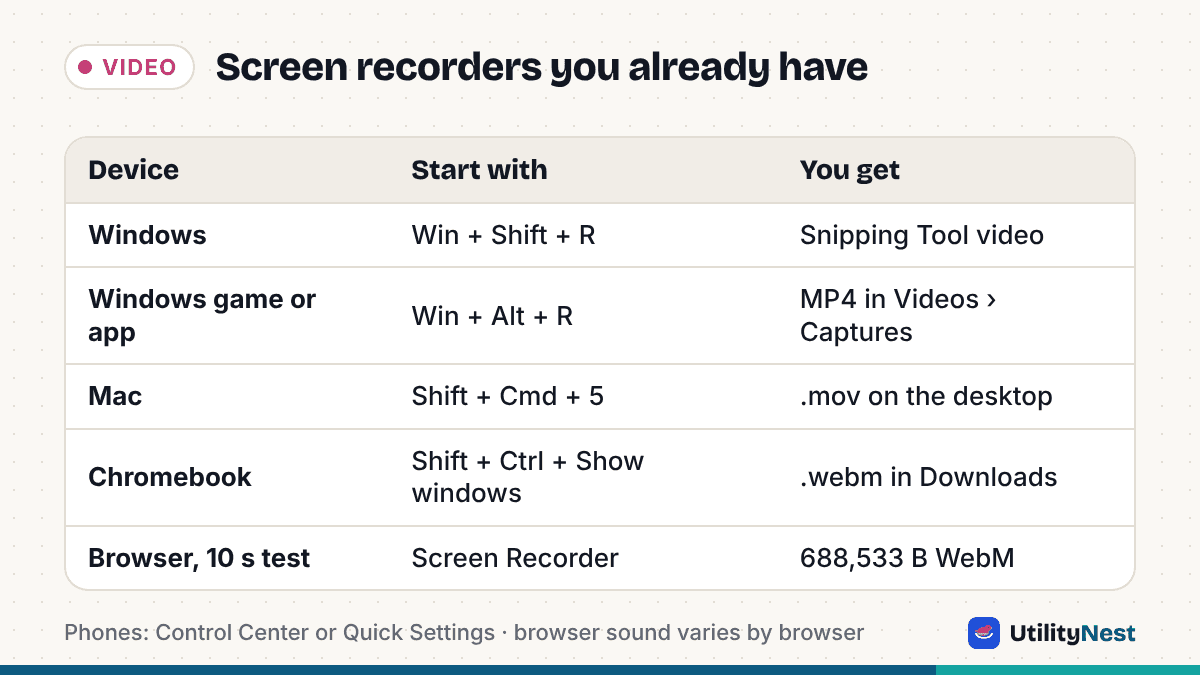
| Device | Built-in route | Start with | File and location |
|---|---|---|---|
| Windows | Snipping Tool, Record | Windows + Shift + R | Save it yourself after Stop |
| Windows (a game or app) | Xbox Game Bar | Windows + Alt + R | MP4 in Videos > Captures |
| Mac | Screenshot toolbar | Shift + Command + 5 | .mov on the desktop |
| Chromebook | Screen capture | Shift + Ctrl + Show windows | .webm in Downloads |
| iPhone, iPad | Control Center, Record | Swipe down from top right | Photos library |
| Android | Quick Settings, Screen record | Swipe down twice | Viewable and shareable after capture |
| Desktop browser | Screen Capture API | A web recorder page | WebM in Chrome, Edge, Firefox; your Downloads folder |
Windows: Snipping Tool or Game Bar
For a general screen recording on Windows, use Snipping Tool. Microsoft's instructions: open Snipping Tool, select Record, then New, or press Windows logo key + Shift + R. Drag over the area you want, select Start, and select Stop when you are done. You can then save the recording as it is, or open it in the editing option Windows offers to trim it or add captions.
Microsoft's support page does not describe sound options for video snips, so check the recording toolbar on your version before you start a long take.
Xbox Game Bar is aimed at games and apps rather than the desktop as a whole. Microsoft says to switch to the game or app first, then press Windows key + Alt + R to start and the same keys to stop. Windows key + Alt + M turns the microphone on or off during a recording, and Windows key + G opens the Game Bar controls. Finished clips are saved as MP4 in a Captures subfolder of your Videos folder, so no conversion is needed.
Mac: the Screenshot toolbar
- Press Shift + Command + 5 to open Screenshot.
- Choose Record Entire Screen or Record Selected Portion. For a portion, drag the frame's edges to size it.
- Open Options to pick a microphone, set a timer, or change Save to.
- Click Record. To stop, click the Stop button in the menu bar or press Command + Control + Esc.
Apple says recordings are saved to your desktop by default as .mov files named "Screen Recording [date] at [time].mov".
The common surprise on a Mac is missing sound from videos or calls. Apple's page lists an Include System Audio choice in Options only on macOS 27 or later, and it does not say earlier versions can record system sound. On an older Mac, the built-in recorder captures the microphone you pick, not the audio playing on the computer.
Chromebook: Screen capture
Press Shift + Ctrl + Show windows, select Screen record, and choose full screen, a partial area, or one window. The Settings button in the same bar has the audio choices Google lists: Device audio, Microphone, or both. Stop with the button at the bottom right or Search + Shift + X. Recordings go to Downloads, and a video recording is a .webm file.
iPhone and iPad: Control Center
- Swipe down from the top-right corner to open Control Center.
- To include your voice, touch and hold the gray Record button, then tap Microphone.
- Tap the Record button and wait for the three-second countdown. If the button is missing, add it in Control Center's settings.
- To stop, tap the Screen Recording indicator at the top of the screen, then Stop.
The video goes to your Photos library. Apple notes that some apps block recording, and recording can't run during screen mirroring.
Android: Quick Settings
- Swipe down twice from the top of the screen.
- Tap Screen record. If it is not there, tap Edit and drag it into Quick Settings.
- Choose what to record, decide whether to record audio and show touches, then tap Start.
- To stop, swipe down and tap the Screen recorder notification.
Google notes that on Pixel phones some of these steps need Android 11 or later, and that other brands can differ, so the button label and saved location depend on the maker.
Any desktop browser: recording from a web page
On a borrowed or locked-down computer, a web page can record through the Screen Capture API (getDisplayMedia). The browser shows the picker, and you choose one of three surfaces:
- A browser tab records only that tab, and in Chrome and Edge it is the most dependable way to get sound, through the tab audio checkbox in the picker.
- A window records one app window. Do a short test if your demo opens menus or dialogs, since anything outside that window is not part of the capture.
- An entire screen records everything, including notifications, so silence them first.
Audio is where browsers differ most. MDN's compatibility data lists audio capture for Chrome, Edge and Opera on desktop, and no audio capture in Firefox or Safari. Chrome's documentation explains that its picker offers tab audio in the tab pane, and a site can ask for whole-system audio with the systemAudio option (Chrome 105 and later), but Chrome says that request does not guarantee system audio is available. Whether a full-screen share comes with sound therefore depends on your browser and operating system, so if computer sound matters, share a tab or run a short test first. Your microphone is a separate permission and works in all of these browsers.
Phones are the gap. MDN lists no getDisplayMedia support in Chrome for Android, so on Android use the system recorder above. MDN does list support in Safari on iOS 27, but the system recorder remains the simpler choice on an iPhone.
The output is usually WebM, not MP4. A browser recorder saves whatever container the browser's MediaRecorder offers, and most web recorders, ours included, ask for WebM first in browsers that support it. WebM plays in Chrome, Firefox, Edge and VLC, but iPhones, PowerPoint and older editors often want MP4, so expect a conversion step.
What our recorder does with your recording
Our Screen Recorder uses that same browser API. Before you start you choose Microphone, Computer sound, and Standard, 30 fps or Smooth, 60 fps (it asks the browser for about 2.5 Mbps or 8 Mbps of video, which works out to roughly 20 MB or 61 MB per minute at most). If you tick both sound sources, it mixes them into one track, because a browser recording holds one audio track. If you asked for computer sound and the browser didn't provide any, it tells you to tick the tab or system audio option in the share dialog. The tab you are recording from is left out of the picker.
The recording is built inside the tab and nothing is uploaded. There is no time limit in the code, but the video is held in the tab's memory until you click Download WEBM, so a very long recording is limited by your computer's memory, and the page warns you if you try to close it mid-recording. You can pause and resume, and the browser's Stop sharing button ends the recording too. The file is named like screen-recording-2026-10-24-085748.webm and goes to your Downloads folder. In a browser that can't record WebM, the code falls back to MP4 and names the file .mp4.
We ran it in Chromium 141 using the browser's test capture source in place of a real desktop, at Standard quality with the test microphone on. A 10-second recording came out as a 688,533-byte WebM (VP8 video, Opus audio, 1280 × 720). Convert to MP4 then produced a 1,193,627-byte MP4 (H.264 and AAC, same size and length). The MP4 was larger here because the synthetic test picture is very simple and compresses unusually well; a real desktop recording will differ. If the MP4 is too big to send, run it through Compress Video.
Sources
- Microsoft Support: Use Snipping Tool to capture screenshots
- Microsoft Support: Use a screen reader to record your screen with Xbox Game Bar
- Apple Support: How to record the screen on Mac
- Apple Support: Record the screen on your iPhone, iPad, or iPod touch
- Android Help: Take a screenshot or record your screen on your Android device
- Chromebook Help: Take a screenshot or record your screen
- MDN: MediaDevices.getDisplayMedia() and browser compatibility
- MDN: Using the Screen Capture API
- Chrome for Developers: Privacy-preserving screen sharing controls
Checked on October 24, 2026. Tested in Chromium 141 (headless, test capture source).