Instagram Reels Size: What Is Required and How to Fit a Landscape Video
By the UtilityNest team · · 6 min read
Most guides say an Instagram Reel must be 1080 x 1920 pixels. Instagram's own help page says something different, and the difference matters when you start from a landscape video and want to know whether you need to change anything at all. This guide separates what Instagram states from what is only common advice, then walks through getting a 1920 x 1080 clip into a vertical Reel with the UtilityNest Crop Video and Resize Video tools, with the file sizes we measured. Checked on November 6, 2026.
What Instagram actually states
The Instagram Help Center page "Reel size and aspect ratios on Instagram" lists three requirements. You can upload a reel with an aspect ratio between 1.91:1 and 9:16. Reels should have a minimum frame rate of 30 FPS, and a minimum resolution of 720 pixels. It also gives a recommended cover photo size of 420 x 654 pixels, and points to a setting called Upload at highest quality, found under Media quality in the app, which keeps more detail but makes the upload take longer.
Two things are missing from that page. It does not say 1080 x 1920 is required, and it does not say which side the 720 pixel minimum refers to. 1080 x 1920 is simply the usual size for a full-screen 9:16 video, and it is a sensible target, but a 720 x 1280 video is also within the stated rules. Because the page is vague about the 720 minimum, the cautious reading is to keep the short side, the width of a vertical video, at 720 pixels or more.
The other useful fact is hidden in the aspect ratio range. A normal landscape 16:9 video is 1.78:1, which falls inside the range from 1.91:1 to 9:16. So a landscape clip is allowed. It will play as a wide strip in the middle of a tall screen, which is why people crop or reframe it, but nothing forces you to.
Cropping versus black bars: the decision
You have three ways to turn a landscape video into a vertical one, and each trades something away.
- Leave it landscape. Nothing is lost, but the picture uses only about 32 percent of the screen height. A 1920 x 1080 video shown at 1080 pixels wide is 608 pixels tall inside a 1920 pixel tall screen.
- Add black bars. The whole picture stays in view and the file is exactly 1080 x 1920, but the bars above and below are dead space, so it looks the same as leaving it landscape.
- Crop the sides. The picture fills the screen, but you keep only the middle 9:16 slice. From 1920 x 1080 that is about 607 pixels of the 1920 across, roughly 32 percent of the width.
The right choice depends on where the action is. A talking head or a product in the middle survives a center crop. A wide scene, a group, or anything with text at the edges does not. If the subject moves around, cropping loses it. In that case leave the video landscape or re-shoot vertical.
What we tested
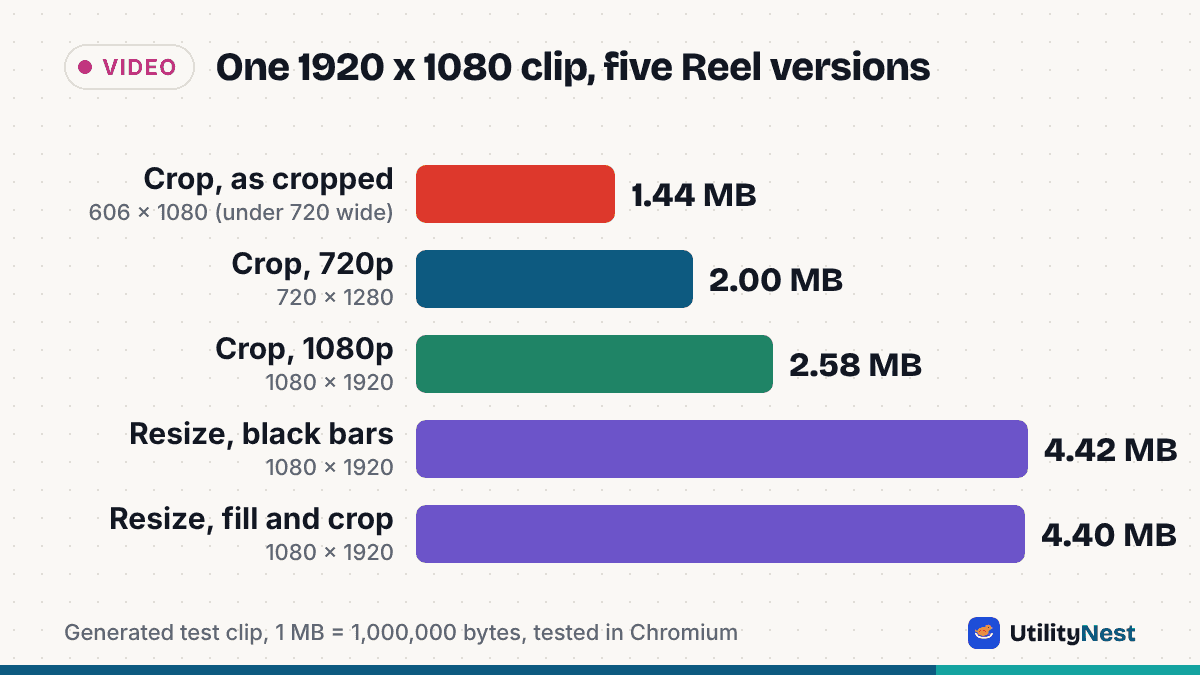
We generated an 8 second test video at 1920 x 1080, 30 FPS, H.264 with AAC sound, 6.06 MB, and ran it through both tools in Chromium. The picture is a color-bar test pattern, so the bytes are a comparison rather than a typical phone clip. Sizes use 1 MB = 1,000,000 bytes.
| Tool and setting | Output size | File size |
|---|---|---|
| Crop Video, 9:16, as cropped | 606 x 1080 | 1.44 MB |
| Crop Video, 9:16, 720p | 720 x 1280 | 2.00 MB |
| Crop Video, 9:16, 1080p | 1080 x 1920 | 2.58 MB |
| Resize Video, 1080 x 1920, black bars | 1080 x 1920 | 4.42 MB |
| Resize Video, 1080 x 1920, fill and crop | 1080 x 1920 | 4.40 MB |
Every output kept 30 FPS, the AAC audio track and the 8 second length. The first row is the one to be careful with. "As cropped" gives the real crop, 606 pixels wide, which is below the 720 minimum on any reading that applies to the width. Pick 720p or 1080p in the Output size box instead. The tool warns that this enlarges the picture, and it does: the 606 pixel slice is stretched to 1080, so it adds file size and fits the format but adds no detail. A 4K source would give a 1215 x 2160 slice, which is already wider than 1080 and needs no enlarging.
The black bars and fill options in Resize Video produce the same file size most likely because both are 1080 x 1920 and the tool sets the bitrate from the output size. In the bars version the picture occupies 608 of the 1920 rows, so about 68 percent of the frame is black. The fill option crops the center, the same frame you get from Crop Video.
Testing also caught a flaw that we fixed the same day. Crop Video used to take the 1080p option for a 9:16 crop and scale from the rounded 606 pixel width, which produced 1080 x 1924, slightly taller than true 9:16. It now outputs exactly 1080 x 1920 for 9:16, 720 x 1280 at 720p, and the matching exact sizes for 1:1 and 4:5.
Step by step
To crop a landscape video to a Reel, open Crop Video, drop in the file, and choose the 9:16 shape. A box appears over the picture, and you drag it sideways to choose which slice to keep. The line under the box shows the crop size and where it came from, such as 606 x 1080 from 1920 x 1080. In Output size choose 1080p, then press Crop video. The first run downloads the video engine, and the file never leaves your device. Download the result and check it by playing it before you post.
To keep the whole picture instead, open Resize Video, choose Custom, enter 1080 for the width, turn off Keep aspect ratio, enter 1920 for the height and pick Black bars. If you later change your mind and want it cropped, pick Fill and crop and you get the same result as the crop tool without choosing the slice.
Keeping quality after the upload
Instagram processes every upload, so a higher quality source and the Upload at highest quality setting both help. Compressing a file harder yourself before uploading only adds a second round of loss. Use the Reels cover size, 420 x 654 pixels, for a custom cover, and remember it cannot be edited after you upload. Frame rate also matters: keep the original 30 FPS, since lower than 30 does not meet the stated minimum, and avoid re-saving a clip several times in a row.
Quick answers
Can I upload a landscape video as a Reel? Yes. 16:9 is 1.78:1, inside the stated range of 1.91:1 to 9:16. It will just appear small on a vertical screen.
Is 1080 x 1920 required? Not according to Instagram's help page. It is the common size for a full-screen 9:16 video, and a good target, but the page lists only the ratio range, the 720 pixel minimum and the 30 FPS minimum.
Can a Reel be square or 4:5? By the stated range, yes, since 1:1 and 4:5 both sit between 1.91:1 and 9:16. Crop Video has both shapes, though a 9:16 Reel fills the most screen.
My phone video is already vertical. Do I need to change it? Usually not. A phone clip recorded upright is normally 9:16 already, so skip the tools and avoid re-saving it, which only costs quality.
Source: Instagram Help Center, Reel size and aspect ratios on Instagram, checked November 6, 2026. Tool results are from UtilityNest's Crop Video and Resize Video in Chromium on one generated test video.