LinkedIn Résumé Won’t Upload? Fix the File
By the UtilityNest team · · 4 min read
If your résumé will not upload to LinkedIn Easy Apply, start with a PDF or Word copy and check the file size. LinkedIn’s help page recommends a résumé under 2 MB for this flow. Treat that as a practical target rather than proof that any file below it will upload. If the job sends you to a separate employer website, use the requirements shown on that application form.
LinkedIn’s Easy Apply and document-posting flows were checked on November 9, 2026. Use the résumé guidance for the application screen. The document upload rules for a post apply to a different feature.
Your résumé was made in a design app
Start by exporting a fresh PDF from the source document. Choose a digital or standard export when the app offers one. High-resolution photos and large background graphics can weigh down a page that otherwise contains very little text. If a graphic is decorative, try removing it from a copy first. Open the export and confirm that the text still highlights and copies before doing anything else.
If you only have the PDF, try Compress PDF on Recommended. Download the result and open both copies at the same zoom. Compare dates, contact details and any fine print. Find an exact word with the PDF viewer’s search box. Then check the new file size in your operating system. Use the attachment picker to select the smaller copy.
Your PDF is a scan or a screenshot
A scan can already be small while its text is still just part of a picture. To check, try selecting a single line and pasting it into a plain-text editor. If you cannot select it, export the original from your word processor if you have it. For a scan you need to keep, a searchable PDF can add recognized text. Compare the extracted words with the page before using it, especially names, phone numbers and dates. This check tells you whether the PDF contains readable text. Each employer can still handle that file differently.
Three résumé files we tested
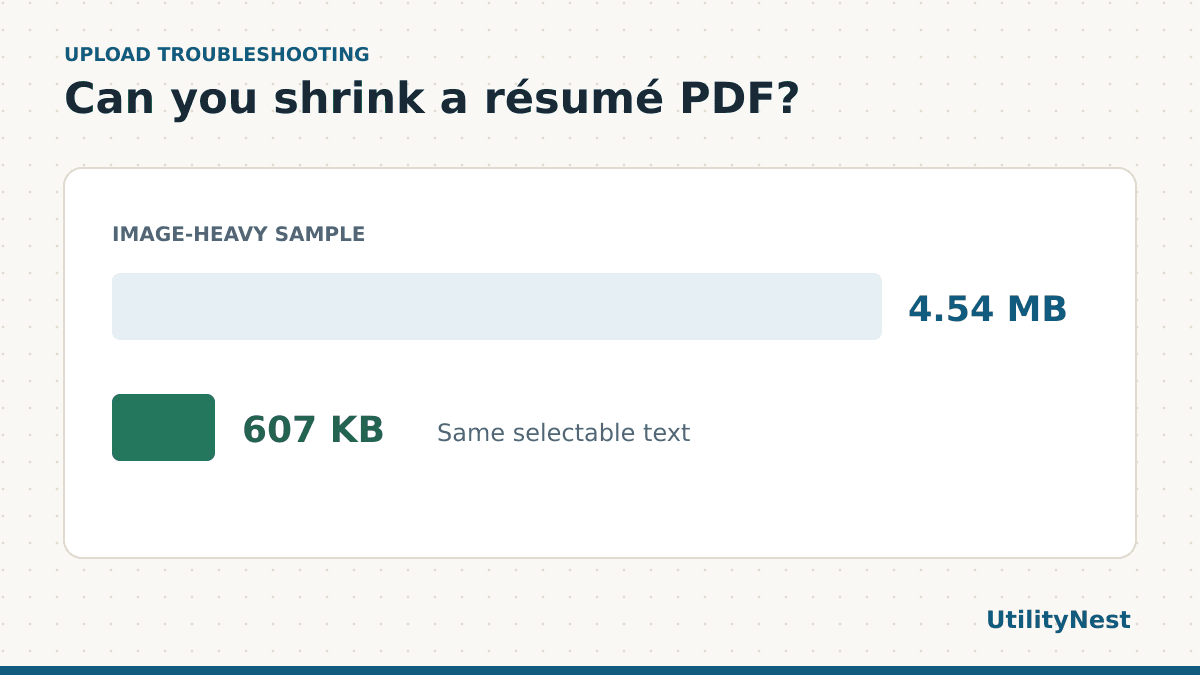
We ran three fictional one-page files through UtilityNest’s compression engine using the Recommended settings and reopened the results. The image-heavy example combined selectable text with one large synthetic image. The scan was a flattened copy of the text-only page. File sizes below are rounded in decimal KB and MB.
| Test file | Before | After | Text after export |
|---|---|---|---|
| Image-heavy PDF | 4.54 MB | 607 KB | Same extractable text |
| Text-only PDF | 1.8 KB | 1.4 KB | Same extractable text |
| Scanned page | 50.9 KB | 50.6 KB | No selectable text |
Compression made a large difference for the file with the oversized image. It made little practical difference to the other two. If your résumé is already a small text PDF, spend your time checking the file and the application flow.
Choose between Word and PDF when both are accepted
Start with the format requested in the application. If it gives you a choice, a PDF is convenient when layout matters and the source exports real text. If you send a Word copy, reopen it and look at the page breaks, because changing fonts or opening the file in another app can shift the layout. For either format, keep your editable original separate from the file you submit. That makes it easier to change one line and export a clean copy later.
Where an application shows a preview or fills fields from your résumé, read the preview or fields before you finish. Check job titles, dates and contact details against your saved copy. A successful upload only confirms that the file was attached.
The file is small enough and the upload still fails
- Make sure it opens locally. Download a fresh copy if your PDF viewer reports an error. Check the first and last pages to make sure the file exported completely.
- Check the actual format. Changing
resume.pagesorresume.pngtoresume.pdfin the filename does not convert the file. Open it in the program that created it and export to a supported format. - Use a copy that opens without a password. If your own résumé asks for a password every time it opens, export a new copy from the original. Keep the protected copy for any other use that requires it.
- Try another browser. LinkedIn suggests this if attaching the résumé fails. Check that the correct file is saved locally before trying again. If the employer redirected you to its own portal, read its file requirements first.
Before submitting, check that the attachment name matches the version you meant to use. If you keep a few different versions, add the role or company to the filename to distinguish them. Open the final PDF one last time at normal reading size, verify the dates and contact details, and check its page count against the original. A file that fits the upload guidance still has to make sense to the person opening it.