Merged PDF Has Different Page Sizes? Causes and Fixes
By the UtilityNest team · · 7 min read
A merged PDF with pages of different sizes is not a merge bug. Merging copies pages; it does not resize them. Apple's guide to combining PDFs in Preview describes it as dragging page thumbnails from one file into another, with no resize step, and our Merge PDF works the same way. If the files you combined had Letter pages, A4 pages and a couple of phone scans, the result has all of those, in order, and the viewer jumps between zoom levels as you scroll. Below are the ways this shows up, what causes each one, and the fix that keeps text sharp and the file size where it was.
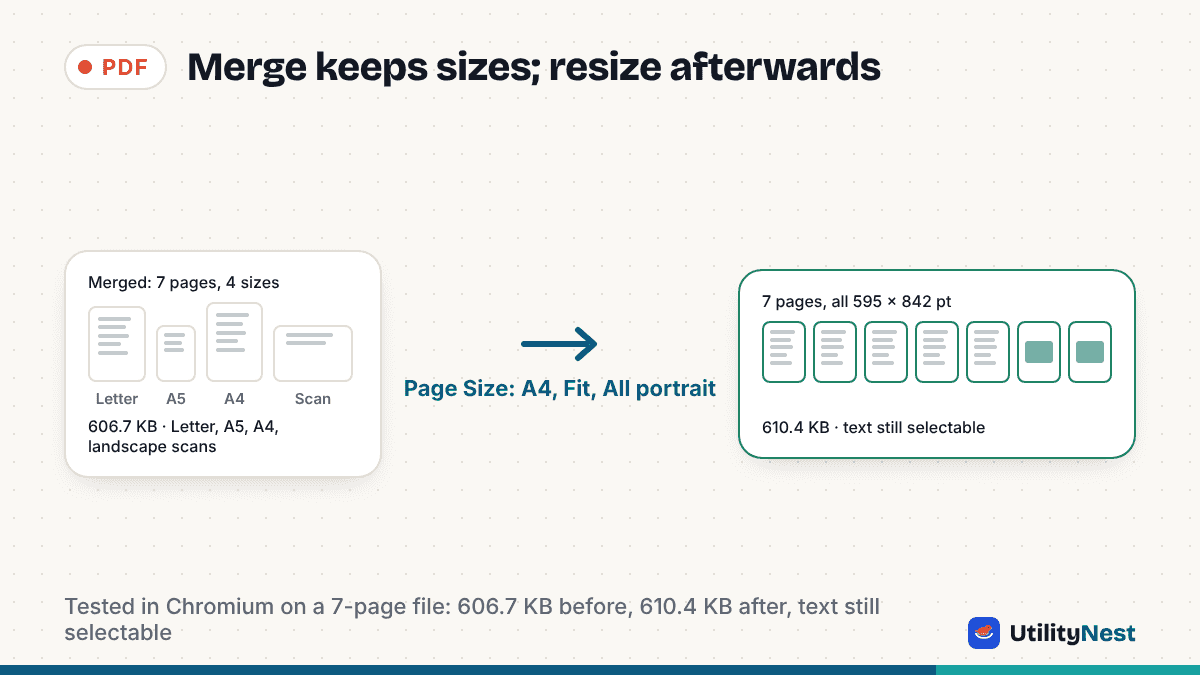
For the examples we merged four small PDFs in Merge PDF: a two-page Letter file, a one-page A5 file, a two-page A4 file and a two-page scan saved in landscape. The result had 7 pages in four sizes. Then we ran the merged file through PDF Page Size Converter with each setting and measured the pages again.
First, find out which sizes you actually have
PDF page sizes are stored in points, 72 to an inch. US Letter is 612 x 792 pt (8.5 x 11 in). A4 is 595 x 842 pt (210 x 297 mm). A5 is 420 x 595 pt. A scanned page is whatever size the scanner or phone app chose. Most viewers show the size of the current page under File > Properties or Document Properties, and some show it in the status bar. Checking two or three pages tells you whether you have a Letter-and-A4 mix, a scan problem, or both.
Letter and A4 pages in the same file
What you see: pages look almost the same size, but one group is a little wider and shorter than the other. When printed, the A4 pages lose a sliver at the top and bottom on Letter paper, and Letter pages get narrow side margins on A4.
Cause: documents made in the US default to Letter; most of the rest of the world defaults to A4. The merge preserved that.
Fix: resize the merged file to the size the recipient will print on, not the size most of your pages happen to be. In our test, converting the 7-page file to A4 with Fit scaling turned the two Letter pages into 595 x 842 pt pages with the content scaled to 97 percent and a 36 pt (about 13 mm) white band at the top and bottom. The A4 pages were untouched, and the A5 page was scaled up by about 1.4 times, so its small type became readable. Going the other way, A4 to Letter, scales A4 content to 94 percent and leaves 26 pt (9 mm) side bands.
Scanned or photographed pages come in odd sizes
What you see: the office pages are fine, but the scans are bigger, smaller or landscape, and a single scan may be a slightly different size from the next one.
Cause: a scan is an image, and the PDF page is sized from the image's pixel count and the DPI the app wrote. A 2,480 x 3,508 pixel scan at 300 DPI is exactly A4. The same page scanned at 200 DPI is written as a larger page, and a phone photo of a document gets whatever the camera's aspect ratio was. Our two test scans were 842 x 595 pt because the app had saved them in landscape.
Fix: the same page size conversion handles scans, because scaling an image page is just scaling a picture. There is no detail to lose at this step; the scan was already pixels. If the scans need to stand upright, see the next problem.
Landscape pages flip or shrink after resizing
What you see: after converting to A4, most pages are portrait but two are still landscape, or every page is portrait but the landscape ones are now small with white space above and below.
Cause: the converter's orientation setting. Auto keeps each page's orientation, so a landscape page becomes landscape A4 (842 x 595 pt). All portrait forces 595 x 842 pt, and a landscape page can only fit by shrinking to 71 percent, which leaves a 210 pt (74 mm) band above and below it.
Fix: decide what the landscape pages are. A wide table or a drawing should stay landscape, so leave Auto on and accept that those pages are rotated in the stack, which is how a printed binder handles them too. A scan that is only landscape because the phone was held sideways should be rotated to portrait before converting, so it fills the A4 page instead of sitting in the middle at 71 percent. In our test, All portrait gave 7 pages of exactly 595 x 842 pt, with the two scans centered and reduced.
Text shrank or edges were cut off after the fix
What you see: the pages are the same size now, but a signature line is gone from the right edge, or everything got smaller than it needed to be.
Cause: the scaling mode. There are three ways to put a 612 pt wide page on a 595 pt wide sheet, and each gives up something different. The numbers below are from our Letter-to-A4 test.
| Mode | What happens to a Letter page on A4 | What you give up |
|---|---|---|
| Fit | Scaled to 97 percent; whole page visible, 36 pt white band top and bottom | Slightly smaller type; a little white space |
| Fill | Scaled to 106 percent; the page covers the sheet, 28 pt (10 mm) trimmed from each side | Anything within 10 mm of the left and right edges |
| Keep size | Not scaled; centered, 8.5 pt (3 mm) lost on each side, 25 pt white top and bottom | A 3 mm sliver on each side; type stays the original size |
Fix: use Fit for anything with text near the edges, which is most forms and letters. Use Keep size when the pages are already close to the target (Letter and A4 differ by 3 percent in width) and you care about type staying at its printed size, for example a document someone will sign. Fill is for scans with a dark border you want gone, not for pages with content near the margins. The converter previews each page before you download, so check the page with the signature line, not just page 1.
The file doubled in size after printing to PDF
What you see: you fixed the sizes by opening the merged file and printing it to a PDF printer with "fit to page", and the result is far larger, or the text is no longer selectable.
Cause: printing to PDF re-renders the whole document through a printer driver. Depending on the driver and its settings, fonts can be re-embedded, images resampled, or pages flattened to pictures. In Acrobat, the Print dialog's Page Sizing & Handling offers Fit, Actual size, Shrink oversized pages and Custom Scale, which is the standard desktop route (checked on November 7, 2026), but the output file depends on the PDF printer you print to.
Fix: resize the pages instead of printing them. Our converter changes the page box and scales the page content as vectors, so text stays text and images stay the same images. In our test, the 606.7 KB merged file became 610.4 KB after conversion to A4, and the text on page 1 was still selectable and searchable afterward. Links and comments move with the content.
Only a few pages are wrong
What you see: 40 good pages and 3 odd ones, and you do not want to touch the 40.
Fix: fix that file alone, then merge. Run only the odd file through the page size converter, then combine it with the others. Merge PDF takes a page range under each file (such as 1-3), so you can also drop the bad pages from the original and insert the corrected copy in their place in the same run. If you are not sure which pages differ, converting the whole file with Keep size is the safe default: pages already at the target size are left as they are.
Not every mixed file needs fixing. Engineering drawings, Legal-size forms and landscape tables are often different on purpose, and a court or registry that asked for an exact page size will reject a scaled copy. If the file is only for reading on screen, mixed sizes cost nothing but a few zoom changes. Standardize when the file will be printed as one stack or uploaded to a portal that states a page size.
Sources
- Adobe: Adjust page size for printing PDFs in Acrobat (Fit, Actual size, Shrink oversized pages, Custom Scale)
- Apple: Combine PDFs in Preview on Mac