PDF Form Fields Disappear After Saving? How to Fix It
By the UtilityNest team · · 4 min read
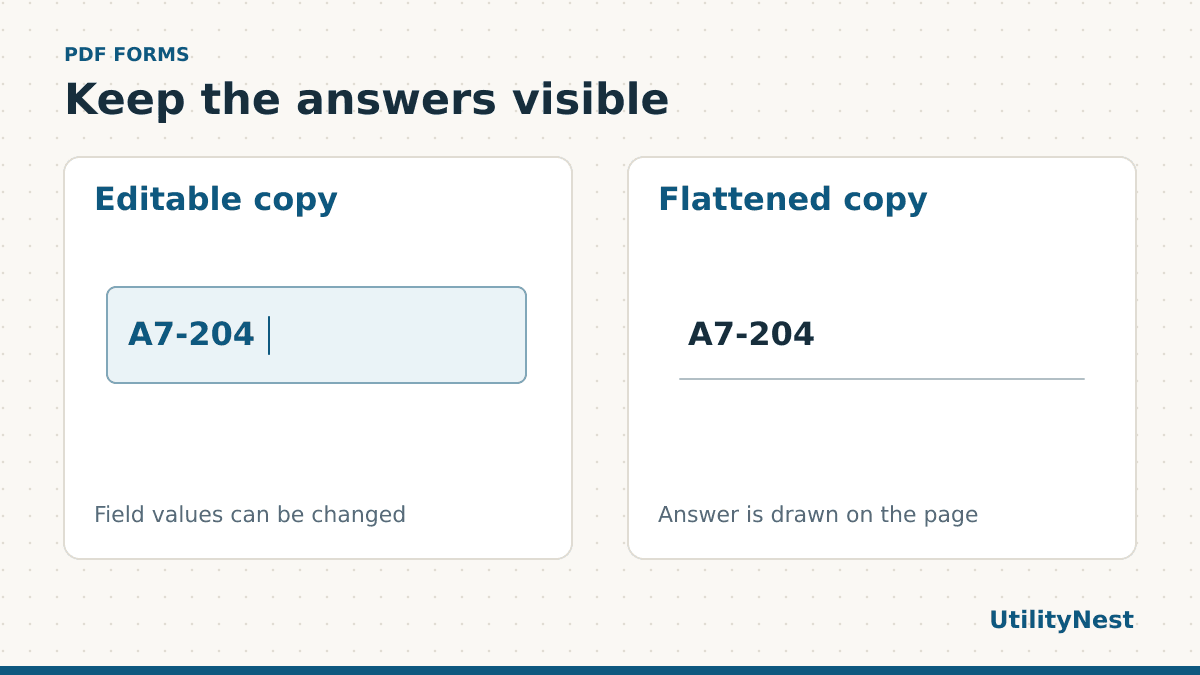
If a filled PDF form looks blank to the recipient, open the exact file you sent in a second PDF viewer. Some forms store the answers separately from the drawing of each answer on the page. A saved copy can contain values that a particular viewer does not show as expected. If the recipient only needs to read or print the answers, a flattened copy can put the visible entries on the page itself.
First find out what was actually saved
Start by downloading the attachment or reopening the file from its folder. Looking at the editor tab alone can be misleading because it may still hold the form you were working on. Check that the file name is the one you attached. Try a field near the end of the form as well as one near the top. Some changes can be saved while others remain in the editor.
Open the copy in a dedicated PDF viewer. If it looks correct there but blank in a browser or email preview, the preview may be the weak link. If the fields are blank in both viewers, return to the original editing session if it is still open. Save a new copy and reopen that copy before sharing it. Flattening a file that has already lost its answers will produce a page with the same blank spaces.
Decide whether the fields need to stay editable
| What the recipient needs | What to send |
|---|---|
| Read or print a finished form | Consider a flattened copy after checking the visible answers. |
| Fill in other fields or change an answer | Send the interactive version and ask them to open it in a compatible PDF viewer. |
| Submit to a portal that specifies the original fillable PDF | Follow the portal’s instructions. It may need to read the field values directly. |
Keep an editable copy if you may need to revise the form. Flattening is a change to how the entries are stored. It does not provide encryption, a verified digital signature or redaction. If a document already carries a digital signature, keep the signed original and check the recipient’s instructions before making a modified copy.
Fill and flatten a copy
- Open the original in Fill PDF Forms. Enter the answers and review text fields, checkboxes and other selections.
- Download one copy with the fields kept editable if you might need to correct it later.
- If the recipient needs a finished reading copy, enable Flatten form and choose Download filled PDF again.
- Reopen the flattened copy and check that long answers fit their boxes. Confirm the page count, references and checkmarks. Use that copy for sharing only after checking the receiving instructions.
You can practice on the sample fillable PDF and compare it with the sample flattened result. In the test, we entered A7-204 and selected the Reviewed checkbox. The flattened PDF retained the visible entry and checkmark. Reopening the file confirmed that its two interactive widgets were gone. The source file still accepts edits.
When you cannot type in the original at all
Some forms are scans or ordinary PDF pages with blank boxes drawn on them. Clicking a line may select nothing because the page has no fillable field there. If the recipient accepts a visually completed copy, you can add text over the PDF and place each answer where it belongs. Zoom in and make sure that the text stays within the visible boxes.
A dynamic form is another case. It can have rules that show, hide or calculate fields. If the page displays a message asking for Adobe Reader, try the viewer specified by the issuer. Saving or printing a visual copy may drop features the form relies on. If you cannot open a required form in the right viewer, ask the issuer for the correct version rather than rebuilding it from a screenshot.
Look for text that runs past the field
Some fields scroll while you type. That can hide the end of an answer even when the whole value was saved. In the receiving copy, a person may only see the portion that fits in the box. Compare the visible answer with your full text before flattening. Shorten it if the instructions allow, or use a continuation page if the issuer provides one. Do the same with a date field whose viewer may change the way it is displayed. A form that opens with every field visible can still contain an answer that is only partly readable.
Check the copy the recipient will see
Open the final attachment after sending or before submitting it. On a multi-page form, check one answer on every page. For long entries, compare the final line with your editable original so you notice hidden overflow. If the recipient uses a particular portal or viewer, use its preview when it offers one. A local check can confirm the entries look right on your side, while the recipient’s own preview shows how their system presents the attachment.