PDF Text Won’t Search or Select? How to Fix It
By the UtilityNest team · · 4 min read

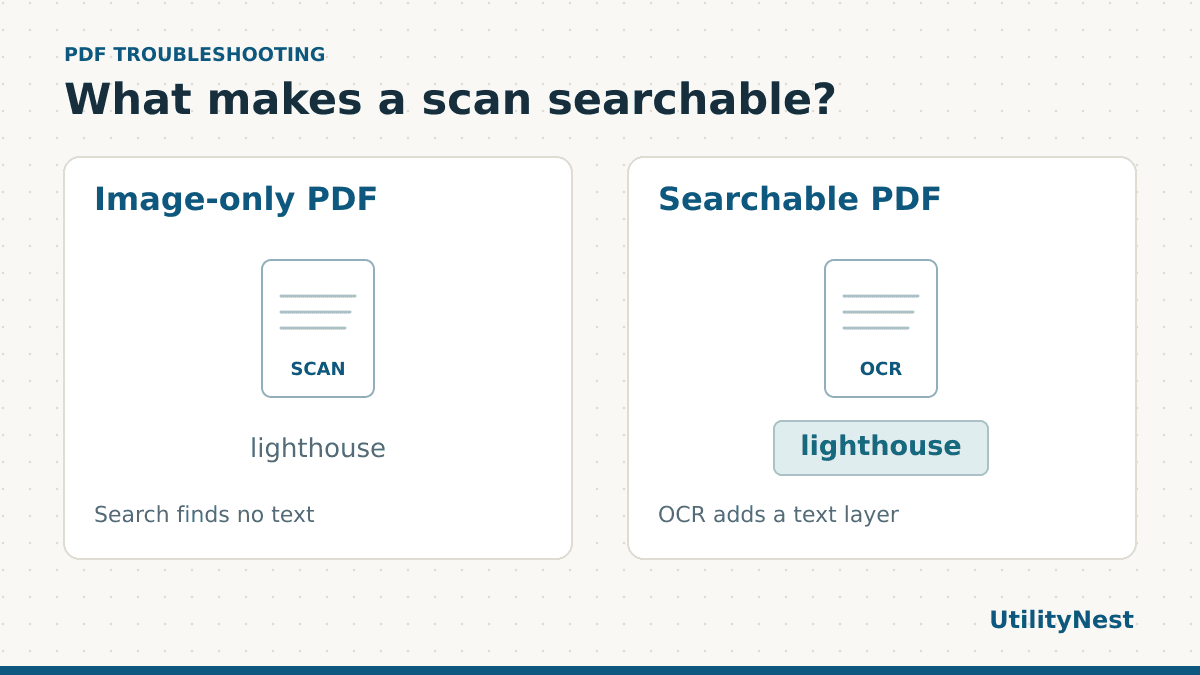
If a PDF opens normally but search finds nothing, try selecting one word in the middle of the page. If the entire page behaves like a picture, it may be a scan without a text layer. Optical character recognition, or OCR, can add searchable text over the page image. If you can already select and copy words, run a few more checks before processing the file.
Find out what kind of page you have
Start with a distinctive word in the body of the page. Search for the word, then try highlighting and copying it into a plain-text editor. Repeat on a second page, especially if your document combines a cover exported from Word with pages scanned from paper. A PDF can have real text on one page and only an image on another.
| What you observe | What to check next |
|---|---|
| No words select and search finds nothing | Try OCR on a copy of the page. |
| A heading selects but the body does not | The same page may contain both selectable text and an image of text. |
| Words select but paste as nonsense | Check another viewer or request the original export. A text layer can exist and still copy badly. |
| Search works but misses a code or name | Compare what copies out against the visible page. An earlier OCR pass may have misread a character. |
Try the same page with and without a text layer
Download the image-only sample PDF and the searchable copy. In the first, the word lighthouse is visible but there are no text characters for the viewer to find. In the second, a local OCR pass added a text layer, and we recovered both lighthouse and A7-204 when reopening and extracting the text. The page image is still what you see.
Open each in the same viewer and search for the full word. Then copy the reference code to a plain-text editor. If one viewer shows unusual spacing, try a second one before concluding that the source is unusable. The two files use the same scanned page, so a search hit in the second is evidence of the text layer rather than a difference in the visible wording.
Make your own scan searchable
- Keep the original. If your scan is sideways, faint or partly cropped, improve the input first. Rotate the page before processing, or scan it again if characters are missing at the edge.
- Open Searchable PDF and choose the language used on the page. The default page setting looks for pages without text. It suits a bundle that mixes ordinary PDFs and scans.
- If a page has a selectable page number or heading over an image and the body remains unsearchable, try the every-page setting on a separate copy. Compare the results against the input before replacing anything.
- Download the result, reopen it, and check a word near the top and bottom of several pages. Pay special attention to numbers, names and abbreviations you need to quote or search later.
When you only need a few lines to paste elsewhere, PDF to Text can extract an existing text layer. For a scan you intend to keep and search again, preserving the page image with a text layer is often the more useful output.
Test a mixed PDF before reprocessing the whole file
If the file is long, identify two or three pages that represent the problem. A cover with selectable text, a clean scan and a faint scan make a useful test set. Note a search word and a short code on each page before running OCR. After you export, search for the same terms and compare what you can copy. This gives you a way to tell whether the new file improved all pages or only the cleanest ones.
Keep the original scan as your visual reference. The searchable copy helps you find a page quickly, and you can confirm the visible wording before relying on a quotation or a reference number.
What to do when the search is still unreliable
Check whether the failure follows a particular page or a particular word. Pages with very small print, angled photographs or handwriting may need a cleaner scan or manual transcription. If a search for a number fails, try copying the whole line and see whether a similar-looking letter replaced one of the digits. On forms, try searching for a clear label first and then check the value beside it.
OCR can improve how a file is found and searched. It does not automatically make tables structured, establish the right reading order for a screen reader, or verify the accuracy of the words it recognized. If you need an accessible document, inspect reading order and structure separately. If the sender still has the editable source, a fresh PDF exported from it can be a better starting point than repeating OCR on the same low-quality scan.