PDF to PowerPoint: Image Slides or Editable Text?
By the UtilityNest team · · 4 min read
A PDF can become a PowerPoint deck in two ways. One puts a picture of each page on a slide. The other tries to rebuild the text boxes, shapes and images as separate objects. If you only need to present the pages, image slides can preserve the look. If you need to edit individual words or move a diagram, look for the original presentation or try a conversion that reconstructs objects.
Choose based on the work you need to do
| Goal | Good starting point | Check the result for |
|---|---|---|
| Present a finished PDF page | One page image per slide | Readable text, correct page order and suitable margins |
| Edit a line or replace a chart | Original deck or editable export | Fonts, text boxes, chart structure and reading order |
| Reuse one figure from a report | Extract or recreate that figure | Resolution, labels and permission to reuse the source |
A file extension tells you how the document is packaged. Both kinds of result can end in .pptx. Click a word in PowerPoint to see what you have. If the entire page selects as one object, the page is an image. You can resize the picture, move it, or add a separate text box on top. Editing a word inside the picture requires rebuilding that part of the slide.
Make a deck that keeps the page layout
- Open PDF to PowerPoint and choose the PDF.
- Use Pages to include if the deck needs only a few pages. Enter them in the order you want to present, then inspect the preview.
- Choose Download PowerPoint. Open the deck and run the slide show on a screen close to the one you will use.
- Check charts and small type at normal viewing distance. If a dense page is hard to read, give the key figure its own slide or summarize it in new text.
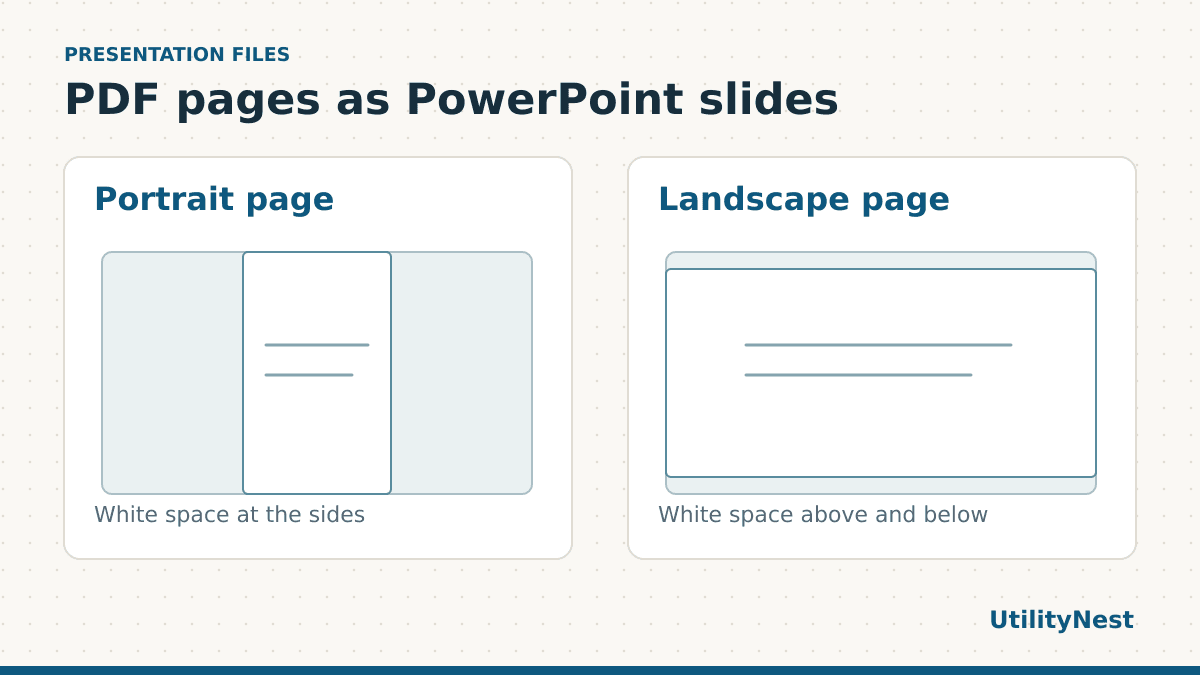
UtilityNest’s export fits the complete page on a widescreen slide without stretching it. The extra area around a portrait page is expected. Filling the entire slide with a portrait image would need either cropping or a changed aspect ratio. For a handout or portrait infographic, keep the original PDF available so the audience can zoom in separately.
Try the mixed-size example
Download the two-slide reference deck. We rendered one portrait PDF page and one landscape page and fed both into the slide export. We checked that each slide contained one picture and that both pictures stayed within the widescreen slide bounds. The portrait page has room at the sides and the wider page has room above and below.
On the first slide, try clicking the words inside the page. Then add a small new text box beside the page and edit it. You can see the difference between the image of the PDF and a native slide object in the same file. The source PDF had selectable text, but the image slide contains those letters as pixels. Text in the new box is selectable in the deck.
If you need editable slides
Ask for the source deck first if you can. It has the best chance of preserving fonts, original diagrams, charts, notes and layout choices. If only the PDF exists, use an export feature that produces editable PowerPoint objects, then test a difficult page before converting the whole document. Adobe Acrobat offers PowerPoint export. Check the resulting slide for missing or rearranged elements, especially if the input is a scan.
Try selecting individual objects, editing a line, and moving one label. You may find that an editable export creates one text box per line or breaks complex illustrations into pieces. For two or three pages, it can take less time to rebuild the important elements by hand. For a larger deck, make a shortlist of pages that require editing and leave the rest as faithful page images.
Keep charts readable on a widescreen display
If the original page is a portrait report, open the sample deck in slide show view and compare it with the same PDF page on screen. The whole page fits, but each line uses a smaller part of the display than it would in a native landscape slide. For a dense chart, prepare a separate slide with the chart enlarged and add its title as real text. Keep the full report page on a backup slide if the audience needs the context.
When converting only part of a report, check that the selected pages still include any legends or footnotes needed to understand the figures. A slide can look complete while leaving a definition on a page you skipped.
Before sharing the deck
Read the slides in the order the audience will see them. Check whether the embedded pages include footnotes or table text too small to read at presentation size. Add descriptive slide titles and provide the underlying text or source document when people need to search or use a screen reader. If the finished deck needs to be read as a document, export a separate PDF and review that copy too.