How to Print an A5 Booklet on A4 Paper
By the UtilityNest team · · 4 min read
To print an A5 booklet on A4 paper, start with a PDF in normal reading order. A booklet layout places two pages side by side on each face of an A4 sheet, so that folding the stack puts the pages in order. Print the arranged file in landscape on both sides, usually with flip on short edge, then fold a test copy before printing the rest.
A5 booklet size on A4
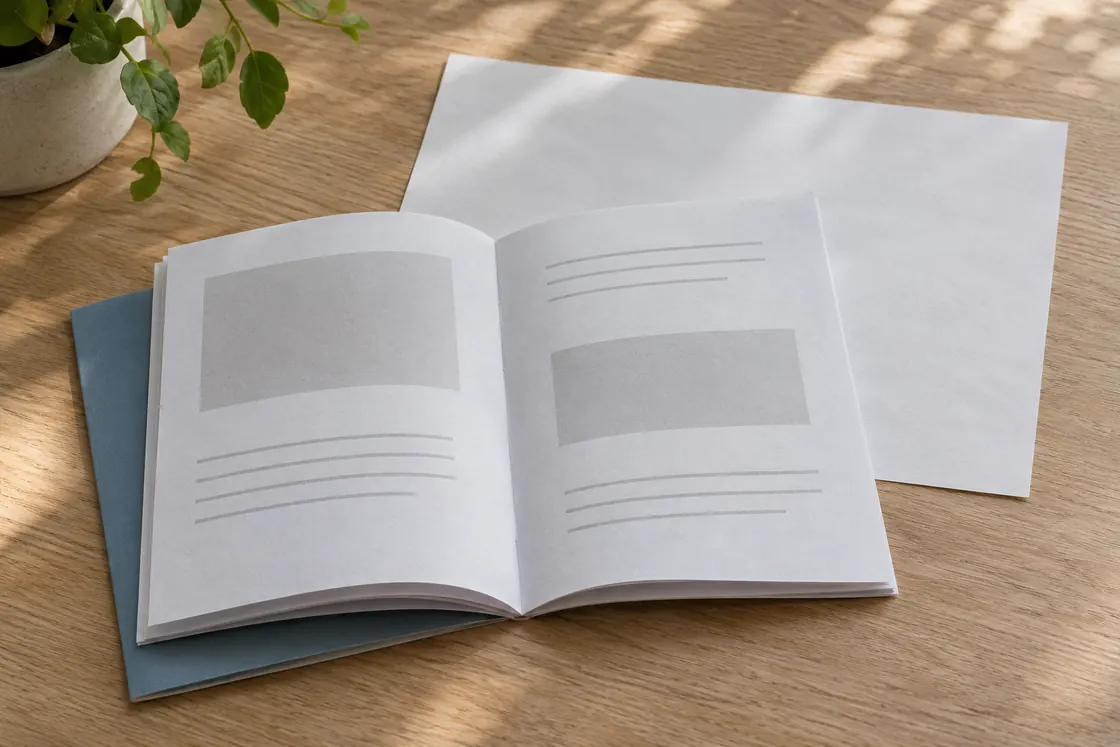
A5 is 148 x 210 mm, half of an A4 sheet (210 x 297 mm). Folded in half, one A4 sheet printed on both sides gives four A5 pages, so a booklet always has a multiple of four pages: 8 pages take two sheets, 12 pages take three and 16 pages take four.
Start with pages in reading order
Export page 1 first and the back cover last. If your editor offers facing-page spreads, export individual pages for booklet printing. You should be able to scroll through the PDF and read 1, 2, 3 and 4 in order. Already paired spreads are suitable for direct printing. Running those through another booklet layout can put four logical pages across the same sheet.
Make sure all the source pages are upright. A page accidentally saved sideways can take up less of its half sheet or become hard to read after folding. If your file mixes A5 pages with larger scans, check the small text on each kind of page in the preview. Folding A4 gives two panels about 148.5 × 210 mm each. The printable content will usually sit inside those panels with extra room at the fold and outer edge.
Make a print PDF
- Open the PDF Booklet Maker and choose your source PDF.
- Choose Folded booklet and A4. Leave the page selection alone for the entire file. Inspect the front and back of each sheet in the preview.
- Download the print PDF. It already has two pages across each landscape side. Print it at actual size with one PDF page per sheet side. Use the printer’s two-sided setting and try short-edge flipping for the first copy.
- Fold the sheets together down the center. Check that the front cover is page 1, that the center spread is upright, and that the back cover is the final page.
In Acrobat you can also print the original reading-order PDF with its Booklet option. Use one of the two methods. For an already arranged PDF, leave booklet layout off in the print dialog. A second booklet pass changes the order again.
Check the page order with eight numbered pages
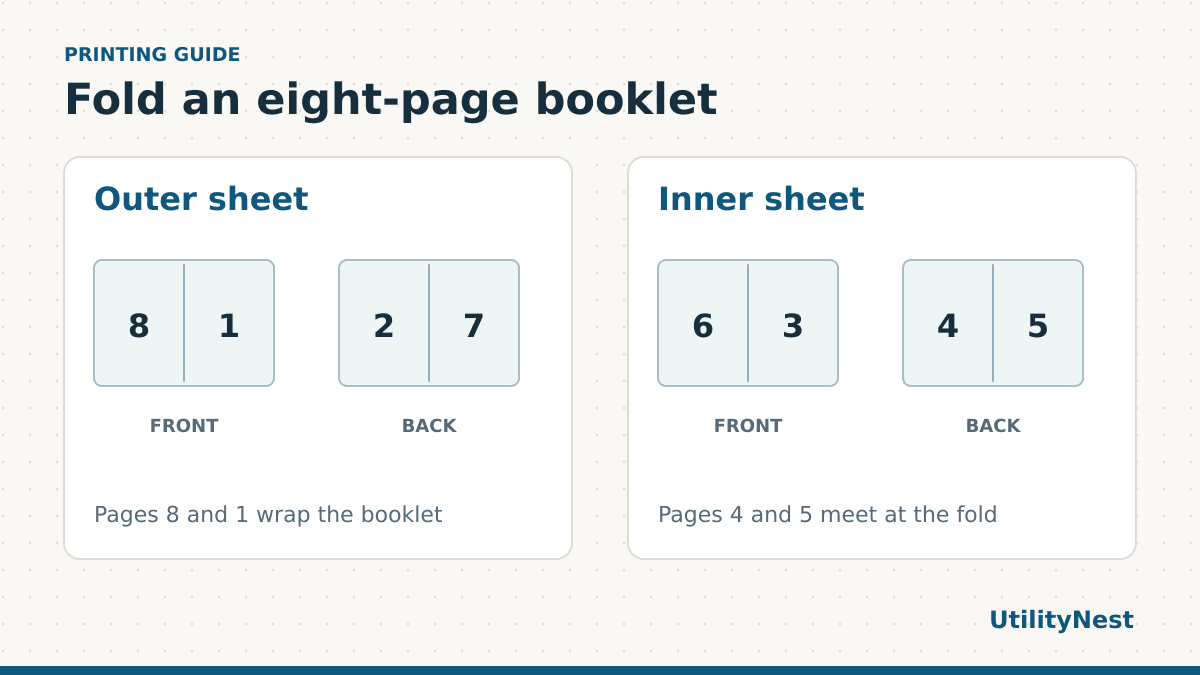
In our digital test, an eight-page source produced four PDF sides for two double-sided A4 sheets. The outer sheet pairs the last page with the first on its front. The inner sheet carries the center spread. The sides are listed below as you look at each printed face upright, with the fold between the two numbers.
| Sheet | Front, left to right | Back, left to right |
|---|---|---|
| Outer | 8 and 1 | 2 and 7 |
| Inner | 6 and 3 | 4 and 5 |
Download the eight-page A5 source to try the layout yourself, or use the ready-to-print A4 booklet PDF to test your printer. Printing both is unnecessary for checking the fold.
Where to place blank pages
Count the cover in the total, including a blank inside cover if you want one. If a document has five content pages and one back cover, leave the back cover as page 8 and put blanks on pages 6 and 7. This gives you a deliberate place for the empty faces. If the booklet is just notes and does not need a specific back cover, automatic blanks are fine. Use the sheet preview to confirm them before printing.
For a booklet that will be read left to right, page 1 belongs on the right half of the outside front. When testing a larger booklet, label a couple of spare sheets with pencil before folding so you can identify the outer and inner stack at a glance.
What to do when something comes out wrong
The backs are upside down. Change the duplex flip edge and try another copy. With manual duplex, mark the leading edge of a blank sheet before feeding it, then check where that mark ends up. The right way to reload paper depends on the printer tray and feed path.
There are unexpected blanks. Each folded sheet adds four booklet pages. A six-page booklet needs two blanks to fill eight slots. If the back cover must land on the outside, add blank pages in the source before the cover until the total is a multiple of four. Reopen the preview and check where the cover appears.
Text or borders are cut off. Check the printer’s paper size and disable extra scaling or marginless expansion. For text too close to the edge in the original, increase the source margins and export again. Thin lines close to a fold can be hard to see even when they are visible in a PDF preview. Leave extra space there if the booklet will be stapled or made with thick paper.
For multiple copies, stack and fold one complete booklet first. Check that the paper trays and duplex settings stay the same when you switch from the test run to the full job.