How to Split an Excel File into Multiple Files
By the UtilityNest team · · 6 min read

"Split an Excel file" can mean three different jobs, and the right method depends on which one you have. You might want every sheet saved as its own workbook, a long list cut into parts of a fixed number of rows, or one file per value in a column, such as one file per region or per customer. Excel has no single "split" button for any of them, but each has a short route.
We tested the first two on a sample workbook, YourName-orders-2026.xlsx: an Orders sheet with a header row and 2,500 order rows (127 KB), a Returns sheet and a one-cell Summary sheet. The numbers below come from that file.
Which kind of split do you need?
| You want | Example | Fastest route |
|---|---|---|
| One file per sheet | Send Returns to the warehouse, Orders to accounts | Move or Copy in Excel for one or two sheets; a sheet splitter for many |
| Parts of N rows | An import form that accepts 1,000 rows at a time | A row splitter that repeats the header |
| One file per column value | One file per region or sales rep | Filter in Excel, or a short pandas script for many values |
One file per sheet
For a sheet or two, Excel does this itself. Microsoft's steps are: right-click the sheet tab, choose Move or Copy, tick Create a copy, and under To book pick a new workbook. Then save that new workbook under its own name. It keeps the sheet's formatting, because it is Excel copying Excel.
Two things catch people out. First, formulas that point to other sheets still point back at the original workbook after the copy, so the new file may show external links or ask to update them. Second, doing this for twenty sheets means twenty rounds of copy, rename and save.
For many sheets at once, our Split Excel tool saves each selected sheet as its own .xlsx and hands them back in one ZIP. On the sample file it produced YourName-orders-2026-Orders.xlsx, -Returns.xlsx and -Summary.xlsx. By default it replaces formulas with their last calculated values. The Summary sheet's =SUM(Orders!E2:E2501) came out as the plain number 26,459, which is usually what you want in a file you send to someone else. A Keep formulas switch keeps them instead, and the tool warns that formulas pointing at another sheet break in the split file (usually showing #REF!).
Parts with a fixed number of rows
This is the common case for uploads and imports: a CRM, mailing tool or government form accepts at most 1,000 or 5,000 rows per file, and each part needs the header row at the top or the import fails.
Doing it by hand in Excel means selecting rows 2 to 1,001, copying them under a copy of the header in a new workbook, saving, and repeating. It works, but on a 50,000-row sheet that is 50 rounds, and an off-by-one slip duplicates or drops a row at each boundary.
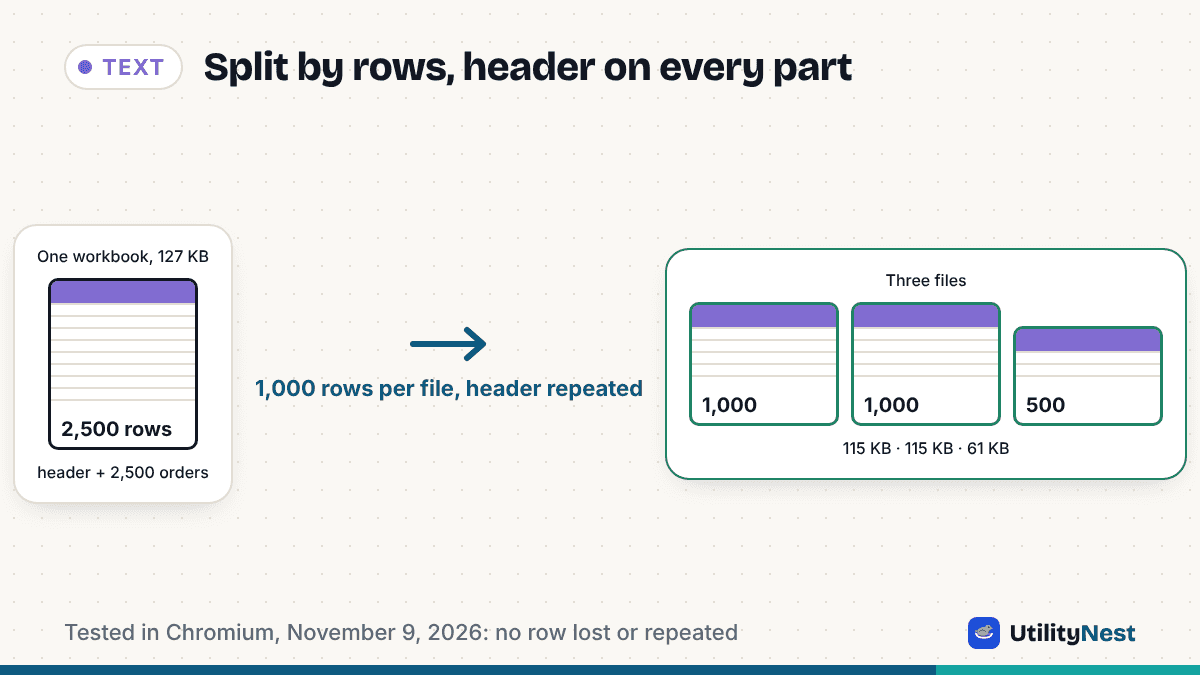
In Split Excel, choose By rows in one sheet, pick the sheet, set Header rows to repeat (1 for a normal table) and enter the rows per file. You can also give a number of files and let the tool work out the rows. With 1,000 rows per file on the sample Orders sheet, the tool said "2,500 data rows → 3 files with up to 1,000 rows each, plus the header" and produced:
YourName-orders-2026-001.xlsx: header plus orders A10002 to A11001 (1,000 rows, 115 KB)YourName-orders-2026-002.xlsx: header plus A11002 to A12001 (1,000 rows, 115 KB)YourName-orders-2026-003.xlsx: header plus A12002 to A12501 (500 rows, 61 KB)
No row was repeated or skipped at the boundaries, and the numbering pads with zeros so the files sort in order. In row mode the Total column, which held =E2*F2 style formulas, arrived as values: a formula moved to a new row would point at the wrong cells, so the tool keeps the result rather than the formula.
What comes along, and what does not
It helps to know before you send the parts out. In our test, the split files kept the cell values, number formats, column widths and merged cells. They did not keep cell styling: the sample's bold, shaded header row came out as plain text. Charts, pictures and pivot tables are not copied either, since the tool works with the cell grid only.
File size also does not divide neatly. The 127 KB workbook became three parts of 115, 115 and 61 KB, and the Orders sheet on its own came out at 285 KB in sheet mode. Excel files compress repeated text inside the file, and a freshly written file does not always pack it the same way. If your limit is in KB rather than rows, check the part sizes in the result list before uploading. The tool shows each one.
If a target system only takes CSV, split the CSV instead of the workbook with Split CSV. CSV parts are smaller and import more reliably than XLSX parts.
One file per column value
This is the most searched version, and the one no simple splitter handles well, because the number of files depends on your data. You have two practical routes.
In Excel: filter and copy
- Click any cell in the table and choose Data > Filter.
- Click the arrow on the column you are splitting by, such as Region, clear (Select All) and tick one value.
- Select the visible rows with the header. Microsoft's guidance is to use Home > Find & Select > Go To Special > Visible cells only before copying, so hidden rows do not come along.
- Paste into a new workbook and save it as
orders-East.xlsx. Repeat for each value.
That is fine for four regions. For forty sales reps it gets tedious. One shortcut is to paste each filtered result onto its own sheet in one workbook, then save all the sheets at once with the sheet splitter above.
With a script: pandas
If you have Python, the pandas library does the whole job in four lines. This splits the Orders sheet by Region:
import pandas as pd
df = pd.read_excel("YourName-orders-2026.xlsx", sheet_name="Orders")
for region, part in df.groupby("Region"):
    part.to_excel(f"orders-{region}.xlsx", index=False)
On the sample it wrote four files: East with 645 rows, West 641, North 633 and South 581, adding up to 2,500. It needs the openpyxl package installed for Excel files. Like the browser tool, it writes values without your formatting or formulas.
Before you send the parts
- Open the first and last part and check the boundary rows, especially if the original had blank rows or a total row at the bottom. A total row ends up as a data row in the last part.
- If the sheet has more than one header row, such as a title above the column names, set the header rows to match, or every part after the first will be missing it.
- A worksheet holds at most 1,048,576 rows. If your data came from a CSV that big, Excel never loaded all of it, so split the CSV itself rather than the workbook.
Split Excel runs in your browser and reads XLSX, XLSM, XLS, XLSB and ODS files without uploading them. Password-protected workbooks need the password removed in Excel first.
Sources
- Microsoft Support: Copy a worksheet to another workbook
- Microsoft Support: Filter data in a range or table
- Microsoft Support: Copy visible cells only
- Microsoft Support: Excel specifications and limits
- pandas documentation: DataFrame.groupby and DataFrame.to_excel
Checked on November 9, 2026.