SRT vs. VTT Subtitles: What’s the Difference?
By the UtilityNest team · · 4 min read
Use SRT when a video editor, player or upload form asks for a simple subtitle file. Use WebVTT, usually saved as .vtt, for a caption track on a web video. Both store the words and the time each subtitle appears. The file header and timestamp syntax differ, and WebVTT can carry display settings that a basic SRT cannot express in the same way.
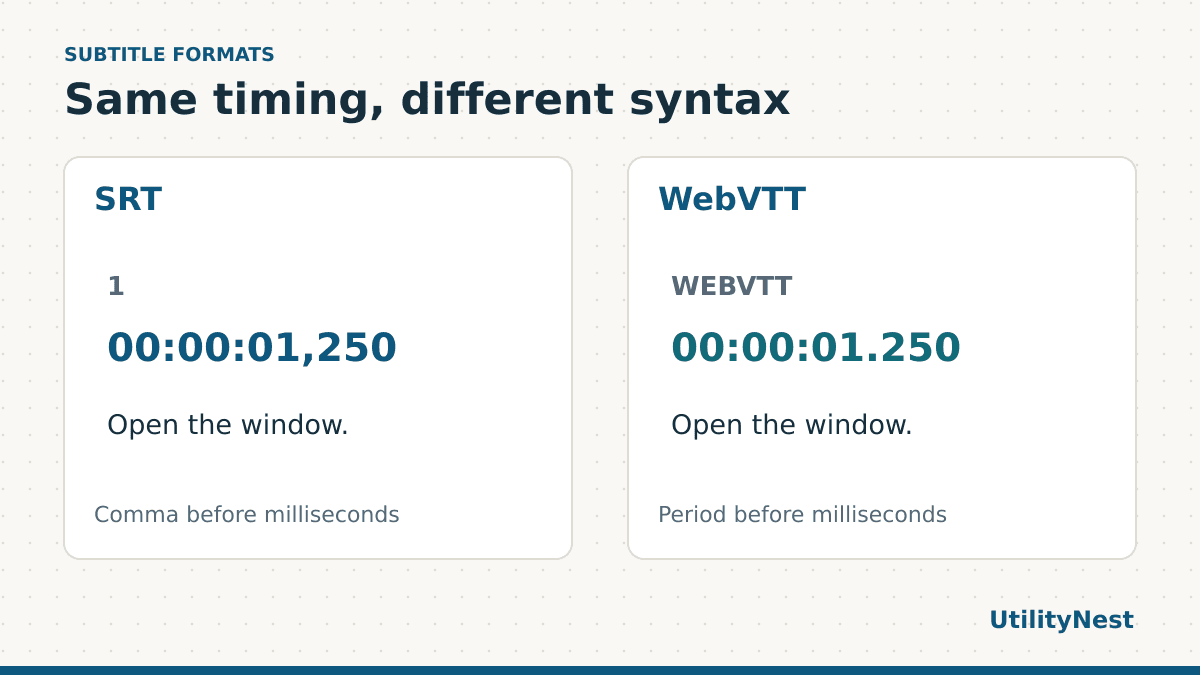
Compare the same cue in both formats
Open the two-cue SRT sample and the matching VTT sample in a plain-text editor. The first subtitle begins at 1.250 seconds and ends at 3.800 seconds in both files. The start and end times are written differently.
| Part of the file | SRT example | WebVTT example |
|---|---|---|
| Start of the file | First cue number, such as 1 | WEBVTT header followed by a blank line |
| First timing line | 00:00:01,250 --> 00:00:03,800 | 00:00:01.250 --> 00:00:03.800 |
| Caption text | Open the window. | Open the window. |
Blank lines separate the cues. In a typical SRT, each cue begins with a sequence number. In WebVTT, a cue can have an optional identifier. WebVTT also supports things like cue positioning or alignment. The simple samples have only timestamps and words so you can compare them without needing to interpret styles.
Choose the format the destination accepts
For a web page using the HTML video track element, prepare a WebVTT file. For a video editor or a site with a subtitle upload screen, check the listed file types. The same service can use different formats when you are editing, uploading or embedding a player. If the destination accepts both, use the one that preserves the features you actually need and preview the result there.
When sharing a video with a separate subtitle file, keep both together and explain which subtitle language it contains. Some players auto-load subtitles from a matching filename, while others need you to select the file. If the captions must always be visible, you can burn them into a video copy. The rendered text becomes part of the picture. Keep the original video and subtitle files if you may need to change the text later.
Convert the subtitle file before uploading
- Open the Subtitle Converter and choose your file.
- Pick SRT or VTT for the destination. Leave any timing adjustments at zero for a straight conversion.
- Review the cue count and preview. Download the new file and compare the first and last timing lines with the original.
- Play the result with the video and check a cue near the start, middle and end. Check accented characters or other scripts if the captions contain them.
We converted the two sample cues from SRT to VTT and read the result back with the same parser. The text and start and end times matched both cues. That is a test of the simple interchange shown here. If the source contains speaker tags, styles, positioning or different language tracks, check which features survived before sending the converted file.
Use a quick timing check before converting a full batch
Pick a cue with an obvious start, such as a door closing or the first word after a pause. Note the exact start time and the visible event. After converting, check the same cue in the destination player. Check a cue from near the end as well. For a long video, matching the beginning alone can miss a slow drift. A cue can be valid in the file and still be attached to the wrong edit of the video.
For multilingual captions, keep one source file per language and include a language code in the name. Review each one before making a batch export. Choose descriptive track labels when the destination player lets viewers switch languages.
Why a file still fails after conversion
The extension changed but the contents did not. A renamed SRT still has its old structure. Open the new VTT and check for the header and the period before the milliseconds. For SRT, look for numbered cues and a comma before the milliseconds in a conventional export.
The words appear but the timing is wrong. If every line is off by the same amount, check whether the video has an extra opening clip or a short trim. Adjusting the offset can help. If the error grows toward the end, look for a frame-rate conversion or a different cut of the video before shifting every cue by a fixed amount.
Some characters look garbled. Open the source in a plain-text editor. Save a copy using UTF-8 if the destination expects it, then reopen it before uploading. Make a note of the exact words that fail so you can tell whether the problem came from reading the original file or displaying the result.