Why does my trimmed video start early or freeze at first?
By the UtilityNest team · · 6 min read

You trim a clip to start at 0:05.5, and the result opens at 0:04, or it plays a second or two of sound over a black or frozen picture before the video catches up. Nothing is broken. Both effects come from how compressed video is stored, and from the choice your trimming tool made between copying the video and re-encoding it.
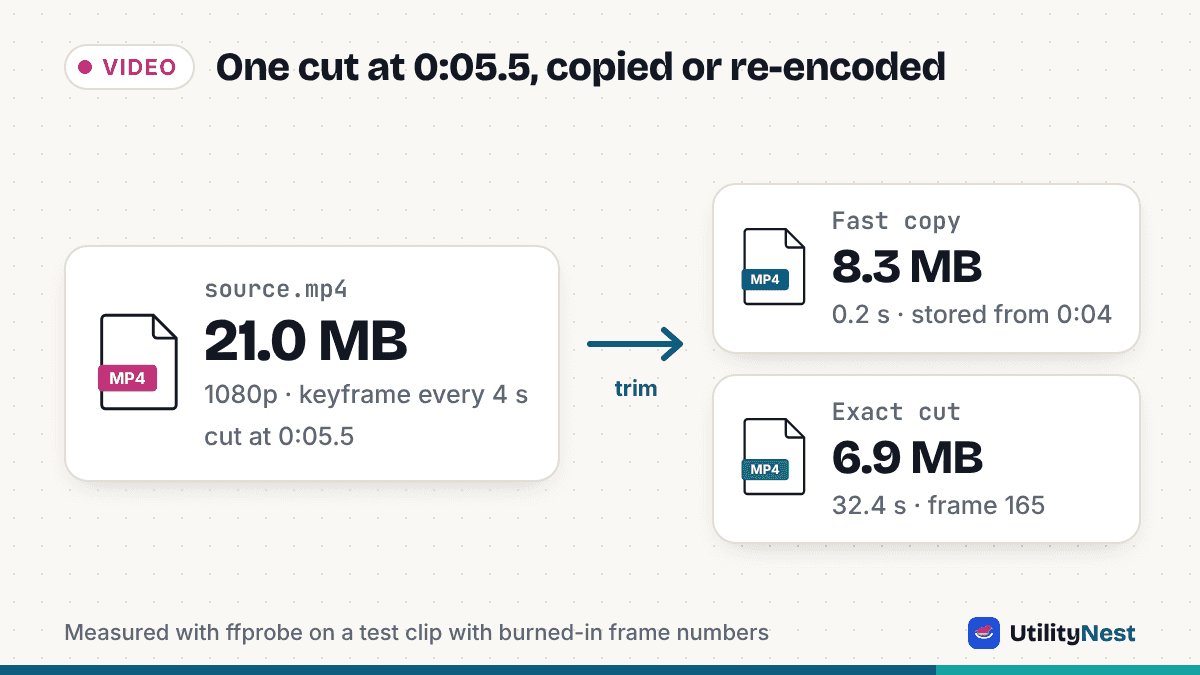
To see exactly what happens, we made a 20-second 1080p H.264 test clip at 30 fps with the frame number and timestamp burned into every frame, and a keyframe every 4 seconds (at 0, 4, 8, 12 and 16 s). We asked for 0:05.5 to 0:12.0, which is frames 165 to 359, and checked each output with ffprobe and by pulling out its first and last frames as images. The beliefs below are the ones those results contradict.
A video can be cut cleanly at any frame
Only some frames can be cut at cleanly. H.264 and most other modern codecs store a full picture only now and then, in a keyframe (an I-frame). The frames in between store just what changed, so they need the earlier frames to be drawn. The run from one keyframe to the next is called a GOP (group of pictures).
In our clip, frame 165 depends on frames back to frame 120, the keyframe at 4.0 s. A cut at 5.5 s that copies the video as it is has to keep frame 120 and everything after it, or the first 45 frames have nothing to be built from. The only other way is to decode the frames and encode them again so that frame 165 becomes a new keyframe.
A fast lossless trim only keeps the part you selected
A "fast" or "lossless" trim is a stream copy: the compressed packets are copied into a new file without being decoded. FFmpeg's documentation describes it as copying packets "without decoding, filtering, or encoding them", which is why it is quick and loses no quality. But it also says that when you seek before the input with -ss, FFmpeg seeks "to the closest seek point before" your position, and with stream copy the extra segment between that seek point and your start "will be preserved".
That matches what we found in the file. Our Trim Video tool's Fast, no quality loss mode stored 240 video frames for a 6.5-second selection that only has 195. It kept the 1.5 seconds from the keyframe at 4.0 s, then marked them as hidden. MP4 and MOV can do this with an edit list, a small instruction in the file that says "start playback 1.5 seconds in". ffprobe showed the first video packet at -1.5 s, and the file length as 6.5 s.
That edit list is why a fast trim usually looks right. When we pulled the first frame with FFmpeg, which honors edit lists, it was frame 165. With edit lists turned off (-ignore_editlist 1), the first frame was frame 120. So a player or editor that ignores the edit list starts your clip early, here 1.5 seconds, and up to a full GOP in the worst case. WebM has no edit list to hide the extra frames.
A black or frozen first second means the file is damaged
It usually means the trimmer copied the video but dropped the frames it could not decode, instead of keeping them from the previous keyframe. We reproduced this with FFmpeg 6.1 on the command line by putting -ss after the input:
ffmpeg -i source.mp4 -ss 5.5 -t 6.5 -c copy out.mp4
The audio track started at 0 s, but the first video frame in the file was frame 240, the keyframe at 8.0 s, timed to appear 2.5 s into the clip. The first 2.5 seconds have sound and no picture, so what you see depends on the player: black, a frozen frame, or a jump. The file holds just 122 video frames, and frames 165 to 239 are simply gone. Moving -ss before -i fixed it: FFmpeg kept the frames from 4.0 s, wrote an edit list, and the first frame shown was 165.
A fast trim file is only as big as your selection
It carries the hidden frames too, so it is a little bigger than the length suggests. Here is everything we measured from the same source (21.0 MB), with the times our tool reported. We ran the tool in headless Chromium, and we forced its FFmpeg engine for one run, because the tool uses that engine as a fallback when the browser cannot read a file.
| Method | First frame shown | Last frame | Size | Time |
|---|---|---|---|---|
| Trim Video, Fast (browser engine) | 165 (120 if edit list ignored) | 359 | 8.3 MB | 0.2 s |
| Trim Video, Fast (FFmpeg fallback) | 165 (120 if edit list ignored) | 363 | 8.5 MB | 1.2 s |
| Trim Video, Exact cut | 165 | 359 | 6.9 MB | 32.4 s |
FFmpeg CLI, -ss after -i, copy | 240, after 2.5 s of no picture | 359 | 4.3 MB | 0.1 s |
The fallback row matters if your file needs it. In our first run, the fallback kept the 1.5 seconds before your start visible, so the clip was about 8.1 seconds long instead of 6.5. We fixed the tool the same day: the fallback now writes an edit list too, and a rerun started on frame 165 like the browser engine. It still ran four frames past the end, to 12.1 s.
Re-encoding always ruins the picture
A re-encode does lose some quality, because the video goes through a lossy encoder a second time. How much depends on the bitrate. Our Exact cut mode re-encodes to H.264 MP4 at the original size and picks a bitrate close to the source's (for an H.264 source, the source's own bitrate, capped by a ceiling based on the frame size and frame rate). In our test it encoded at about 8.7 Mbps, and compared with the same 6.5 seconds of the source, it scored an average PSNR of 46.3 dB and an SSIM of 0.997. That is very close, but not identical, and each re-encode adds a little loss.
The real costs are time and control. The exact cut took 32.4 seconds for 6.5 seconds of 1080p, compared with 0.2 seconds for the copy. The tool tries the browser's own encoder first, and in our headless test it fell back to FFmpeg, so a browser with hardware H.264 encoding may finish sooner. Exact cut also always outputs MP4 with H.264 video and AAC sound at 160 kbps, so a WebM or HEVC source comes out in a different format.
The exact cut gave us what we asked for: frame 165 as a keyframe at 0.0 s, frame 359 last, 195 frames, and no hidden frames.
Picking a start on a keyframe makes the problem go away
This one is true, and it is the best of both routes when you can do it. If your start lands exactly on a keyframe, a stream copy has nothing to hide or drop, so it is fast, lossless and exact in every player. The hard part is knowing where the keyframes are. You can list them with ffprobe:
ffprobe -select_streams v -skip_frame nokey -show_entries frame=pts_time -of csv source.mp4
For our clip that printed 0, 4, 8, 12 and 16. The end of a cut was less of a problem in our tests: the browser-engine fast cut ended on frame 359, exactly where we asked, while the FFmpeg fallback ran on to frame 363.
Which route to choose
- Use a fast copy for MP4 or MOV you will watch or share in normal players and apps, for long files, and when you want to keep the original quality and format.
- Use an exact cut (re-encode) when the clip goes into an editor, a WebM file, or a platform that showed you extra seconds or a black start, or when the first frame must be exact, such as for a thumbnail or a loop.
- Trim first, then compress if you also need a smaller file. A copy keeps the original bitrate, so a separate pass with Compress Video is where the size comes down, and it re-encodes only once.
Sources
- FFmpeg documentation: ffmpeg tool (the -ss option and stream copy)
- Mediabunny guide: Converting media files (trimming, copying and edit lists)
Checked on October 24, 2026. Tested with FFmpeg 6.1.1 (command line), Mediabunny 1.61.3 and the FFmpeg WebAssembly build used by our tool, in Chromium.