ZIP vs. 7z vs. tar.gz: Which Archive Should You Use?
By the UtilityNest team · · 4 min read
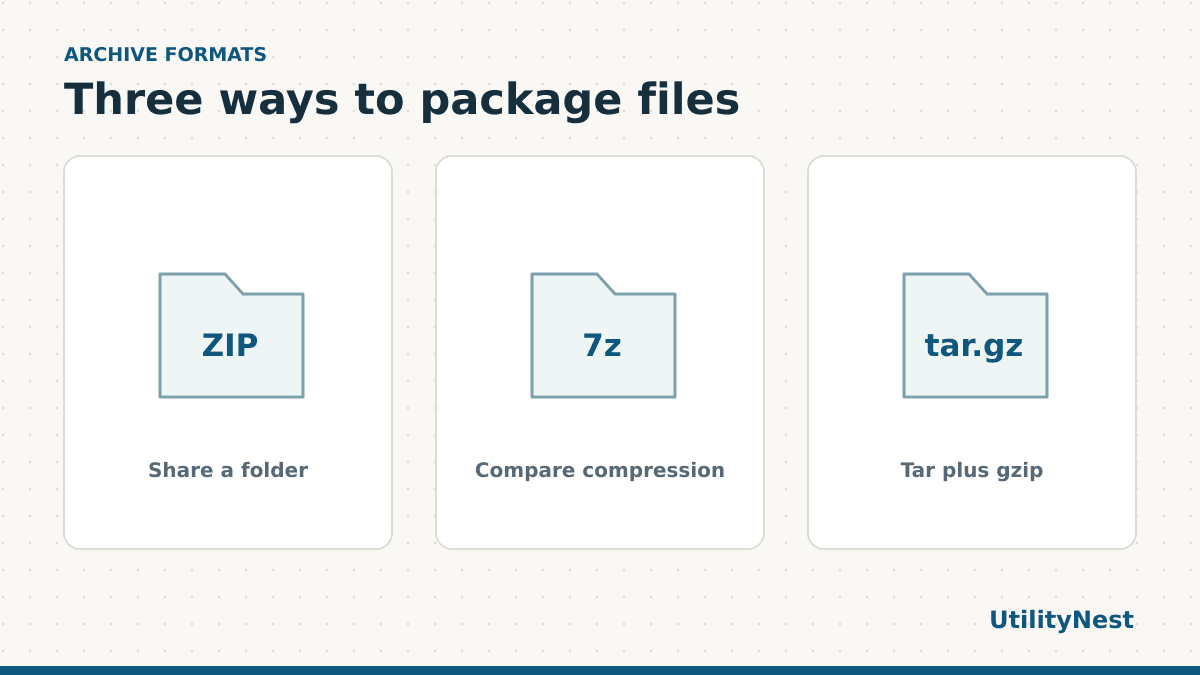
Choose ZIP when you are sending files to someone and you want a straightforward archive to open. Choose 7z when compression matters and both sides have compatible software. Keep tar.gz when a download, project or Linux workflow already expects it. Each can carry a folder of files. The difference is how the files are packaged and what the recipient needs to open them.
| Extension | How it is organized | Good starting point |
|---|---|---|
| .zip | An archive with individually stored or compressed entries | Sharing a mixed folder or letting someone extract just one file |
| .7z | An archive that can use several compression methods, including solid compression | When both sides can open 7z and saving space is useful |
| .tar.gz | A tar archive passed through gzip compression | Source code bundles, command-line tools and workflows that request it |
Why .tar.gz has two parts
A tar file bundles filenames, folders and data into one archive. Gzip compresses that stream. A lone report.csv.gz usually expands to a single CSV. A project.tar.gz expands to a tar archive that contains the project files. A tool may show the two stages separately or unpack both at once.
If an app gives you a .tar file after opening a .tar.gz, the gzip layer has been removed. Open the tar file next to reach the original files. Renaming it to ZIP does not change the data. If someone needs a ZIP, unpack the files into a separate folder and then create a new ZIP from that folder.
Look at the same files inside two archives
Download the sample ZIP and the sample tar.gz. Each contains a small readme and the same graphic in an assets folder. We opened both and checked that the paths and file bytes matched. This sample shows that two archive formats can carry identical material even though the archive files themselves differ.
When you unpack the sample, compare what appears inside the destination folder. You should see a readme at the top level and an assets folder beside it. If you see only another archive, open that layer. If you see a duplicate parent folder, look one level deeper before deciding the files are missing. Archive creators differ in whether they include the top-level folder in the package.
How to choose when making a new archive
For a coworker who needs several documents, create a ZIP and reopen it to check the contents. Send one clear top-level folder if there are a lot of loose files. For a recipient who needs one item immediately, tell them its name so they can locate it without unpacking everything.
If you and the recipient already use 7z, compare the final size with ZIP using your real files. A folder of repetitive text behaves differently from a folder of JPGs or MP4s that are already compressed. Compression settings and time matter too. A smaller archive can be worth waiting for on a slow connection. For a small folder of finished images, the easiest option to open may be more valuable than the difference in size.
For a script or package release that calls for tar.gz, use the requested format and keep its folder structure intact. A ZIP containing the same files can still behave differently in an automated workflow. Verify the archive against the instructions you were given before substituting another extension.
Why archives can come out different sizes
Some 7z archives use solid compression, which can find repetition across more than one file. For example, a collection of similar text files may benefit from those shared patterns. Extracting a file in the middle of a solid block can require decoding part of the block first. That is one reason to consider how the recipient will use the archive along with how small it becomes. Try one representative folder and check how long it takes to open or extract a single file.
Archive size also includes names, paths and other stored information. A small sample with two tiny files can be dominated by headers. Our downloads are for inspecting the files and layers. To compare storage or transfer time, use a representative batch of your own files and make both archives from the same folder at the same time.
If you already received an archive, first ask whether the next step is to read the contents or pass along the package. In the first case, extract and open the files. In the second, keep the original packaging so a downstream tool sees the format it expects.
If the recipient cannot open it
Ask which filename they received and where they opened it. If it ends in .7z, try an extractor that supports 7z. For a file someone renamed while troubleshooting, get a fresh copy with its original extension. If the download is incomplete, resending or downloading again is more useful than repeatedly trying to extract it. Reopen your own archive before sending and check that one representative file opens normally after extraction.