How to Crop a PDF on Mac, iPhone, Windows or Android
By the UtilityNest team · · 7 min read
Macs and iPhones can crop a PDF with an app that is already installed: Preview. Windows and Android have no crop button in their built-in PDF viewers, so on those you need a browser tool or a PDF editor. Whichever route you take, one thing works the same everywhere: cropping a PDF hides the edges of the page. It does not delete them. That matters if you are cropping to get rid of something, and it explains why a cropped PDF is not smaller and why some printers still print the full page.
Below are the steps for each platform, then what we saw when we cropped a test file, YourName-slides.pdf: three US Letter pages, each with a chart in the middle, wide white margins, and a small grey footer line reading "Internal ref YourName-4417, do not share".
| Device | Built in? | Route | Good to know |
|---|---|---|---|
| Mac | Yes | Preview: Markup toolbar, Rectangular Selection, Crop | Tools > Show Inspector shows the selection size |
| iPhone, iPad | Yes, in the Preview app | Open the PDF, tap Crop, drag the blue handles | Apple's steps crop the page you are on |
| Windows | No | A browser crop tool or a desktop PDF editor | Check whether the tool uploads your file |
| Android | No | A browser crop tool in Chrome | Same page as on a computer, touch to drag |
Crop a PDF on a Mac with Preview
Apple's Preview guide gives these steps:
- Open the PDF in Preview and show the Markup toolbar if it isn't showing.
- Choose the Rectangular Selection tool and drag over the part of the page you want to keep.
- If you need exact measurements, choose Tools > Show Inspector and pick a unit; it shows the size of your selection.
- Click the Crop button in the Markup toolbar.
To undo straight away, choose Edit > Undo Crop. To get the uncropped version back later, Apple points to File > Revert To > Browse All Versions. Preview saves changes into the same file, so if you will send the cropped copy, duplicate the file first (File > Duplicate) and crop the copy. Apple's own description of the feature is that cropping is a way to hide content, which matches what we found in testing below.
Crop a PDF on an iPhone or iPad
Apple's iPhone User Guide (iOS 26 and later) describes the Preview app for PDFs: open the PDF, scroll to the page you want, tap the Crop button, drag the blue handles around the area to keep, then tap Crop. If the Crop button doesn't appear, tap inside the selected area. The iPad guide gives the same steps, and both guides undo a change with an Undo command in the same app.
Those steps work one page at a time. That is fine for cutting a single receipt or ticket out of a page. For a 40-page document where every page needs the same margins trimmed, a tool that applies one box to all pages saves a lot of dragging.
Crop a PDF on Windows or Android
Neither system ships a PDF crop feature in its default viewer, so the quickest route without installing anything is a crop tool that runs in the browser. Our Crop PDF tool works this way: the file is opened by your browser and never uploaded. The same page works in Chrome on Android, where you drag the box with your finger. The steps:
- Drop the PDF on the page.
- Choose All pages or Selected pages (for example
1, 3-5). - Either drag the crop box on the preview, type the margins in millimetres, or press one of the auto-trim buttons: Same box for all pages or Trim each page separately. "Keep a border of" adds a few millimetres of white back around the content.
- Press Crop 3 pages (the number matches your file) and download the result.
"Same box for all pages" is the one to use for slides, books and forms, because every page keeps the same size and position. "Trim each page separately" suits a set of scanned receipts of different sizes, where each page should hug its own content.
What happened when we cropped the test file
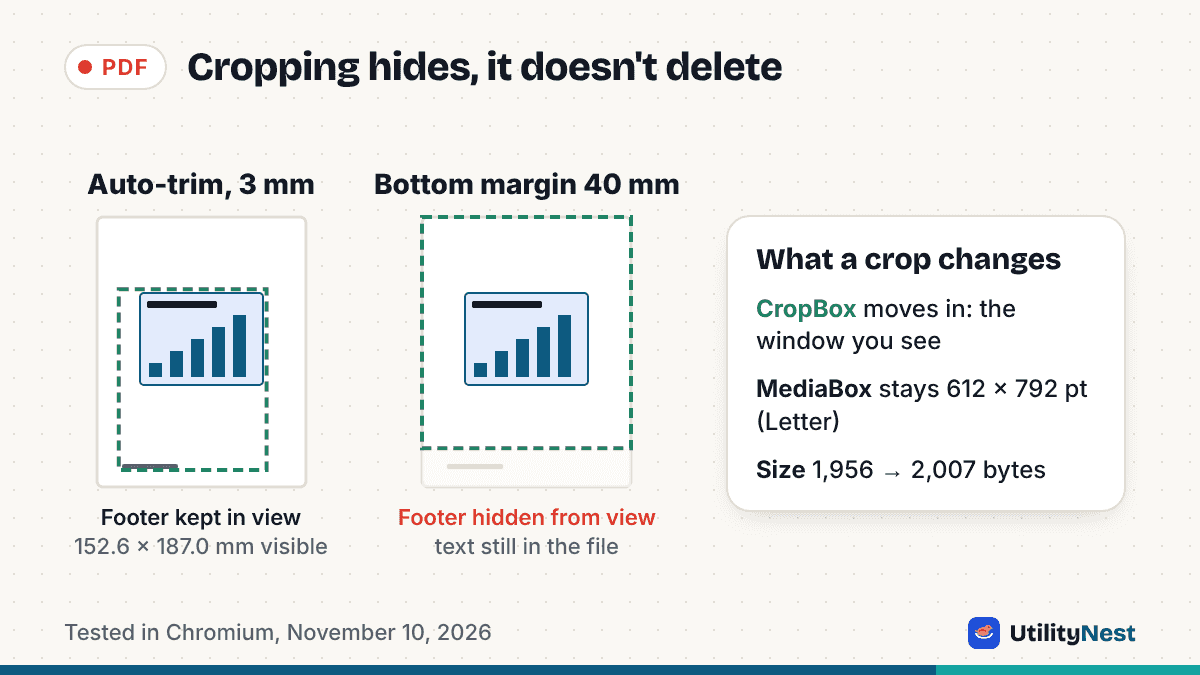
We ran the auto-trim with a 3 mm border on all three pages. It did not trim as tightly as we expected. The box it found went from the chart down to the grey footer line, because auto-trim keeps everything that isn't white, and the footer was the lowest non-white thing on the page. The margins it set were 74.9 mm at the top, 17.5 mm at the bottom, 22.5 mm on the left and 40.8 mm on the right, leaving a visible area of 152.6 × 187.0 mm out of the original 215.9 × 279.4 mm page.
That is the most common surprise with automatic trimming. A page number, a footer, a scanner shadow or a faint line at the edge counts as content. If the auto-trim leaves more than you wanted, type the margin for that side instead. We set the bottom margin to 40 mm by hand, and the footer disappeared from view on every page.
Then we checked what was left inside the files:
- Size. The original was 1,956 bytes. The auto-trimmed copy was 2,007 bytes and the hand-cropped copy 1,976 bytes. Cropping added a few bytes, because it adds a page setting rather than removing anything.
- The hidden footer. In a normal viewer it was gone. But a text extraction tool (pdftotext) still pulled "Internal ref YourName-4417, do not share" out of the hand-cropped copy, from all three pages.
- The paper size. The page itself (the MediaBox) stayed 612 × 792 points, which is US Letter. Only the visible window (the CropBox) changed, to 612 × 678.6 points for the hand crop.
Why cropping doesn't delete anything
A PDF page has more than one box. The MediaBox is the full sheet. The CropBox is the window a viewer shows and prints. Cropping in Preview, in our tool and in most editors moves the CropBox inward and leaves the page content untouched. That is why the crop can be undone at any time, why text stays sharp and searchable, and also why the hidden part is still in the file for anyone who opens it with an editor or extracts its text.
So if you are cropping to remove a name, an account number or a price, cropping is the wrong tool. Use a redaction tool that deletes the text underneath, or turn the pages into images and back into a PDF so nothing outside the visible area survives. Our guide on why a black box doesn't redact a PDF covers the same trap with drawn rectangles.
Two practical effects of the MediaBox staying the same:
- Printing. Most apps print the cropped area, but some print workflows and older printer drivers use the full MediaBox, so the margins come back on paper. Our tool has an Also shrink the paper size switch that sets the MediaBox to the crop as well; in our test it set both boxes to the same 432.6 × 530.0 point rectangle. The hidden content is still in the file after this, too.
- File size. A crop never makes a PDF smaller, because nothing is removed. If the goal is a smaller file, compress it instead.
Cropping to A4 or Letter
"Crop a PDF to A4" usually means changing the page size so it prints well on A4 paper. Cropping can only take away, so it only works when the page is bigger than A4 in both directions. The two common sizes are awkward here:
| Paper | Width | Height | Crop to the other? |
|---|---|---|---|
| A4 | 210 mm | 297 mm | No: Letter is 5.9 mm wider |
| US Letter | 215.9 mm (8.5 in) | 279.4 mm (11 in) | No: A4 is 17.6 mm taller |
| A3, Tabloid, large scans | Bigger than both | Bigger than both | Yes, crop to the area you need |
A4 is narrower and taller than Letter, so neither can be cropped into the other. What you want in that case is a resize that scales the content to fit the new sheet. The PDF Page Size Converter does that, keeping text as text. If you crop first and resize second, look at the white borders of the result. Some resizers scale the whole original page, so the part you cropped away shows up again around the edges. Ours clips to the crop: when we converted the hand-cropped test file to A4, the footer stayed hidden.
For a one-off print, you may not need to change the file at all. The print dialog's "Fit to page" or "Scale to fit" option shrinks a Letter page onto A4 (or the reverse) with a small white border.
A quick checklist before you send a cropped PDF
- Flip through every page. A box that suits page 1 can cut through a wider table on page 7.
- If the reason for cropping is privacy, redact instead.
- If the cropped file is for printing, print one page at "Actual size" and compare it with what you see on screen.
- Keep the original. The cropped copy can always be uncropped, but it's easier to start again from the untouched file.
Sources
- Apple Support: Crop or rotate a PDF in Preview on Mac
- Apple Support: Add, delete, rotate, move, or crop PDF pages in Preview on iPhone
- Apple Support: Add, delete, rotate, move, or crop PDF pages in Preview on iPad
Checked on November 10, 2026. UtilityNest results from tests in Chromium on November 10, 2026.