PDF Still Over 100 KB After Compressing? Why, and What Works
By the UtilityNest team · · 6 min read
A 100 KB upload limit is tiny. One photo from a phone is usually 2 to 4 MB, so a form that wants a scanned certificate or a two-page resume under 100 KB is asking for a file 20 to 40 times smaller than what you started with. Sometimes a compressor gets there in one pass. When it doesn't, the reason is almost always one of three things: too many scanned pages, something heavy inside the PDF that isn't a picture, or a site that counts kilobytes differently from your compressor.
To see where the limits really are, we made test files that match what people usually upload: a phone-style scan of an A4 certificate at 200 dpi (1, 2, 3 and 6 pages) and a two-page resume with a photo, exported with its font fully embedded. Then we ran each one through our Compress PDF to 100KB tool, which tries the gentlest method first and only gets more aggressive when it has to.
| Test file | Before | Smallest readable result | Under 100 KB? |
|---|---|---|---|
| Scan, 1 page | 552 KB | 80.6 KB, images recompressed, page untouched otherwise | Yes |
| Scan, 2 pages | 1.08 MB | 92.1 KB, pages turned into 72 dpi images | Yes, just |
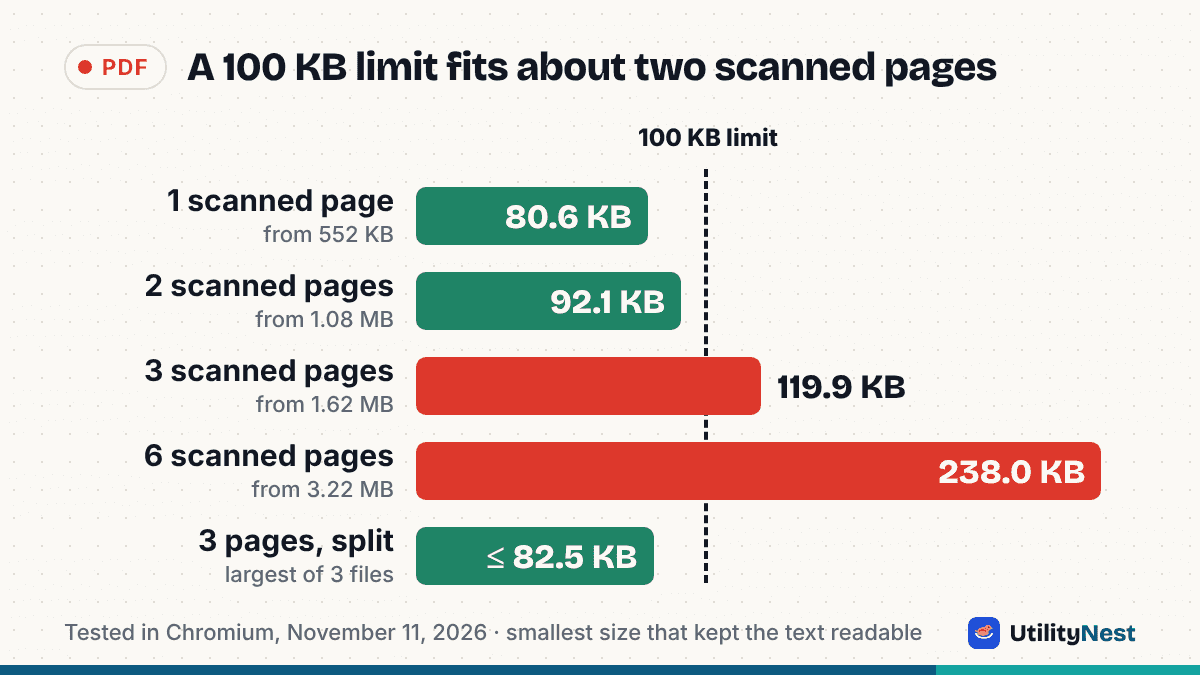
| Scan, 3 pages | 1.62 MB | 119.9 KB | No |
| Scan, 6 pages | 3.22 MB | 238.0 KB | No |
| Same 3 pages, split into 3 files | about 560 KB each | 82.5 KB, 82.5 KB and 79.9 KB | Yes, all three |
| Resume, full font embedded | 1.17 MB | 113.3 KB, and only by turning the text into a picture | No |
| Same resume, font subset | 798 KB | 82.6 KB, text still selectable | Yes |
Reason 1: there are too many scanned pages
A scanned page is one big photo of paper, and there is a floor below which that photo stops being readable. In our tests that floor was about 40 KB per A4 page. The 3-page scan bottomed out at 119.9 KB, which is 40 KB a page, and the 6-page scan at 238.0 KB. Under that, small print and signatures turn to mush, and a document nobody can read gets rejected anyway. Our tool refuses to go below 72 dpi for that reason.
So the math is simple: a 100 KB limit fits about two scanned pages, and the second page only fits at the bottom of the quality range. Our 2-page test made it at 92.1 KB, but only by redrawing both pages as 72 dpi images.
If your document has more pages than that, the compressor isn't failing. The file is too big for the rule. These work instead:
- Split it. Many application forms let you upload more than one file, or have separate slots for each certificate. Split into single pages with Split PDF, then compress each one. Our 3-page scan went from "impossible" to three files of about 80 KB each, and each page kept more detail than in the squeezed single file.
- Upload only the pages they asked for. A transcript with a blank back page, a cover letter page or a duplicate is weight you don't need.
- Rescan smaller. If you are scanning again anyway, 150 dpi in grayscale is plenty for text and starts much smaller than a 300 dpi color scan.
Reason 2: "Black and white" didn't help as much as expected
Turning a scan grayscale is usually the first tip people give, and it does help with color photos, ID cards with patterned backgrounds and anything with colored stamps across the page. On our certificate it saved almost nothing: the 3-page result went from 122,743 to 122,575 bytes. The paper was already off-white with black text, so there was very little color to remove.
If your scan is mostly black text on white paper, don't expect grayscale to save you. Fewer pages or a lower scan resolution will do much more.
Reason 3: something inside the PDF isn't a picture
This is the one that confuses people most. A two-page resume made on a computer has very little in it: some text and maybe a small photo. It should compress to a few dozen kilobytes. Ours started at 1.17 MB and would not get under 100 KB with its text intact.
The culprit was the font. The app that made the PDF embedded the whole font file, every character in every language the font supports, instead of only the letters the resume uses. That one font was about 400 KB on its own. A compressor can shrink images, but it can't safely rebuild a font, so the only way down was to turn each page into a picture. That did reach 113 KB, but the text could no longer be selected or searched, and it was still over the limit.
The fix is to export the PDF again from the original file, not to compress harder. When we exported the same resume with only the used characters embedded (a "subset" font), it started at 798 KB and compressed to 82.6 KB with the text still real text. In Microsoft Word, Microsoft's instructions for saving as PDF say to choose Minimum size (publishing online) when file size matters more than print quality. Other apps call it something like "smallest file size" or "optimize for web". Then run the new PDF through the compressor.
You can spot this case from the result. If a text document that isn't a scan only fits by "turning pages into images", the weight isn't in the pictures. Go back to the source file.
Reason 4: the site counts a kilobyte differently
"100 KB" can mean 100,000 bytes or 102,400 bytes, depending on who wrote the upload form. A file of 101,000 bytes passes one and fails the other. Your computer's file manager may show it as 98.6 KB or 101 KB, depending on the system. To be safe, aim for under 100,000 bytes. Our tool does that by default, and only allows up to 102,400 if you tell it the site counts 1 KB as 1,024 bytes.
If a file that shows "99 KB" still gets rejected, right-click it and look at the exact size in bytes. And make sure you are uploading the compressed copy. It's easy to pick the original from the same folder when the names are similar.
Things that don't help
- Cropping the margins. Cropping a PDF hides the edges but keeps everything in the file, so the size doesn't drop. We tested this in our guide to cropping PDFs: the cropped file came out a few bytes bigger.
- Zipping it. A scanned PDF is already compressed, so a ZIP saves almost nothing, and most forms that ask for a PDF reject a .zip.
- Taking a screenshot of the PDF. A screenshot is captured at screen resolution, often in PNG, which can end up both bigger and blurrier than a properly compressed page.
- Renaming a JPG to .pdf. The form may accept it, but the reviewer gets a file that won't open.
Before you upload
Open the compressed file and zoom to 100 percent on the smallest text on the page: dates, registration numbers, the small print under a signature. If you can read those, a reviewer can too. If you can't, split the file or drop a page rather than squeezing it further. A file that is 99 KB but unreadable fails the same way as a file that is too big, only later.
Sources
UtilityNest results from tests in Chromium on November 11, 2026, with sample scans at 200 dpi (A4) and a two-page sample resume.